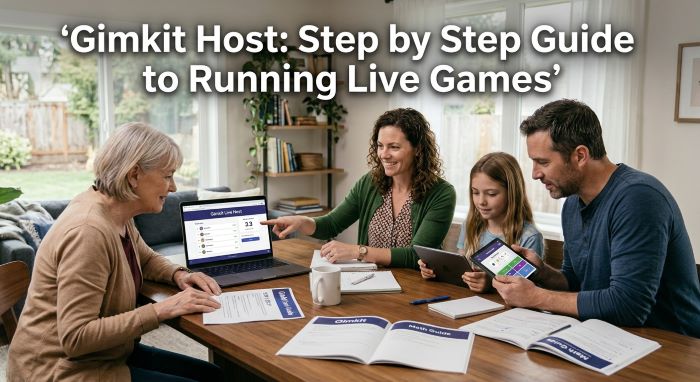
Gimkit Host
Hosting a live game is where Gimkit shines. When a teacher clicks Play Live, a quiet review session can turn into one of the most energetic parts of the school day. But a smooth game takes a little planning. You need the right kit, the right mode, the right settings, and a plan for when things go wrong.
This guide focuses on the host side. It walks through every step of being a Gimkit host, from preparing a kit before class to reading the report afterward. If you’re new to the platform itself, start with our overview of Gimkit, then come back here for the hosting details.
Quick Facts for Hosts
| Detail | Information |
|---|---|
| Who can host | Teachers with an Educator account |
| Where to start | Click Play Live next to a kit on your dashboard |
| How students join | Game code at gimkit.com/join, QR code, or direct link |
| Max players (most live games) | 500 |
| Max players (2D modes) | 60 |
| Max game length | 59 minutes |
| Free plan | Live hosting with a rotating set of about three modes |
| Pro price | $14.99 per month or $59.88 per year |
| Reports | Available after each game and in the Reports tab |
Before Class: Prepare Your Kit
A great live game starts before students walk in.
Choose or Build a Kit
A kit is a set of questions. You can:
- Build your own: Type questions and answers in the editor
- Import: Bring in questions from a spreadsheet or other tools
- Use a public kit: Search kits other teachers have shared
Tip: Aim for 15 to 30 questions. Too few, and students memorize answers quickly. Too many, and they won’t see repeats that help learning stick.
Check Your Questions
Read through every question before class. Fix typos, unclear wording, and wrong answers. A single wrong answer key can frustrate a whole class.
Test Your Tech
- Make sure your projector or display works
- Test the classroom Wi Fi with a few devices
- Have students log in to their devices before the game starts
How to Host a Live Game
Here’s the hosting process, based on Gimkit’s own help center.
Step 1: Select a Kit
On your dashboard, click the green Play Live button next to the kit you want. You can also open a kit and click Play Live in the right side panel.
Step 2: Choose a Game Mode
The Mode Picker shows all available modes. Click Learn More on any mode to read how it works. Click the mode you want, which outlines it in yellow, then click Continue in the upper right.
Step 3: Set Game Options
Options change depending on the mode, but common ones include:
| Option | What It Does |
|---|---|
| Connect a class | Links the game to a saved class roster |
| Nickname Generator | Gives students random, safe names |
| Game goal | Sets how the game ends, such as time or a money target |
| Allow late join | Lets students join after the game starts |
Click Continue when you’re done.
Step 4: Open the Lobby
A lobby opens with your game code. In non 2D modes, you’ll see student names as they join. Remove any inappropriate names before starting. In 2D modes, use the toggle in the lower right to join as a player or spectator.
Step 5: Share the Game Code
Students can join in three ways:
- Join page: Students go to gimkit.com/join and type the code.
- QR code: Hover over the game code on your screen to show a QR code students can scan.
- Direct link: Click the game code to copy a link you can paste into your class page.
Students in a connected class can join instantly from the join page.
Step 6: Start the Game
Click Start Game. In 2D modes, the button sits in the lower center. In other modes, it’s in the upper right.
Gimkit Host Controls During the Game
Once the game starts, a controls panel in the upper right gives you power over the session.
| Control | What It Does |
|---|---|
| Music and SFX | Adjust or mute sound |
| Leaderboard | Show rankings on the main screen |
| Player list | See who’s playing and remove players |
| Spectate | Follow individual players in 2D modes |
| Timer | Click to add one minute, up to 59 minutes total |
| End Game | Stop the game early |
Using the Leaderboard
In classic style modes, the leaderboard keeps energy high. Project it so students can see the race. If some students get discouraged, you can hide it and show it only at key moments.
Adding Time
If a game is going well, click the timer to add a minute. You can’t subtract time, and games max out at 59 minutes, so plan your lesson around that.
Removing Players
If a student uses an inappropriate name or joins twice, you can remove them from the player list. Turning on the Nickname Generator prevents most name problems in the first place.
Player Limits Every Host Should Know
| Situation | Player Limit |
|---|---|
| Most live games | 500 players |
| All 2D modes | 60 players |
| Basic accounts using Pro exclusive modes | 5 players |
| Games hosted from student logins | 5 players |
Real performance also depends on your school network. A large group on weak Wi Fi may see lag even below these limits. If you’re hosting a school wide event, test it first.
Choosing the Right Mode
Each mode creates a different classroom feel. Here’s how to match modes to your goals.
| Goal | Good Mode Types |
|---|---|
| Quick, simple review | Classic, where students earn cash and buy upgrades |
| Teamwork | Team mode, where groups share earnings |
| Deduction and fun | Social deduction style modes like Trust No One |
| Exploration and strategy | 2D modes, where students move around a map |
| Longer review sessions | Modes with goals and events that keep play fresh |
On a free account, you’ll get a rotating set of about three modes. Pro unlocks all modes.
Tip: Start Simple
If your class is new to the game, start with a classic mode. Once students understand the cash and upgrade system, try team and 2D modes.
After the Game: Reading Reports
Reports are one of the most useful tools for a Gimkit host. You can open them right after a game or later from the Reports tab, as long as you own the kit.
There are three main views:
| Report View | What It Shows |
|---|---|
| Student Overview | Each student’s accuracy and activity |
| General Overview | Whole class results |
| Question Breakdown | Which questions students missed most |
You can also save reports as PDFs.
How to Use Report Data
- Find tricky questions. If most students missed a question, reteach that concept.
- Spot students who need help. Low accuracy may signal confusion.
- Don’t over focus on cash. In-game money reflects strategy too, not just knowledge. Look at accuracy instead.
- Track progress over time. Run the same kit later and compare results.
Live Games vs Assignments
| Feature | Live Game | Assignment |
|---|---|---|
| Timing | Whole class plays at once | Students play on their own schedule |
| Best for | Class review, warm ups, celebrations | Homework, absent students, distance learning |
| Plan needed | Free and Pro | Pro only |
Assignments are a Pro feature, so free users rely on live games.
Free vs Pro for Hosts
| Feature | Basic (Free) | Pro |
|---|---|---|
| Host live games | Yes | Yes |
| Game modes | About three rotating modes | All modes |
| Classes and reports | Yes | Yes |
| Assignments | No | Yes |
| Image uploads and audio questions | No | Yes |
| Price | $0 | $14.99 per month or $59.88 per year |
Schools can also buy group plans. According to Gimkit’s help center, a Department plan costs $650 per year for up to 20 teachers, and a School plan costs $1,000 per year for the whole school. New Educator accounts get a 14 day Pro trial, according to recent guides.
Troubleshooting Common Host Problems
| Problem | Possible Fix |
|---|---|
| Students can’t join | Double check the code, refresh the join page, or share the direct link |
| Game is lagging | Reduce players, close other tabs, or check the network |
| A mode only allows 5 players | You’re on Basic using a Pro mode, or hosting from a student login |
| Inappropriate nicknames | Turn on the Nickname Generator and remove players |
| Students joined late and missed out | Turn late join on or off during setup |
| Report missing | Make sure you own the kit and check the Reports tab |
| Sound is too loud | Use the music and SFX controls |
Tip: Your late join setting carries over to future games, so check it each time you host.
Classroom Management Tips
- Set expectations first. Explain rules before the game starts, such as no shouting answers.
- Use short games. Ten to 15 minutes keeps energy high without losing focus.
- Walk the room. Hosting from a laptop or tablet lets you move around and help students.
- Pause for teaching moments. If many students miss a question, stop and explain.
- Celebrate effort. Recognize most improved or most accurate, not just top earners.
- Mix in teams. Teams help struggling students feel supported.
- End with reflection. Ask students what question was hardest and why.
Using a Gimkit Host Setup for Special Events
Live games aren’t just for daily review. Teachers use them for:
- Test prep days: Review big units before exams
- Vocabulary practice: Quick games for world languages or ELA
- School competitions: Grade wide or school wide events
- Parent nights: Let families play together
- Last day before break: A fun, low stress review
For large events, remember the 500 player limit for most modes and the 60 player limit for 2D modes.
Safety and Privacy Tips
- Use the Nickname Generator to avoid inappropriate names
- Connect classes so you know who’s playing
- Don’t share game codes publicly online
- End the game when class is over
A Sample 15 Minute Gimkit Host Plan
| Time | What to Do |
|---|---|
| Minutes 1 to 2 | Share the game code and let students join |
| Minutes 2 to 3 | Explain rules and the game goal |
| Minutes 3 to 12 | Play the game, walking the room to help |
| Minutes 12 to 13 | Show the final leaderboard |
| Minutes 13 to 15 | Review the hardest question as a class |
This simple routine works for warm ups, end of class reviews, and test prep days. Once students know the routine, setup takes less than two minutes. Many teachers say that after a few weeks, students start the joining process on their own as soon as the code appears on screen. That routine is what makes a Gimkit host session feel effortless.
Frequently Asked Questions
How do I become a Gimkit host? Create a free Educator account, pick a kit, and click Play Live.
How many students can play? Up to 500 in most live games and up to 60 in 2D modes.
Can I host for free? Yes. Free accounts can host live games with a rotating set of modes.
How long can a game last? Up to 59 minutes. You can add time one minute at a time, but you can’t subtract it.
Where do I find reports? Right after the game ends, or later in the Reports tab for kits you own.
Final Thoughts
Being a great Gimkit host comes down to preparation and smart settings. Choose a strong kit, pick a mode that fits your goal, turn on the Nickname Generator, and use reports to guide your next lesson. With a little practice, live games can become one of the most effective and fun parts of your teaching routine.
Key Takeaways
- A Gimkit host starts a game by clicking Play Live, choosing a mode, and setting options.
- Students join with a game code at gimkit.com/join, a QR code, or a direct link.
- Most live games allow up to 500 players, while 2D modes allow up to 60.
- Host controls let you manage sound, show the leaderboard, remove players, add time, and end the game.
- Games can last up to 59 minutes, and you can add time but not subtract it.
- Reports show student, class, and question level results and can be saved as PDFs.
- Free accounts get a rotating set of modes, while Pro costs $14.99 per month or $59.88 per year.