ERR_ADDRESS_UNREACHABLE: What It Means and How to Fix It
You type a URL into Chrome, hit Enter, and instead of the page loading you get a blank screen with an error code. The ERR_ADDRESS_UNREACHABLE message is one of the more common Chrome errors, and unlike some browser errors that are vague, this one is actually telling you something specific. The browser tried to connect to an address and could not get there. The route failed before the page had any chance to load.
The good news is that this error almost always comes from something fixable on your end, not from a permanently broken website. This guide walks through every cause and every fix in a logical order so you are not guessing.
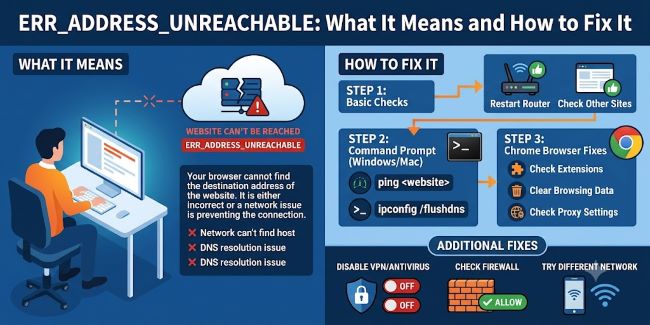
What ERR_ADDRESS_UNREACHABLE Actually Means
When you type a domain name into Chrome, your computer goes through a short sequence: it asks a DNS server to translate that domain into an IP address, then your browser opens a network connection and tries to reach that IP. The ERR_ADDRESS_UNREACHABLE error shows up when that second step fails. The address was found but the actual path to reach it is blocked, missing, or broken.
This is what makes it different from a DNS-specific error. With a DNS failure, Chrome cannot even translate the domain name. With ERR_ADDRESS_UNREACHABLE, DNS often worked fine, but the connection itself could not be made. The browser found where it was supposed to go but could not get there.
Common triggers include:
- A router stuck in a bad state
- Corrupted or outdated browser or DNS cache
- A VPN or proxy interfering with routing
- A Chrome extension blocking the connection
- Your firewall blocking outgoing connections
- The target server being genuinely offline
Fix 1: Restart Your Router
Start here before anything else. Routers can get stuck in error states that disrupt network routing without completely cutting your internet connection. You may have partial connectivity, which is exactly the kind of condition that produces ERR_ADDRESS_UNREACHABLE.
Unplug your router and modem from power. Wait 30 seconds. Plug them back in and wait for the connection to fully re-establish. Then try the site again. This takes two minutes and resolves the error more often than most people expect.
Fix 2: Test on a Different Device or Network
Before doing anything complicated, confirm where the problem actually lives. Open the same URL on your phone using mobile data, not Wi-Fi. If the site loads on mobile, the issue is with your device or home network. If it fails everywhere, the site itself may be down.
You can also open a new tab and try loading a reliable site like google.com. If that fails too, your internet connection is the problem, not a specific site. Restart your router and check again.
Fix 3: Clear the Browser Cache
Browsers store cached data from every site you visit so pages load faster on return visits. When that cached data becomes outdated or corrupted, it can produce connection errors including ERR_ADDRESS_UNREACHABLE. Clearing the cache forces Chrome to fetch fresh data instead of relying on a broken local copy.
In Chrome, press Ctrl + Shift + Delete (Windows) or Cmd + Shift + Delete (Mac). Set the time range to “All time,” check Cached images and files and Cookies and other site data, then click Clear data. Restart Chrome and try the URL again.
Fix 4: Flush the DNS Cache
Your operating system keeps its own DNS cache separate from the browser. If that cache holds an outdated or incorrect IP address for a domain, the connection will fail even if Chrome is working fine. Flushing the DNS cache clears all stored records and forces fresh lookups.
On Windows:
Open Command Prompt as administrator. Run these commands in order, pressing Enter after each:
ipconfig /release
ipconfig /flushdns
ipconfig /renew
On Mac:
Open Terminal and run:
sudo dscacheutil -flushcache; sudo killall -HUP mDNSResponderAfter flushing, try the site again. This fix resolves ERR_ADDRESS_UNREACHABLE errors that are caused by stale DNS records pointing to the wrong IP.
Fix 5: Disable Chrome Extensions
Extensions can block connections in ways that produce this error, especially ad blockers, privacy tools, VPN extensions, and security scanners. To test whether an extension is responsible, open Chrome in Incognito mode by pressing Ctrl + Shift + N. Incognito disables extensions by default.
If the site loads in Incognito but not in a normal window, a Chrome extension is causing the ERR_ADDRESS_UNREACHABLE error. Go to chrome://extensions and disable all extensions. Re-enable them one at a time, testing the URL after each, until you find the one causing the conflict. Then update or remove it.
Fix 6: Check Your VPN or Proxy Settings
VPNs and proxy servers reroute your network traffic, and when they malfunction or route incorrectly they can block access to specific sites or entire address ranges. If you have a VPN running, disconnect it and try the URL again without it.
If you do not use a VPN but Chrome has proxy settings enabled, those can also cause ERR_ADDRESS_UNREACHABLE. To check proxy settings in Chrome:
Go to Settings > System > Open your computer's proxy settings. On Windows, this opens the Network proxy settings panel. Make sure “Use a proxy server” is toggled off unless you intentionally configured one. Disable any proxy settings that were not set by you and retry the connection.
Fix 7: Change Your DNS Server
Your internet service provider assigns a DNS server by default. That server can go down, run slowly, or return bad results for specific domains. Switching to a public DNS server like Google’s (8.8.8.8 and 8.8.4.4) or Cloudflare’s (1.1.1.1 and 1.0.0.1) often resolves ERR_ADDRESS_UNREACHABLE when the ISP’s DNS is the problem.
On Windows:
Press Win + R, type ncpa.cpl, and press Enter. Right-click your active network connection and select Properties. Double-click “Internet Protocol Version 4 (TCP/IPv4).” Select “Use the following DNS server addresses” and enter:
- Preferred DNS: 8.8.8.8
- Alternate DNS: 8.8.4.4
Click OK, close the window, and test the connection.
On Mac:
Go to System Settings > Network > your active connection > DNS. Click the + button and add 8.8.8.8 and 8.8.4.4. Apply and test.
Fix 8: Reset Chrome Flags and Network Settings
If none of the above fixes the ERR_ADDRESS_UNREACHABLE error, Chrome’s internal settings or experimental flags may have a bad configuration. Go to chrome://flags and click “Reset all” at the top of the page. Restart Chrome.
For a deeper network reset on Windows, open Command Prompt as administrator and run:
netsh winsock reset
netsh int ip reset
Restart your computer after running these commands. This resets the Windows network stack to its default state and clears any configuration that could be blocking connections.
ERR_ADDRESS_UNREACHABLE on Local IP Addresses
If you are seeing this error when trying to reach a local IP address like 192.168.1.1 or a development server at localhost, the causes are different from public website errors.
For local IPs: confirm the target device is powered on and connected to the same network as your computer. Check that the IP address you are entering is correct. If you recently changed your router or network setup, local device IPs may have changed.
For localhost development servers: confirm the server is actually running. Check that you are using the correct port. If you recently changed firewall settings, make sure the port your development server uses is not being blocked.
Key Takeaways
- ERR_ADDRESS_UNREACHABLE means Chrome found the address but could not establish a connection to it. The network path is blocked, missing, or broken rather than the DNS lookup failing.
- Start with the simplest fix: restart your router, wait 30 seconds, and try again. This resolves the error more often than most people expect.
- Test the URL on a different device or network to confirm whether the issue is on your machine or with the site itself.
- Clear Chrome’s browser cache using
Ctrl + Shift + Deleteand set the time range to All time. Outdated or corrupted cache data is one of the most common triggers. - Flush your operating system’s DNS cache using
ipconfig /flushdnson Windows orsudo dscacheutil -flushcacheon Mac to remove stale address records. - Open Chrome in Incognito mode to test whether a browser extension is causing the ERR_ADDRESS_UNREACHABLE error. If the site loads in Incognito, disable extensions one by one to find the culprit.
- Disconnect any active VPN and disable proxy settings in Chrome if you did not configure them yourself. Both can intercept and block connections.
- Switch your DNS server to Google’s public DNS (8.8.8.8 and 8.8.4.4) or Cloudflare’s (1.1.1.1) if your ISP’s DNS server is returning bad results.
- For ERR_ADDRESS_UNREACHABLE on local IP addresses, confirm the target device is on, connected to the same network, and that the IP address has not changed.
- If all else fails, reset Chrome flags at
chrome://flagsand runnetsh winsock resetin an administrator Command Prompt to restore default Windows network settings.