How to Fix Slow Startup Windows: 15 Ways to Speed Up Boot Time on Windows 10 and 11
You press the power button and wait. The logo appears. The dots spin. A minute passes, then two. By the time the desktop is ready, your coffee is cold. A slow boot is one of the most common complaints about Windows computers, and it tends to get worse over time. The good news is that you can usually solve it yourself. This guide explains how to fix slow startup Windows issues with 15 practical steps, from quick settings changes to hardware upgrades.
The steps apply to Windows 11 and Windows 10. Start at the top. The first few fixes solve the problem for most people.
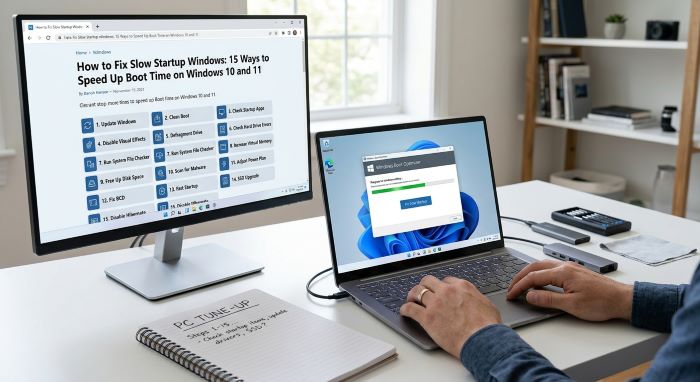
Why Is Windows Slow to Start?
Several things can drag out a boot.
- Too many programs set to launch at startup
- A slow hard disk drive
- A nearly full system drive
- Outdated or faulty drivers
- Pending or failed Windows updates
- Malware or unwanted software
- Corrupted system files
- Too little memory
- Problems with the Fast Startup feature
- Firmware settings that add delays
- Aging hardware
Measure Your Boot Time First
It helps to know your starting point.
- Press Ctrl + Shift + Esc to open Task Manager.
- Select Startup apps. In Windows 10, select the Startup tab.
- Look at Last BIOS time in the top right corner.
That figure shows how long the firmware takes before Windows begins to load. A few seconds is normal. A much higher number points to firmware or hardware delays. Use a stopwatch to time the full boot from power button to usable desktop, and note the result.
Quick Reference: Fixes at a Glance
| Fix | Difficulty | Typical Impact |
|---|---|---|
| Disable startup apps | Easy | High |
| Restart and install updates | Easy | Medium |
| Toggle Fast Startup | Easy | Medium to high |
| Scan for malware | Easy | Medium to high |
| Free up disk space | Easy | Medium |
| Update drivers | Easy to moderate | Medium |
| Repair system files | Moderate | Medium |
| Clean boot | Moderate | High, for finding the cause |
| Adjust firmware settings | Moderate | Low to medium |
| Upgrade to an SSD | Moderate | Very high |
| Add memory | Moderate | Medium to high |
| Reset Windows | Moderate | High |
1. Disable Startup Apps
This is the first thing to try for anyone learning how to fix slow startup Windows problems. Many programs add themselves to the startup list when you install them. Each one adds seconds.
In Task Manager:
- Press Ctrl + Shift + Esc.
- Open Startup apps.
- Look at the Startup impact column.
- Right-click any app you do not need at boot and choose Disable.
In Settings:
- Open Settings, then Apps, then Startup.
- Turn off the switch for each app you do not need.
Good candidates to disable include chat apps, game launchers, music players, cloud tools you rarely use, and updaters. Leave your antivirus, touchpad and audio drivers, and anything you do not recognize until you look it up. Disabling an app here does not uninstall it. You can still open it whenever you like.
2. Restart and Install Updates
Windows may be slow because updates are waiting to finish.
- Open Settings, then Windows Update.
- Select Check for updates and install what is offered.
- Restart the computer, using Restart, not Shut down.
A restart clears memory and completes update tasks. With Fast Startup turned on, a shutdown does not fully reset the system, so a restart is more thorough.
3. Turn Fast Startup Off or On
Fast Startup saves part of the system state to disk at shutdown, so the next boot is quicker. It usually helps. On some computers, it causes slow or stuck boots, mainly after updates or with certain drivers.
- Open Control Panel.
- Go to Hardware and Sound, then Power Options.
- Select Choose what the power buttons do.
- Select Change settings that are currently unavailable.
- Check or uncheck Turn on fast startup.
- Select Save changes.
If it is on, turn it off and test a few boots. If it is off, turn it on and test. Keep the setting that gives the better result.
4. Scan for Malware
Malicious and unwanted software often loads at startup.
- Open Windows Security.
- Select Virus and threat protection.
- Select Scan options.
- Choose Full scan and run it.
- For a deeper check, run Microsoft Defender Antivirus (offline scan), which restarts the PC and scans before Windows loads.
Also review your installed apps and browser extensions. Remove anything you do not remember adding.
5. Free Up Disk Space
Windows needs room on the system drive. Aim to keep at least 15 to 20 percent free.
- Open Settings, then System, then Storage.
- Turn on Storage Sense to remove temporary files automatically.
- Select Temporary files and delete what you do not need.
- Open Cleanup recommendations to find large and unused files.
- Uninstall programs you no longer use in Settings under Apps.
Move photos, videos, and other large files to an external drive or cloud storage.
6. Update Your Drivers
Outdated storage, chipset, and graphics drivers can slow the boot.
- Check Windows Update, then Advanced options, then Optional updates for driver updates.
- Visit your PC maker’s support site, or use its update app, for the latest chipset, storage, and firmware.
- Get graphics drivers from the maker of your graphics card.
Avoid third-party “driver updater” programs. Many install unwanted software.
7. Repair System Files
Corrupted system files can cause long boots.
- Right-click Start and choose Terminal (Admin) or Command Prompt (Admin).
- Type
sfc /scannowand press Enter. Wait for it to finish. - Then type
DISM /Online /Cleanup-Image /RestoreHealthand press Enter. - Restart the computer.
8. Check Your Drive
A failing drive slows everything.
- Open File Explorer and right-click the C: drive.
- Select Properties, then Tools.
- Under Error checking, select Check.
For a hard disk drive, also select Optimize under the Tools tab to defragment it. Windows does this on a schedule by default. Do not defragment a solid state drive. Windows handles those with a different process.
If you hear clicking sounds or see frequent errors, back up your files at once and plan to replace the drive.
9. Do a Clean Boot to Find the Culprit
A clean boot starts Windows with only Microsoft services. It helps you find a program or service that slows startup.
- Press Windows + R, type
msconfig, and press Enter. - Open the Services tab.
- Check Hide all Microsoft services.
- Select Disable all.
- Open the Startup tab and select Open Task Manager. Disable all startup items.
- Restart.
If the boot is now fast, turn services back on a few at a time and restart until the slow boot returns. The last group you enabled contains the cause. When you finish, return to normal startup.
10. Adjust Firmware Settings
If Last BIOS time is high, look at the firmware, often called BIOS or UEFI.
- Restart and press the setup key shown on screen. It is often F2, F10, Delete, or Esc.
- Put your Windows drive first in the boot order.
- Turn on Fast Boot, if offered.
- Turn off boot from network if you do not use it.
- Save and exit.
Unplug USB drives, external disks, and other devices you do not need at startup. The firmware may wait for each one. Update the firmware from your PC maker’s site if a newer version is available, and follow the instructions with care.
11. Upgrade to a Solid State Drive
If Windows is installed on a spinning hard disk drive, moving to a solid state drive is the single biggest improvement you can make. Boot times often drop from minutes to well under 30 seconds.
To check what you have:
- Open Task Manager and select Performance.
- Select Disk 0. The type appears in the top right, as SSD or HDD.
You can clone your existing drive to a new SSD with free tools from many drive makers, or install Windows fresh. If you are not comfortable opening your computer, a repair shop can do it at modest cost.
12. Add More Memory
With 4 GB of memory or less, Windows relies heavily on the disk, which slows startup. Windows 11 lists 4 GB as its minimum, but 8 GB is a practical floor for smooth use, and 16 GB suits heavier work. Check your amount in Settings under System, then About. Many laptops and most desktops let you add memory.
13. Reduce Visual Effects and Background Apps
These changes help most on older hardware.
- Search for Adjust the appearance and performance of Windows and choose Adjust for best performance, or turn off individual animations.
- In Settings under Apps, Installed apps, open the advanced options for apps you rarely use and set background permissions to Never.
- Set your power mode to Balanced or Best performance in Settings under System, Power and battery.
14. Check the Event Log
Windows records boot performance.
- Right-click Start and open Event Viewer.
- Go to Applications and Services Logs, Microsoft, Windows, Diagnostics-Performance, Operational.
- Look for Event ID 100, which records boot time, and nearby warnings that name slow apps, drivers, or services.
These entries can point straight to the program at fault.
15. Reset or Reinstall Windows
If nothing else works, a fresh start clears years of buildup.
- Back up your files.
- Open Settings, then System, then Recovery.
- Select Reset PC.
- Choose Keep my files to remove apps and settings but keep personal files, or Remove everything for a full clean.
You will need to reinstall your programs afterward.
A Note on Windows 10
Microsoft ended standard support for Windows 10 in October 2025. Computers that still run it no longer receive regular security updates unless they are enrolled in an extended program. If your PC meets the requirements, upgrading to Windows 11 is the safer path. If it does not, the steps in this guide still apply, but plan for a replacement or an alternative.
When the Problem Is Hardware
Software fixes have limits. Consider repair or replacement if:
- The PC is more than seven or eight years old and uses a hard disk drive
- The drive reports errors or makes unusual noises
- The computer overheats or shuts off
- Memory tests fail
- Startup is slow even after a clean reset
Habits That Keep Startup Fast
- Review startup apps every few months.
- Decline extra toolbars and bundled programs during installs.
- Keep Windows and drivers up to date.
- Restart at least once a week.
- Keep free space on the system drive.
- Use sleep for short breaks, so you do not need a full boot each time.
- Run a security scan monthly.
A 10-Minute Plan for a Faster Boot
Short on time? This quick plan covers the essentials of how to fix slow startup Windows problems.
- Open Task Manager and disable every startup app you do not need.
- Open Settings, go to Windows Update, and install anything that is waiting.
- Unplug USB drives and other devices you are not using.
- Select Restart, not Shut down.
- Time the next boot and compare it with your first measurement.
If the boot is still slow, move on to the Fast Startup setting, a malware scan, and the system file repair commands. Save the clean boot, firmware changes, and hardware upgrades for last.
Laptops vs. Desktops
The advice on how to fix slow startup Windows issues applies to both, with a few differences.
- Laptops often ship with extra software from the maker. Uninstall trial programs and tools you never use. Check that the power mode is not set to the most restrictive battery saver while you test.
- Desktops tend to have more connected devices, such as extra drives, hubs, and printers. Each can add to the firmware delay. Desktops are also easier to upgrade with an SSD or more memory.
What Results to Expect
Disabling startup apps often saves 10 to 30 seconds on a cluttered PC. Fixing a Fast Startup or driver problem can save a minute or more. An SSD upgrade can cut boot time by more than half. If you follow this guide on how to fix slow startup Windows delays and see no change at all, the cause is likely failing hardware.
Frequently Asked Questions
How long should Windows take to start? With an SSD, 10 to 30 seconds is typical. With a hard disk drive, 45 seconds to two minutes is common.
Is it safe to disable startup apps? Yes. The apps still work when you open them. Leave security software enabled.
Should Fast Startup be on or off? On for most PCs. Turn it off if you see slow or stuck boots, or if you dual boot.
Will more memory speed up startup? It helps if you have 4 GB or less. Beyond 8 GB, an SSD matters more.
Does antivirus slow startup? A little. Running two antivirus programs at once slows it a lot. Use one.
Why is my PC slow after an update? Windows may be finishing tasks in the background. Give it one or two restarts.
What is the quickest way to learn how to fix slow startup Windows 11 issues? Disable unneeded startup apps in Task Manager, then restart.
Do registry cleaners help? No. Microsoft does not recommend them, and they can cause harm.
Is a black screen with spinning dots normal? For a few seconds, yes. If it lasts minutes, check drivers, Fast Startup, and connected devices.
Final Thoughts
You now know how to fix slow startup Windows problems step by step. Begin with the easy wins: turn off startup apps you do not need, install updates, restart, and test the Fast Startup setting. Scan for malware and clear disk space. If the boot is still slow, repair system files, update drivers, and use a clean boot to find the cause.
When the computer still runs on a hard disk drive, an SSD upgrade gives the largest gain of all. With a little upkeep every few months, you will not need to look up how to fix slow startup Windows issues again, and your PC will be ready when you are.
Key Takeaways
- The first step in how to fix slow startup Windows problems is to disable unneeded startup apps in Task Manager or Settings.
- Install pending updates and use Restart, which clears more than a shutdown when Fast Startup is on.
- Toggle Fast Startup and keep the setting that boots faster on your PC.
- Run a full malware scan and keep 15 to 20 percent of the system drive free.
- Repair system files with sfc and DISM, and update storage and chipset drivers.
- A clean boot and Event Viewer help you find the program or driver that causes the delay.
- Moving Windows from a hard disk drive to an SSD gives the biggest improvement in boot time.