Best Linux Distros for Beginners: 10 Easy Picks for 2026 and How to Choose
Linux has never been easier to try. Modern versions install in minutes, detect most hardware on their own, and come with an app store, a web browser, and an office suite. Interest has also grown since Microsoft ended standard support for Windows 10 in October 2025, which left many working computers unable to upgrade. If you are curious, the first question is which version to pick. There are hundreds. This guide narrows the field to the best Linux distros for beginners in 2026.
You will find ten picks with their strengths and weak points, a comparison table, advice on how to choose, and a simple plan for trying Linux without risk to your current system.
What Is a Linux Distro?
Linux itself is a kernel, the core of an operating system. A distribution, or distro, bundles that kernel with a desktop, apps, drivers, and tools into a complete system you can install.
Distros differ in a few main ways.
- Desktop environment. This is the look and feel: the menus, panels, and windows. Common ones are GNOME, KDE Plasma, Cinnamon, and Xfce.
- Base. Many distros build on another. Ubuntu builds on Debian. Linux Mint and Zorin OS build on Ubuntu.
- Release model. Fixed releases change little between versions and favor stability. Rolling releases update all the time and offer the newest software.
- Package manager. This is the system that installs and updates software.
What Makes a Distro Good for Beginners?
The best Linux distros for beginners tend to share these traits.
- A simple installer
- A familiar desktop layout
- Good hardware support out of the box
- A graphical app store
- Stable, well-tested updates
- A large community with guides and forums
- Long support periods, so you do not need to reinstall often
Quick Comparison
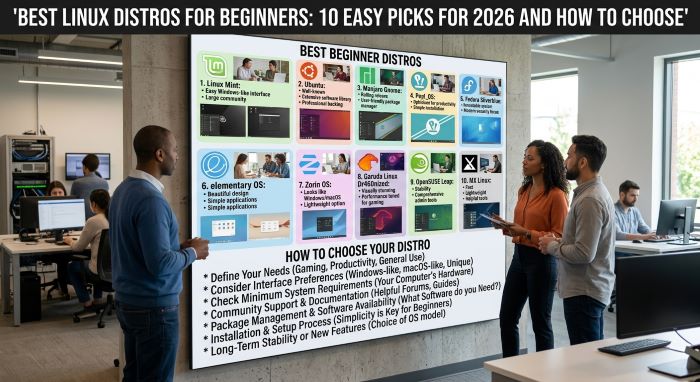
This table sums up the best Linux distros for beginners covered in this guide.
| Distro | Based On | Default Desktop | Best For | Minimum Memory |
|---|---|---|---|---|
| Linux Mint | Ubuntu LTS | Cinnamon | Most new users, mainly those from Windows | 2 GB, 4 GB recommended |
| Ubuntu | Debian | GNOME | Wide support and tutorials | 4 GB |
| Zorin OS | Ubuntu | Customized GNOME | A polished Windows-like or Mac-like look | 2 GB, 4 GB recommended |
| Fedora Workstation | Independent | GNOME | Newer hardware and up-to-date software | 4 GB |
| Pop!_OS | Ubuntu | COSMIC | Laptops, creators, and NVIDIA graphics | 4 GB |
| elementary OS | Ubuntu | Pantheon | Fans of the macOS style | 4 GB |
| MX Linux | Debian | Xfce | Older computers | 1 to 2 GB |
| Linux Lite | Ubuntu LTS | Xfce | Very simple setup on modest hardware | 1 to 2 GB |
| Manjaro | Arch | KDE Plasma, Xfce, or GNOME | Curious users who want newer software | 4 GB |
| Bazzite | Fedora Atomic | KDE Plasma or GNOME | Gaming PCs and handhelds | 8 GB |
Version numbers and requirements change, so check each project’s website before you download.
The 10 Best Picks
1. Linux Mint
Linux Mint is the most common first recommendation, and for good reason. Its Cinnamon desktop has a start menu, a taskbar, and a system tray in the places a Windows user expects. Almost everything works after installation, including media playback.
Why it is good for beginners:
- Familiar layout with very little to learn
- A clear Update Manager that explains each update
- Timeshift snapshots, which let you roll back if something breaks
- A Driver Manager for graphics and Wi-Fi drivers
- Long-term support based on Ubuntu LTS releases
Keep in mind: It does not chase the newest features. The look is plain compared with some rivals.
Editions: Cinnamon for most computers, and MATE or Xfce for older ones. The 22 series was current in 2026.
2. Ubuntu
Ubuntu is the best-known Linux distro in the world. If you search for a Linux problem, the top answer is often written for Ubuntu. Its GNOME desktop is clean and modern, with a dock on the side and a full-screen app overview.
Why it is good for beginners:
- A huge community and endless tutorials
- Strong support from hardware makers and software vendors
- Long-term support releases every two years, each supported for at least five years
- An easy installer
Keep in mind: The GNOME layout is unlike Windows, so it takes a few days to get used to. Ubuntu relies heavily on its own Snap package format, which some users find slower to start.
Version to choose: Pick the latest LTS release. In 2026, that is Ubuntu 26.04 LTS.
3. Zorin OS
Zorin OS is built for people leaving Windows or macOS. It may be the best-looking system on this list. A tool called Zorin Appearance changes the whole desktop layout with one click, to match Windows, macOS, or others.
Why it is good for beginners:
- A polished, familiar interface
- Built-in help for running some Windows apps
- A Lite edition for older computers
- Strong hardware support from its Ubuntu base
Keep in mind: The free Core edition is all most people need. A paid Pro edition adds extra layouts and bundled apps and helps fund the project. New versions arrive less often than with other distros.
4. Fedora Workstation
Fedora offers a clean, unmodified GNOME desktop and newer software than Ubuntu-based systems. It is sponsored by Red Hat and often introduces new Linux technology first.
Why it is good for beginners:
- Excellent support for recent hardware
- A polished, consistent desktop
- A new release about every six months
- Strong security defaults
Keep in mind: Each release is supported for about 13 months, so you need to upgrade roughly once a year. Some media codecs and the NVIDIA driver need a few extra steps. It suits beginners who are comfortable following a short guide.
5. Pop!_OS
Pop!_OS comes from System76, a company that sells Linux computers. It is known for its smooth laptop experience and for a download that includes NVIDIA drivers. Its newer COSMIC desktop, written by System76, includes built-in window tiling.
Why it is good for beginners:
- A separate download for NVIDIA graphics that works from the first boot
- Good power management on laptops
- Automatic tiling for people who work with many windows
- A clean, focused design
Keep in mind: COSMIC is newer than other desktops, so expect steady change.
6. elementary OS
elementary OS has a strong focus on design. Its Pantheon desktop has a dock and a top panel and will feel familiar to Mac users. The apps share a clean, consistent style.
Why it is good for beginners:
- Simple and uncluttered
- A curated AppCenter
- Sensible privacy settings
Keep in mind: It offers fewer ways to customize than most. The website asks for a payment on download, though you can enter zero.
7. MX Linux
MX Linux is a favorite for older and slower computers. It is based on Debian’s stable branch and uses the light Xfce desktop by default. It also ships with MX Tools, a set of handy utilities.
Why it is good for beginners:
- Runs well on modest hardware
- Very stable
- Tools for backups, drivers, boot repair, and making a live USB drive of your own system
Keep in mind: The look is more traditional, and the software is older than on Fedora or Manjaro.
8. Linux Lite
Linux Lite is made for people moving from Windows on older hardware. It uses the Xfce desktop with a Windows-style layout and includes a welcome screen and a help manual.
Why it is good for beginners:
- Light on resources
- Simple tools for common tasks
- Based on Ubuntu LTS, so most Ubuntu guides apply
Keep in mind: It has a smaller team and community than the bigger names.
9. Manjaro
Manjaro is based on Arch Linux, which is known for being powerful but demanding. Manjaro adds a graphical installer, hardware detection, and tested updates. It gives you access to very recent software and to the Arch User Repository, a vast collection of community packages.
Why it is good for beginners:
- A rolling release, so there are no big upgrades
- Easy driver setup
- A choice of official desktops
Keep in mind: Rolling releases break a little more often than fixed ones. It is best for beginners who enjoy learning how things work.
10. Bazzite
Bazzite is aimed at gamers. It is built on Fedora’s atomic desktops, where the core system is read-only and updates apply as a whole image. It comes with Steam, drivers, and gaming tools set up, and it works on desktop PCs and handheld gaming devices.
Why it is good for beginners:
- Gaming works with almost no setup
- Updates are very hard to break, and you can roll back to the previous image
- A console-style mode for the living room
Keep in mind: Its design differs from traditional distros, so some online guides do not apply. Games that use certain kernel-level anti-cheat systems still do not run on Linux.
Which One Should You Choose?
| If You Want | Choose |
|---|---|
| The easiest move from Windows | Linux Mint or Zorin OS |
| A Mac-like look | elementary OS or Zorin OS |
| The most tutorials and support | Ubuntu |
| The newest features on a new laptop | Fedora Workstation |
| NVIDIA graphics with no fuss | Pop!_OS or Bazzite |
| Gaming above all | Bazzite |
| New life for an old computer | MX Linux, Linux Lite, or Linux Mint Xfce |
| To learn and tinker | Manjaro or Fedora |
If you cannot decide, install Linux Mint. It is the safest first choice among the best Linux distros for beginners, and you can try others later.
How to Try Linux Without Risk
All of the best Linux distros for beginners can be tested before you commit. You do not need to erase your computer to test Linux.
- Try it in a browser. The DistroSea website lets you run many distros online for a quick look.
- Use a live USB drive. Download the ISO file from the distro’s official website. Write it to a USB drive of 8 GB or more with a tool such as balenaEtcher, Rufus, or Ventoy. Restart, open the boot menu, and choose the USB drive. The system runs from the drive and leaves your disk untouched.
- Use a virtual machine. Install VirtualBox or a similar program and run Linux in a window inside your current system.
- Dual boot. Install Linux next to Windows and choose between them at startup.
- Install on a spare computer. An old laptop is perfect for learning.
Before you install on a real disk, back up your files to an external drive or cloud storage.
Basic Installation Steps
- Download the ISO file from the official website and verify it if the site gives a checksum.
- Create a bootable USB drive.
- Boot from the USB drive. You may need to press a key such as F12, F2, Esc, or Delete at startup.
- Test the live session. Check Wi-Fi, sound, the display, the touchpad, and Bluetooth.
- Start the installer from the desktop icon.
- Choose your language, keyboard, and time zone.
- Choose how to install: next to your existing system, or by erasing the disk.
- Create your username and password.
- Wait for the installation to finish, then restart and remove the USB drive.
- Run the update tool and install any drivers that are offered.
Software You Can Use
| Task | Common Linux Options |
|---|---|
| Web browsing | Firefox, Chrome, Brave, Edge |
| Office work | LibreOffice, OnlyOffice, Google Docs, and Microsoft 365 on the web |
| Thunderbird | |
| Photo editing | GIMP, Krita, darktable |
| Video editing | Kdenlive, DaVinci Resolve |
| Music and video | VLC, Spotify |
| Chat and meetings | Discord, Slack, Zoom, Teams on the web |
| Gaming | Steam with Proton, Heroic Games Launcher, Lutris |
| Coding | Visual Studio Code and most developer tools |
Some programs have no native Linux version. Adobe Creative Cloud and the desktop version of Microsoft Office are the best-known examples. Check the apps you depend on before you switch.
Common Beginner Mistakes
Even with the best Linux distros for beginners, new users tend to make the same few errors.
- Distro hopping too soon. Give one system a few weeks before you switch.
- Copying commands you do not understand. Read what a command does before you run it, mainly if it starts with “sudo.”
- Downloading software from random websites. Use the app store or the package manager first.
- Skipping backups.
- Expecting Windows. Linux does some things in a different way. That is normal.
- Ignoring the live session test. Five minutes of testing can save hours later.
Frequently Asked Questions
What are the best Linux distros for beginners in 2026? Linux Mint, Ubuntu, and Zorin OS are the top three for most people.
Is Linux free? Yes. Nearly all distros are free to download and use. A few, such as Zorin OS Pro, sell optional paid editions.
Can Linux run Windows programs? Some, through tools such as Wine, Bottles, and Proton. Many popular apps also have Linux or web versions.
Is Linux safe? It has a strong security record. Keep it updated, and install software from trusted sources.
Do I need to use the terminal? Not for daily tasks on beginner-friendly distros. It is useful to learn over time.
Will Linux run on my old computer? Very likely. Light distros such as MX Linux and Linux Lite run well on older machines.
Can I play games on Linux? Yes. A large share of the Steam library runs through Proton. Some games with kernel-level anti-cheat do not.
Can I go back to Windows? Yes. Keep a backup and a Windows installation USB drive, or use a dual-boot setup.
Which desktop environment is easiest? Cinnamon and KDE Plasma feel closest to Windows. GNOME is simple but different.
Final Thoughts
The best Linux distros for beginners share a few traits: an easy installer, a friendly desktop, good hardware support, and a helpful community. Linux Mint leads the list for most people. Ubuntu offers the widest support. Zorin OS gives the smoothest look for those leaving Windows or macOS. Fedora, Pop!_OS, and the others serve more specific needs.
The best way to choose is to try. Write one or two of them to a USB drive, boot the live session, and see which feels right on your own computer. It costs nothing, it takes an hour, and it may give an old machine years of extra life.
Key Takeaways
- The best Linux distros for beginners in 2026 include Linux Mint, Ubuntu, Zorin OS, Fedora Workstation, and Pop!_OS.
- Linux Mint is the safest first choice for most users, mainly those coming from Windows.
- Ubuntu has the largest community and the most tutorials, and Zorin OS has the most polished Windows-like look.
- MX Linux, Linux Lite, and the Xfce edition of Linux Mint suit older computers.
- Bazzite and Pop!_OS are strong choices for gaming and NVIDIA graphics.
- Test any distro from a live USB drive or a virtual machine before you install it.
- Back up your files first, and check that the apps you need run on Linux