How to Turn Off Vanish Mode on Instagram: A Simple Step-by-Step Guide
You are scrolling through a chat, your finger brushes the screen, and suddenly the background goes dark and your messages start disappearing. If that sounds familiar, you have stumbled into vanish mode, and you are not alone. It is one of the most common Instagram DM headaches. The good news is that fixing it takes about two seconds once you know the trick. This guide explains how to turn off vanish mode on Instagram, why it keeps switching on, and how to stop it from happening again.
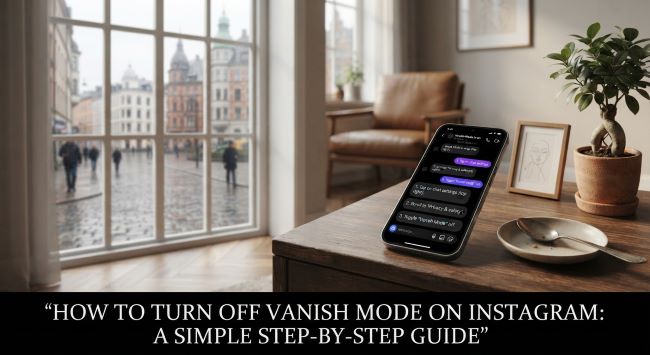
What vanish mode actually is
Before the fix, a quick explanation helps. Vanish mode is a feature in Instagram direct messages that makes new messages disappear after the other person sees them and leaves the chat. It was built for quick, private conversations you do not want to keep on record. When it is on, the chat has a dark background and a note reading “You’re in Vanish Mode.”
The problem is that many people turn it on by accident, because the same swipe-up gesture that scrolls a chat can also trigger it. That is why so many users search for how to turn off vanish mode on Instagram after it appears out of nowhere. Once you know the gesture, though, turning it off is just as easy as turning it on.
The quick fix: swipe up
The main method to disable it is a single gesture. Here is exactly how to turn off vanish mode on Instagram using the swipe:
- Open the Instagram app and make sure you are logged into the right account.
- Tap the messages icon in the top right corner of your home feed to open your DMs.
- Find and open the chat with the dark background, which means vanish mode is active.
- Place your finger near the bottom of the chat window and swipe up.
- Hold for a moment until you see the words “Release to turn off vanish mode.”
- Lift your finger to confirm.
That is it. The dark background switches back to normal, and Instagram posts a small note letting both people know vanish mode is off. Your future messages will stay in the chat like a regular conversation. This swipe works the same way on both iPhone and Android, which is why it is the go-to answer for how to turn off vanish mode on Instagram.
The alternative: use chat settings
If the swipe does not seem to work, some app versions offer a second route through the chat settings. To try this method for how to turn off vanish mode on Instagram:
- Open the chat that is in vanish mode.
- Tap the chat name or the info icon at the top of the screen.
- Look for a vanish mode toggle and switch it off.
Not every version of the app shows this toggle, since Instagram rolls features out gradually, but it is worth checking if the gesture is giving you trouble.
Vanish mode versus disappearing messages
People often mix these up, so it is worth being clear. Vanish mode and disappearing messages are not the same thing. Knowing how to turn off vanish mode on Instagram is different from managing timed messages.
Vanish mode is a real-time state where messages vanish the moment both people view them and close the chat. Disappearing messages, by contrast, use a timer before they auto-delete and are toggled through settings rather than a swipe. Unsending a message is different again, since that is something you do manually to one message at a time. If your messages vanish instantly after being read, vanish mode is the culprit.
Troubleshooting when it will not turn off
Occasionally the swipe gesture fails to register. If you are stuck, run through these steps to sort out how to turn off vanish mode on Instagram:
- Close the app completely and reopen it, then try the swipe again.
- Update Instagram to the latest version, since newer builds have refined the gesture and fixed bugs.
- Log out of your account and log back in.
- On Android, clear the app cache through your phone’s settings.
- As a last resort, uninstall the app, wait a few minutes, then reinstall it.
One of these almost always does the trick. If you are still stuck after all of them, contacting Instagram support is the final option.
How to stop it turning on by accident
Prevention beats repair. Since the feature activates from an upward swipe, a few habits keep it from surprising you again:
- Swipe carefully when scrolling near the bottom of a chat, and avoid dragging up from the very bottom edge.
- Keep the app updated, since Instagram has adjusted the gesture sensitivity over time.
- Be mindful of fast, sloppy scrolling in DMs, which is the most common trigger.
Build those small habits and you will rarely need to look up how to turn off vanish mode on Instagram again.
The bottom line
Vanish mode is handy for private, throwaway chats, but it is a nuisance when it switches on by mistake. The fix is refreshingly simple: open the dark chat, swipe up from the bottom, and release when prompted. If that fails, check the chat settings toggle or run through the quick troubleshooting steps. Now that you know how to turn off vanish mode on Instagram, an accidental activation is nothing more than a two-second fix, and your conversations will stay right where you want them.
Key Takeaways
- Vanish mode is an Instagram DM feature that makes messages disappear after they are seen, shown by a dark chat background and a “You’re in Vanish Mode” note.
- To turn it off, open the affected chat, swipe up from the bottom, and release when you see “Release to turn off vanish mode.” This works on both iPhone and Android.
- If the swipe fails, some app versions let you tap the chat name or info icon at the top and toggle vanish mode off there.
- Vanish mode is different from disappearing messages, which use a timer, and from unsending, which is done manually per message.
- Troubleshoot a stuck vanish mode by restarting the app, updating it, logging out and back in, clearing the cache on Android, or reinstalling.
- The feature usually activates by accident from an upward swipe, so scroll carefully near the bottom of chats and keep the app updated to avoid it.
- Once you know the gesture, turning vanish mode off takes only a couple of seconds.