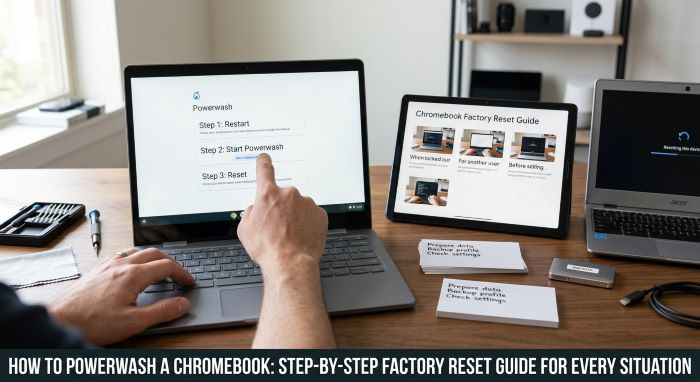
How to Powerwash a Chromebook: Step-by-Step Factory Reset Guide for Every Situation
Chromebooks are known for staying fast and simple. Still, there are times when a clean start is the best fix. The laptop feels slow, a setting keeps misbehaving, or you plan to sell it or pass it to a family member. That is when you need to know how to powerwash a Chromebook. Powerwash is Google’s name for a factory reset. It wipes the device and returns it to the state it was in when it left the box.
This guide explains what a Powerwash does, how to back up your files, and how to run the reset in two ways. It also covers school and work devices, other kinds of resets, and what to do when the process fails.
What Is a Powerwash?
A Powerwash erases all user accounts and local data from a Chromebook and reinstalls a fresh user profile. After it finishes, the device restarts to the welcome screen, as if new.
Because ChromeOS stores most things in your Google Account, a Powerwash is far less painful than a reset on other computers. Your apps, bookmarks, extensions, and settings come back when you sign in again, as long as sync is turned on.
What It Erases and What It Keeps
| Erased | Kept |
|---|---|
| Files in the Downloads folder | Files in Google Drive |
| All user accounts on the device | Your Google Account itself |
| Locally saved photos, videos, and documents | Bookmarks, passwords, and settings that are synced |
| Android app data that is not backed up | Apps and extensions tied to your account, which reinstall on sign-in |
| Linux files and apps | The ChromeOS system itself |
| Saved Wi-Fi networks, unless synced | Email, Docs, and Photos stored online |
| Owner settings and permissions | Automatic updates |
Files on an SD card or USB drive are not touched, though it is wise to remove them before you start.
When to Powerwash
- You are selling, donating, or giving away the Chromebook.
- You bought a used Chromebook and want a clean start.
- The device is slow, freezes, or shows errors that a restart does not fix.
- A setting or profile seems corrupted.
- You want to change the owner account. The first account that signs in after a reset becomes the owner.
- You suspect a bad extension or app and cannot find it.
- A support agent advises it.
When Not to Powerwash
A full reset is a big step. Try these first.
- Restart the Chromebook.
- Update ChromeOS in Settings under About ChromeOS.
- Close tabs and remove extensions you do not use.
- Do a hardware reset, covered later in this guide.
- Free up storage.
If a single setting is the problem, use “Restore settings to their original defaults” in Settings. It resets browser settings without wiping your files.
Before You Start: Back Up Your Files
A Powerwash cannot be undone. Take ten minutes to save what matters.
- Move local files. Open the Files app. Drag anything you need from Downloads to Google Drive or to a USB drive.
- Check sync. Open Settings, select your account, and open “Sync and Google services.” Make sure sync is on for apps, bookmarks, passwords, and settings.
- Back up Android apps. In Settings, open Apps, then Google Play Store, then Android settings. Check that backup is on.
- Back up Linux. If you use the Linux environment, open Settings, go to Developers and Linux, and use “Backup and restore.”
- Save anything else. Note Wi-Fi passwords and any files stored inside apps.
- Know your Google password. You will need it to sign back in. If you use two-step verification, have your phone ready.
- Charge the device. Plug it in or make sure the battery is well above half.
Method 1: Powerwash From Settings
Use this method when you can sign in. It is the standard answer to how to powerwash a Chromebook.
- Sign in to the Chromebook.
- Select the time in the bottom right corner.
- Select the gear icon to open Settings.
- In the menu, find the reset options. On recent versions of ChromeOS, select System preferences, then scroll to Reset. On older versions, select Advanced, then Reset settings.
- Next to Powerwash, select Reset.
- Select Restart.
- After the restart, a box appears. Select Powerwash, then Continue.
- Wait a few minutes while the device erases itself and restarts.
- Follow the steps on the welcome screen to sign in with your Google Account.
If you are selling the device, stop at the welcome screen and turn it off. The next owner can set it up.
Method 2: Powerwash From the Sign-In Screen
Use this method if you forgot your password, cannot sign in, or want a quick shortcut.
- Sign out if you are signed in. You should see the sign-in screen.
- Press and hold Ctrl + Alt + Shift + R.
- Select Restart.
- In the box that appears, select Powerwash, then Continue.
- Wait for the reset to finish.
- Sign in with your Google Account, or power off if you are giving the device away.
This shortcut is the fastest way to powerwash Chromebook devices that are locked or frozen at the sign-in screen.
What Happens After a Powerwash
- The Chromebook shows the welcome screen.
- You choose a language and connect to Wi-Fi.
- You sign in with a Google Account. This account becomes the owner.
- ChromeOS downloads your synced settings, apps, and extensions.
- Android apps reinstall from the Play Store.
- You restore any files you saved to a USB drive.
The whole process often takes less than 15 minutes.
Powerwash, Hard Reset, and Recovery Compared
People often mix up these three. They do different jobs.
| Action | What It Does | Erases Your Files? | When to Use It |
|---|---|---|---|
| Restart | Turns the device off and on | No | First step for any glitch |
| Hard reset | Resets hardware such as the keyboard and touchpad | Rarely, may clear some Downloads | Device will not turn on, charge, or respond |
| Powerwash | Factory reset of all accounts and local data | Yes | Selling the device, software problems, new owner |
| Recovery | Reinstalls ChromeOS from a USB drive | Yes | “ChromeOS is missing or damaged” errors |
When someone asks how to reset Chromebook hardware without losing files, the answer is a hard reset, not a Powerwash.
How to Do a Hard Reset
A hard reset restarts the hardware. It can fix a frozen screen, charging trouble, or a dead touchpad.
- Turn off the Chromebook.
- Press and hold the Refresh key, then tap the Power button.
- Release Refresh when the Chromebook starts.
On tablets, hold the Volume Up and Power buttons for at least 10 seconds. Some models use a different method, such as a reset pinhole or removing the charger, so check the support page for your device.
How to Recover a Chromebook
If the screen says “ChromeOS is missing or damaged,” a Powerwash will not help. You need recovery.
- On another computer with Chrome, install the Chromebook Recovery Utility extension.
- Use it to create recovery media on a USB drive of 8 GB or more.
- On the Chromebook, enter recovery mode. On most models, hold Esc + Refresh and press Power.
- Insert the USB drive and follow the steps on screen.
Many newer Chromebooks also offer network-based recovery, which reinstalls the system over Wi-Fi with no USB drive.
School and Work Chromebooks
Managed Chromebooks follow different rules.
- An administrator can block Powerwash.
- If you reset a managed device, it will usually re-enroll with the school or company the next time it connects to the internet. A reset does not remove management.
- Trying to bypass enrollment may break the rules of your school or employer.
If you need to know how to factory reset Chromebook devices that belong to a school or workplace, ask the IT administrator. If you bought a used Chromebook that turns out to be managed, contact the seller. Only the original organization can release it.
Troubleshooting
| Problem | Likely Cause | Fix |
|---|---|---|
| No Powerwash option in Settings | Managed device, or a different menu layout | Search “Powerwash” in Settings, or ask your administrator |
| Shortcut does nothing | Not on the sign-in screen, or keys pressed in the wrong order | Sign out fully, then hold Ctrl + Alt + Shift + R |
| Device re-enrolls after reset | It is managed by an organization | Contact the administrator or the seller |
| Stuck on the Powerwash screen | A glitch during the reset | Hold Power to shut down, restart, and try again |
| Problems return after reset | A synced extension or setting is the cause | Sign in, turn off sync for extensions, and add them back one at a time |
| “ChromeOS is missing or damaged” | System files are corrupted | Use recovery mode |
| Cannot sign in afterward | Wrong password or no internet | Check Wi-Fi, and reset your Google password on another device |
How to Factory Reset a Chromebook Before Selling It
Follow these steps to protect your data when the device changes hands.
- Back up your files.
- Remove any SD card or USB drive.
- Factory reset Chromebook data with either method above.
- When the welcome screen appears, do not sign in.
- Power the device off.
- Clean the screen and keyboard, and pack the charger.
Because your account is removed, the buyer cannot reach your files, email, or passwords. If you are a buyer, run your own Powerwash before you sign in for the first time.
Does a Powerwash Speed Up a Chromebook?
Often, yes. It clears a full Downloads folder, removes leftover app data, and gives you a fresh profile. If the slowdown comes from too many extensions, they will return when you sign in, so review them afterward. A Powerwash cannot fix aging hardware, low memory, or a device that has passed its automatic update expiration date and no longer receives updates.
Quick Answer: How to Powerwash a Chromebook in One Minute
If you only need the short version of how to powerwash a Chromebook, here it is.
- Back up anything in the Downloads folder.
- Sign out of the Chromebook.
- Press Ctrl + Alt + Shift + R.
- Select Restart.
- Select Powerwash, then Continue.
- Sign in again when the welcome screen appears.
People search for this task under many names. Guides titled how to factory reset Chromebook laptops, how to reset Chromebook devices, and how to powerwash Chromebook models all describe the same process. ChromeOS simply calls it Powerwash.
What to Do After You Sign Back In
A reset is a good chance to set the device up well.
- Check for updates. Open Settings, select About ChromeOS, and select “Check for updates.”
- Review extensions. Open the extensions page in Chrome and remove any you do not use. Too many extensions are a common cause of slowdowns.
- Restore your files. Copy what you need from your USB drive or open it from Google Drive.
- Set up a PIN or fingerprint. Open Settings, go to Security and Privacy, and choose a lock screen option.
- Turn sync back on. Confirm that apps, bookmarks, and passwords are syncing.
- Restore Linux. If you backed up the Linux environment, restore it from the same menu in Settings.
Powerwash and Chromebook Updates
A Powerwash does not downgrade or reinstall the operating system. The device stays on the ChromeOS version it already had. If you want to move to a newer version, use the update option in Settings. If you need to roll back or repair a damaged system, use recovery. Knowing how to powerwash a Chromebook, and knowing what the reset cannot do, saves you from repeating it when a different fix is needed.
Chromebooks also have an automatic update expiration date. After that date, the device no longer receives ChromeOS updates. You can check the date in Settings under About ChromeOS, in the additional details section. Check it before you buy a used device. No one who understands how to powerwash a Chromebook should expect a reset to extend that date.
Frequently Asked Questions
Does a Powerwash delete everything? It deletes all local data and accounts on the device. Data in your Google Account and Google Drive stays safe.
How long does it take? The reset itself takes a few minutes. Setup afterward takes another five to ten.
Can I undo a Powerwash? No. Back up first.
Will I lose my apps? Apps and extensions tied to your account reinstall when you sign in.
Do I need my password? Not to run the reset from the sign-in screen. You do need it to sign in afterward.
What is the simplest way to learn how to reset Chromebook settings without erasing files? Use “Restore settings to their original defaults” in Settings. It leaves your files alone.
Is Powerwash the same as a factory reset? Yes. Powerwash is the ChromeOS name for it.
Can I factory reset Chromebook devices from school? Only if the administrator allows it, and the device will stay managed.
Does a Powerwash remove viruses? It removes local data and resets the system profile, which clears most unwanted software. Review your extensions afterward, since synced ones return.
How do I powerwash Chromebook models with a touchscreen only? Use the Settings method, or attach a keyboard for the shortcut.
Where can I find official steps on how to factory reset Chromebook models? Google’s Chromebook Help site has a page titled “Reset your Chromebook to factory settings.”
Final Thoughts
Learning how to powerwash a Chromebook gives you a reliable fix for stubborn problems and a safe way to hand the device to someone else. Back up your Downloads folder, check that sync is on, and plug in the charger. Then run the reset from Settings or with Ctrl + Alt + Shift + R at the sign-in screen.
Try a restart, an update, or a hard reset first if you only have a small glitch. Use recovery mode if the system itself is damaged. For everything in between, a Powerwash takes minutes, and your apps and settings return when you sign in. Now that you know how to powerwash a Chromebook, a fresh start is always a few clicks away.
Key Takeaways
- Powerwash is the ChromeOS name for a factory reset. It erases all local files and accounts on the device.
- Before you learn how to powerwash a Chromebook in practice, back up the Downloads folder, since Google Drive files are safe but local files are not.
- From Settings, go to System preferences or Advanced, find Reset, and choose Powerwash.
- From the sign-in screen, press Ctrl + Alt + Shift + R, then choose Restart and Powerwash.
- A hard reset fixes hardware glitches without wiping your files, and recovery mode reinstalls a damaged system.
- School and work Chromebooks may block Powerwash and will re-enroll after a reset.
- Always Powerwash before you sell or give away a Chromebook, and stop at the welcome screen.