DISM /Online /Cleanup-Image /RestoreHealth: Complete Windows Repair Guide
Meta Description: Learn how to use dism /online /cleanup-image /restorehealth to repair Windows system files. Understand the command, troubleshoot errors, and fix Windows problems effectively.
Your Windows computer is acting strange. Programs crash. Updates fail. Error messages appear constantly. You search for solutions and encounter technical jargon about system files and Windows maintenance. DISM /online /cleanup-image /restorehealth appears repeatedly in forums and support articles. This command can solve many Windows problems, but understanding what it does and how to use it properly matters.
The command is powerful but requires proper execution. Running it incorrectly wastes time. Running it correctly can restore your Windows system to working condition. Learning when and how to use this tool prevents frustration and puts you back in control of your computer.
What Is DISM?
DISM stands for Deployment Image Servicing and Management. It’s a Windows system tool that maintains and repairs Windows installations. Microsoft built this tool into Windows to help users fix system issues without reinstalling the entire operating system.
DISM commands perform various functions on your Windows installation. The tool can scan your system, identify problems, and repair damaged files. Different DISM commands windows 11 versions exist, but the basic functionality remains consistent across Windows versions.
Think of DISM as a deep system repair tool. It works below the surface where regular antivirus software and standard Windows troubleshooting can’t reach. When standard fixes don’t work, DISM often solves the problem.
Understanding /Online /Cleanup-Image /RestoreHealth
The specific command dism /online /cleanup-image /restorehealth breaks down into parts, each with meaning.
/Online tells DISM to work on the currently running Windows installation. This differs from working on an offline image or installation media.
/Cleanup-Image indicates you’re performing cleanup operations on your Windows image or installation.
/RestoreHealth specifically instructs DISM to repair corrupted system files and restore the Windows installation to a healthy state.
Together, dism.exe /online /cleanup-image /restorehealth tells your computer to scan the currently running Windows, identify corrupted files, and fix them automatically.
Understanding /Online /Cleanup-Image /RestoreHealth
The specific command dism /online /cleanup-image /restorehealth breaks down into parts, each with meaning.
/Online tells DISM to work on the currently running Windows installation. This differs from working on an offline image or installation media.
/Cleanup-Image indicates you’re performing cleanup operations on your Windows image or installation.
/RestoreHealth specifically instructs DISM to repair corrupted system files and restore the Windows installation to a healthy state.
Together, dism.exe /online /cleanup-image /restorehealth tells your computer to scan the currently running Windows, identify corrupted files, and fix them automatically.
Why System Files Matter
Windows relies on system files to function properly. These files handle everything from starting up your computer to running basic operations.
When system files become corrupted, various problems emerge. Updates fail. Programs won’t install. Existing programs crash. Error messages appear. Your computer might slow down significantly.
Corruption happens through various causes. Malware can damage files. Power failures during updates can interrupt file writing. Hardware failures can corrupt stored files. Improper shutdowns can leave files in incomplete states.
Standard Windows repairs don’t fix deep system file corruption. This is where DISM becomes essential. It scans at the system level and repairs damage that user-facing troubleshooting tools can’t reach.
When to Use This Command
Several situations make this command valuable.
Windows update fails repeatedly. The installation process stops with error codes. Programs won’t install properly. You see error messages like “install error – 0x800f081f.” Your computer crashes without clear cause.
These problems often stem from corrupted system files. DISM restore health repairs these corruption issues without requiring a complete Windows reinstallation.
Some users encounter dism stuck at 62.3 percent during the repair process. While this indicates the command is running, knowing what to expect helps you avoid panic.
How to Run the Command Properly
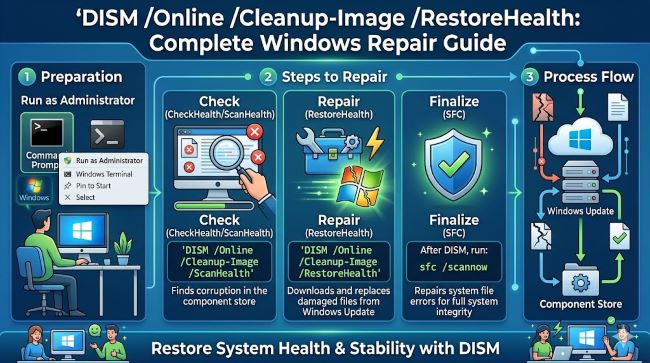
Running how to run command prompt as admin is the first step. The command requires administrator privileges to function.
Press the Windows key and type “command prompt.” Right-click “Command Prompt” and select “Run as administrator.” If prompted by User Account Control, click “Yes” to continue.
Once the command prompt opens with administrator privileges, type the full command:
dism /online /cleanup-image /restorehealth
Press Enter and let the command run. The process takes significant time, often 15-60 minutes depending on system speed and corruption extent. Your computer needs to stay powered on throughout.
What the Command Does
DISM scan functionality comes first. The tool examines your Windows installation file by file, looking for corruption or damage.
When corruption is detected, the command uses Windows Update to download fresh copies of corrupted files. It replaces the damaged files with clean versions. This restoration process fixes the underlying problems causing system instability.
The command doesn’t delete your files or settings. It doesn’t reinstall Windows or change your installed programs. It specifically targets system files that Windows itself uses to function properly.
Common Error Messages
Several errors occur when running this command. Understanding them helps you respond appropriately.
DISM error 87 appears when the syntax is incorrect. You might have typed the command wrong or forgotten administrator privileges. Check your command typing and ensure you’re running as administrator.
“The operation could not be completed” suggests temporary issues. Run the command again, perhaps in windows safe mode where fewer programs run simultaneously.
“The source files could not be found” indicates the command can’t access necessary repair files. Connecting to the internet helps since the command downloads files from Windows Update.
Combining With System File Checker
For comprehensive Windows repair, combining DISM restore health with the System File Checker provides complete coverage.
System file checker is another Windows maintenance tool. Open command prompt as administrator and run:
sfc /scannow
This command performs a thorough scan of system files and repairs issues that DISM might miss. Running both commands together provides comprehensive system repair.
Many support documents recommend running DISM first, then System File Checker. This sequence maximizes repair effectiveness.
Running DISM in Windows Safe Mode
If you encounter persistent problems, windows safe mode provides an alternative environment for running the command.
Restart your computer. On the login screen, hold Shift and click Power, then Restart. Your computer boots into a startup options menu. Select “Troubleshoot,” then “Advanced Options,” then “Command Prompt.”
Running DISM commands windows 11 in safe mode eliminates interference from background programs. The repair process might complete more successfully in this simplified environment.
Troubleshooting Stuck Processes
If dism stuck at 62.3 percent or any other percentage for an extended time, patience often helps. The command legitimately takes extended periods on some systems.
However, if the percentage hasn’t changed after several hours, something might be wrong. Check your internet connection since the command needs to download files from Windows Update. Restart and try again if issues persist.
Force quitting the command with Ctrl+C stops the process. This doesn’t damage your system. You can restart and try again.
When to Use Windows Repair Instead
Sometimes more extensive repair is needed. Windows repair through recovery options provides deeper fixes than DISM alone.
Press Windows key plus I to open Settings. Go to System, then Recovery. Click “Reset this PC.” This option lets you reinstall Windows while keeping your files or doing a clean installation.
Use this option when DISM and other standard repairs fail. It’s more aggressive but often necessary for severely corrupted systems.
Understanding Related Commands
Several other DISM commands serve related purposes.
dism /online /cleanup-image /startcomponentcleanup
This command removes unused system components, freeing disk space without affecting functionality.
dism /online /get-health
This command reports your system health without attempting repairs.
dism /online /scan-health
This command scans for corruption without fixing anything. It shows you what problems exist.
Installation Errors and DISM
Install error – 0x800f081f and similar error codes often result from corrupted system files. Running DISM restore health frequently resolves these installation errors.
Program installations fail when system files are damaged. DISM repairs the underlying damage, allowing installations to succeed afterward.
If you encounter installation errors, running DISM should be your first troubleshooting step before attempting software reinstalls.
Check Disk Command Relationship
Check disk command is another Windows maintenance tool that works alongside DISM.
Open command prompt as administrator and run:
chkdsk /f
This command checks your hard drive for errors and fixes them. Running this before DISM sometimes helps, as hardware problems can contribute to file corruption.
DISM and System Updates
Windows Update failures often relate to corrupted system files. DISM commands frequently solve update failures.
If Windows Update fails repeatedly, running DISM first often allows subsequent updates to complete successfully. The tool repairs the infrastructure that updates rely on.
After running DISM, restart your computer and retry Windows Update. Success rates increase significantly after system file repair.
Real-World Examples
A user encounters “Windows couldn’t complete the update.” They run dism /online /cleanup-image /restorehealth. The command completes successfully after 45 minutes. The next Windows Update installs without problems.
Another user sees “The application failed to initialize properly” error messages constantly. Standard troubleshooting fails. Running DISM repairs the underlying issue, and error messages stop appearing.
These real outcomes show the command’s practical value for serious Windows problems.
Prevention and Maintenance
While DISM repairs existing problems, regular maintenance prevents corruption.
Keep Windows updated. Shut down properly instead of forcing power offs. Avoid malware through security practices. Use reliable antivirus software. Regular system maintenance helps prevent file corruption.
Running DISM periodically as maintenance, even without obvious problems, helps maintain system health long-term.
Key Takeaways
- DISM /online /cleanup-image /restorehealth scans and repairs corrupted Windows system files without reinstalling Windows.
- DISM stands for Deployment Image Servicing and Management, a Microsoft system maintenance tool.
- /Online targets your currently running Windows installation. /Cleanup-Image and /RestoreHealth specify repair operations.
- How to run command prompt as admin is essential. Right-click Command Prompt and select “Run as administrator.”
- DISM commands require administrator privileges to function properly.
- The command process takes significant time, typically 15-60 minutes depending on system condition.
- DISM restore health fixes corrupted files by downloading fresh copies from Windows Update.
- DISM error 87 usually indicates syntax errors or missing administrator privileges. Check your command typing.
- Combining DISM with System file checker provides comprehensive Windows repair coverage.
- Windows safe mode provides an alternative environment for running DISM if standard operation causes issues.
- DISM stuck at 62.3 percent usually means normal operation. Patient waiting often allows completion.
- Install error – 0x800f081f and similar errors frequently resolve after running DISM.
- Check disk command works alongside DISM for comprehensive system maintenance.
- Windows repair through recovery options provides more extensive repairs when DISM alone is insufficient.
- DISM scan identifies problems without fixing them. Use /scan-health flag to check system status.
- Regular Windows maintenance and updates help prevent file corruption that necessitates DISM repairs.
- Running DISM periodically maintains long-term system health even without obvious problems.
- Internet connection is important since DISM downloads files from Windows Update during repairs.