Nintendo Switch Won’t Turn On: Complete Troubleshooting Guide
You press the power button. Nothing happens. The screen stays black. Your Nintendo Switch won’t respond. Panic sets in. Was it a short? Did the battery finally die? Is this the end of your gaming time?
Take a breath. Nintendo switch won’t turn on is one of the most common issues Switch owners face. The good news: it’s usually fixable at home. Most of the time, the problem isn’t a hardware failure. It’s a dead battery, a stuck power state, or a corrupted software state that looks like a power failure but isn’t.
Understanding what causes nintendo switch not turning on and knowing the right steps to troubleshoot puts your console back in your hands. This guide covers every possible cause and solution, from the simplest fixes to advanced recovery methods.
Why Your Nintendo Switch Stops Responding
Understanding Power Issues
Your Switch has a battery, a power button, and software that manages both. When any part of this chain fails, you get a black screen.
The battery dies. The Switch battery lasts 4.5 to 9 hours depending on the model and what you’re doing. If you don’t charge it regularly, the battery drains completely. A completely drained battery won’t power on until it charges for a few minutes.
The power state gets stuck. Your Switch enters sleep mode to conserve battery. In rare cases, it gets stuck in a state where the power button doesn’t wake it. This looks like it won’t turn on, but it’s actually just very asleep.
The charging circuit fails. Nintendo switch not charging prevents the battery from getting power. Without charging, the battery drains completely, and the console won’t turn on.
The power button gets stuck or stops responding. Physical damage or internal corrosion prevents the button from registering.
The software crashes. After a crash, the Switch sometimes won’t respond to button presses even if the hardware is fine.
The dock connection fails. A faulty dock or bad connection prevents proper charging, leading to a dead battery.
Quick Checks Before Troubleshooting
What to Verify First
Look for any physical damage. Cracks, dents, or liquid damage suggest a hardware failure beyond simple troubleshooting.
Check the USB-C port on the bottom of the Switch. Is it clean? Lint and debris block charging. Use a flashlight to look inside. If you see anything, use a small toothpick or compressed air to clean it gently.
Inspect your charging cable and dock. Are they visibly damaged? Do the connections look corroded?
Try a different power outlet. Sometimes the outlet is the problem, not the Switch.
Feel the charging cable and dock for heat. They should be warm, not hot. Excessive heat suggests a power delivery problem.
These checks take two minutes and sometimes reveal the actual issue.
Charging Solutions for a Dead Battery
The Most Common Issue
Why is my nintendo switch not charging usually means the battery is too dead to show any signs of life.
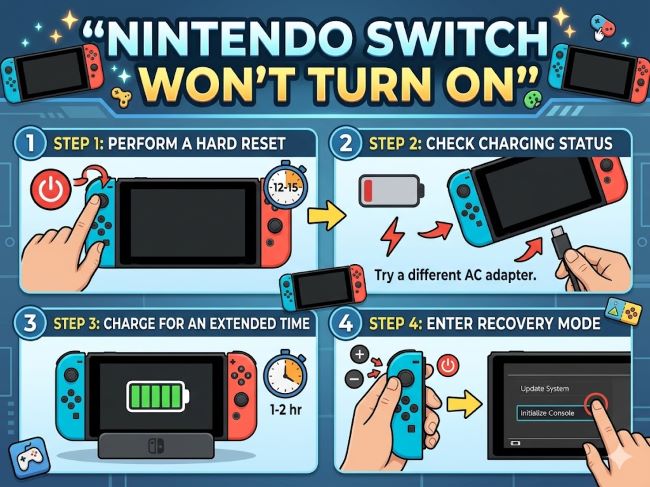
Plug your Switch into power using the original charger or a certified third-party charger. Use a working outlet you’ve tested with another device.
Wait. This is crucial. A completely dead battery takes 10 to 30 minutes to build up enough charge to show any signs. The screen won’t turn on immediately.
After 15 minutes, check for any signs of life. You might see a charging indicator light or a brief screen flash.
Don’t assume it’s broken if nothing happens after a few minutes. Very dead batteries need time.
After 30 minutes of charging, try pressing the power button.
Using the Correct Charger
The Switch charger outputs 15V/2.6A. This is specific. Using a phone charger or incompatible charger won’t properly charge your Switch. It might even damage it.
Always use the original Nintendo charger or a certified charger designed for the Switch.
If your charger is missing, buy an official replacement or a certified third-party option. Generic chargers from unknown brands often fail.
Test your charger with the dock. If the dock shows a charging light with a working charger, your charging circuit is okay. The charger was the problem.
Force Powering Your Switch
When the Power Button Doesn’t Work
If your Switch won’t respond to the power button after charging, try a force power cycle.
Hold down the power button on the right side of the console. Don’t just press it. Hold it down for 10 seconds.
Release the button. Wait a few seconds.
Press the power button again to turn it on normally.
Many switches that seem dead respond to a force power cycle. It’s like a hard reset for the power state.
If it still doesn’t respond, hold the button for 20 seconds this time. Some switches require longer.
Troubleshooting Through the Dock
Using Your Dock to Diagnose Problems
Place your Switch in the dock while powered off. Use the original dock if you have one.
Wait 30 seconds. Docks provide better charging connection than USB-C cables alone.
Remove the Switch after 30 seconds and try turning it on.
If it turns on, the dock was providing a better connection. You might have a loose USB-C port or a defective cable.
If it still won’t turn on, remove it from the dock and continue troubleshooting.
Dock Cleaning
Docks collect dust and debris. Buildup prevents proper connection.
Unplug your dock.
Use compressed air or a small brush to clean the USB-C port inside the dock. Blow out any lint or debris.
Wipe the contacts with a dry cloth.
Reconnect the dock and test.
A clean dock often solves charging issues without any other intervention.
Software Recovery Methods
Forcing a Software Reset Without Turning On
This works when software crashes leave the Switch unresponsive but the hardware still functions.
Hold the volume up and volume down buttons simultaneously.
While holding both, press the power button on the right side.
Continue holding all three buttons for 10 seconds.
Release all buttons and wait.
Your Switch might boot into recovery mode or perform a soft reset.
This sometimes brings back a Switch that won’t respond to normal power controls.
RCM Mode and Advanced Recovery
If your Switch won’t turn on and normal troubleshooting fails, RCM mode (Recovery Mode) offers advanced options.
Turn off your Switch completely. If it’s already off, that’s fine.
Hold the volume up button.
While holding volume up, press the power button.
Continue holding volume up while the console boots.
After about 10 seconds, you should see the recovery menu.
From here, you can restart the console, check system information, or erase user data if necessary.
This is more advanced territory. If you reach this menu, your Switch hardware is likely functional. Follow on-screen instructions carefully.
Battery Replacement Guide
When the Battery Is Actually Dead
Nintendo Switches last 3 to 5 years before batteries degrade. If your Switch is older and won’t hold a charge, the battery might be genuinely worn out.
Signs of battery failure include not holding a charge longer than 30 minutes, the console shutting off suddenly despite showing battery remaining, or swelling around the battery area.
Battery replacement is possible but requires opening your console. If you’re comfortable with electronics, replacement kits are available online with instructions.
If you’re not comfortable opening electronics, Nintendo offers battery replacement services. Cost is typically $50 to $80.
A working battery restores full functionality to a console with a worn-out original battery.
Dock and Charging Port Issues
Diagnosing Charging Connection Problems
A faulty charging port or dock connection prevents your Switch from getting power.
Try a different USB-C cable with your dock. If a different cable works, your old cable is the problem.
Try your Switch’s USB-C cable directly without the dock. If it charges, the dock is faulty.
If neither the dock nor the direct cable charges your Switch, your USB-C port might be damaged.
Inspect the USB-C port for visible damage, bent pins, or corrosion. If you see damage, port replacement is necessary.
USB-C Port Replacement
Replacing a USB-C port requires soldering skills or professional help. This is beyond home troubleshooting.
If your port is damaged, contact Nintendo for repairs or find a qualified electronics repair shop.
Cost is typically $60 to $100 for professional replacement.
A working port restores full charging capability and dock functionality.
Water Damage Recovery
If Your Switch Got Wet
Liquid damage causes multiple power failures. If your Switch was exposed to water or liquid, dry it immediately.
Power it off if it’s on.
Do not try to charge it while wet. This causes electrical damage.
Place it in a dry location with good air circulation. A warm, dry room is ideal.
Some people use uncooked rice or silica gel packets to absorb moisture. This takes 24 to 48 hours.
After at least 24 hours, try charging it again.
If it powers on, you’re lucky. Liquid damage sometimes resolves on its own as the device dries.
If it still won’t power on, the liquid likely damaged internal components. Professional repair is necessary.
Heat and Environmental Issues
Temperature Effects on Power
Extreme temperatures affect battery and power management.
Very cold environments reduce battery charge capacity temporarily. If your Switch is cold, warm it to room temperature and try again.
Overheating causes the Switch to shut down as a safety measure. If you’ve been gaming for hours, turn it off and let it cool for 30 minutes.
Never leave your Switch in direct sunlight or in a hot car. This damages the battery and power components.
Store your Switch in a cool, dry place when not in use.
When to Contact Nintendo Support
Signs You Need Professional Help
If you’ve tried all troubleshooting steps and nintendo switch won’t turn on persists, your Switch might have a hardware failure beyond home repair.
Contact Nintendo Support if:
- The console won’t respond to any troubleshooting steps after 24 hours of charging
- You see physical damage like swelling, cracks, or bent components
- The charging port is visibly damaged
- Water or liquid exposure occurred and drying didn’t help
- The power button feels broken or stuck
Nintendo offers repair services with turnaround times of 5 to 14 business days. Cost depends on what’s broken. Out-of-warranty repairs typically cost $80 to $150.
Preventative Maintenance
Keeping Your Switch Healthy
Charge regularly. Don’t wait for the battery to completely die before charging. Weekly charging prevents dead battery situations.
Use official chargers. Third-party chargers from unknown brands often fail or damage your console.
Clean the dock and charging port monthly. Compressed air removes dust without damaging delicate components.
Keep your Switch cool. Don’t game for more than 4 hours without a break. Let it rest in cool temperatures.
Update your software regularly. Nintendo releases updates that fix bugs and stability issues.
Use a protective case. Cases reduce damage from drops and protect against liquid exposure.
Store in dry conditions. Humidity damages electronic components over time.
Common Mistakes to Avoid
What Not to Do
Don’t panic and immediately assume your Switch is broken. Most nintendo switch not turning on issues are software-related or battery-related, not hardware failures.
Don’t use a phone charger or generic USB charger. These don’t provide the correct voltage and can damage your Switch.
Don’t try to force open your Switch without guides or experience. You risk damaging internal components.
Don’t ignore warning signs. If your Switch is hot, bulging, or smells odd, stop using it immediately.
Don’t keep trying to turn on your Switch every five seconds while it’s charging. Let it charge undisturbed for at least 15 minutes.
Don’t disassemble your Switch to access the battery without proper training. One wrong move voids your warranty or breaks components.
Key Takeaways
- Nintendo switch won’t turn on is usually caused by a dead battery, stuck power state, or charging failure, not hardware damage.
- Nintendo switch not turning on often resolves by charging for 15 to 30 minutes with an official charger.
- Why won’t my nintendo switch turn on might be answered by trying a force power cycle: hold the power button for 10 to 20 seconds.
- Nintendo switch not charging suggests problems with your charger, dock, or charging port. Test with different charging methods.
- Clean your dock and USB-C port regularly to prevent charging issues.
- Use the dock to troubleshoot: if your Switch charges in the dock but not with a cable, the dock provides a better connection.
- How to restart Nintendo Switch involves holding the power button until the console responds, which forces a power cycle.
- If liquid exposure occurred, dry the Switch completely for 24 to 48 hours before trying to power it on.
- Extreme temperatures affect battery and power performance. Store your Switch in cool, dry conditions.
- If troubleshooting doesn’t work after 24 hours of charging, contact Nintendo Support for professional repair.
For insights into consumer electronics troubleshooting, explore resources on hardware diagnostics that explain how devices manage power states. Understanding user support systems provides context on why contacting manufacturers matters for warranty coverage. Additionally, learning about device maintenance helps you understand how electronics benefit from regular care.