Ethernet Doesn’t Have a Valid IP Configuration: How to Fix It
Your computer was working fine moments ago. Now you see a yellow exclamation mark on your network icon. Windows displays the message: ethernet doesn’t have a valid ip configuration. Your internet is down. Work stops. Frustration builds.
This error stops thousands of users every week. The good news is that ethernet doesn’t have a valid ip configuration issues are usually fixable. You don’t need to replace your router, your network card, or your internet service. Most of the time, a simple fix resolves the problem in minutes.
Understanding what causes this error and knowing how to fix ethernet doesn’t have a valid ip configuration puts you back online fast. This guide walks through the most effective solutions, starting with the quickest fixes and moving to more advanced troubleshooting.
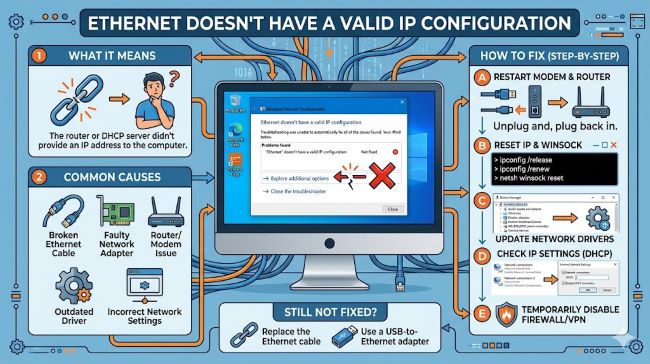
What Ethernet IP Configuration Actually Means
Understanding IP Addresses and Network Configuration
An IP address is your device’s identifier on the network. It’s like a mailing address for your computer. Every device connected to a network needs a unique IP address to communicate with other devices and access the internet.
When your computer connects via ethernet, it requests an IP address from your router. The router assigns one automatically. This process happens behind the scenes and takes seconds. You never see it. Until something goes wrong.
A valid IP configuration means your device has been assigned a proper IP address from your router. An invalid configuration means either your device never received an IP address, or the address it has is corrupted or conflicting.
How IP Addresses Get Assigned
Your router acts as a DHCP server. DHCP stands for Dynamic Host Configuration Protocol. When your computer plugs in via ethernet cable, it sends out a request: “I need an IP address.” The router responds with one.
If this handshake fails, your ethernet doesn’t have a valid ip configuration. The cable might be loose. The router might be offline. Your network card might have a problem. Or Windows might be stuck and refusing to complete the request.
This is why the error appears with wifi doesn’t have a valid ip configuration too. WiFi and ethernet use the same IP assignment process. Both can fail the same way.
Common Causes of This Error
Why Your Ethernet Connection Loses IP Configuration
The ethernet cable is loose or damaged. Physical connection issues cause the most common IP configuration problems. A partially disconnected cable fails silently, showing as a configuration error rather than a disconnection.
Your router is offline or malfunctioning. If the router stops responding, it can’t assign IP addresses. Other devices still see the network but can’t connect.
Your network card driver is outdated or corrupted. Windows communicates with your hardware through drivers. Outdated drivers contain bugs that prevent proper IP assignment.
Your DHCP server is disabled. Routers have DHCP enabled by default, but someone might have turned it off manually or through a failed update.
Your system clock is wrong. This sounds odd, but network communications use timestamps. If your system clock is way off, the DHCP handshake fails.
IP address conflicts exist on your network. Two devices requesting the same IP address causes both to fail. Your computer might have been manually assigned an IP that another device also has.
Windows or Mac network settings are misconfigured. If someone changed your network settings to use a static IP instead of automatic DHCP, you might get this error if that static IP is invalid.
Quick Fixes That Work Most of the Time
The Easiest Solutions to Try First
Restart your router. Unplug it, wait 30 seconds, plug it back in. This resets the DHCP server and clears any temporary conflicts. Wait for it to fully boot before testing.
Reconnect your ethernet cable. Unplug it from both your computer and the router. Wait five seconds. Plug it back in firmly. A partially loose connection often causes this error.
Restart your computer. Power off completely, wait 30 seconds, power back on. Windows sometimes gets stuck in a bad network state. A restart clears it.
Try a different ethernet port on your router. Routers have multiple ports. If one is failing, trying another tests whether the router itself is the problem.
Use a different ethernet cable. Cables fail and go bad. Testing with a known good cable eliminates this variable. If a different cable works, your old one is damaged.
These simple fixes resolve roughly 70 percent of IP configuration errors. If none of these work, move to the next level of troubleshooting.
Windows Troubleshooting Steps
How to Fix the Error on Windows
Open Network Settings. Right-click the network icon in your system tray, select Open Network & Internet settings.
Select Status in the left menu. This shows your current network state.
Click Troubleshoot problems. Windows has a built-in network troubleshooter that often finds and fixes IP configuration issues automatically.
Let the troubleshooter run. It checks your connection, tests your router, and attempts fixes. Many users see their connection restored during this process.
If the troubleshooter doesn’t fix it, move to manual fixes. Your problem likely needs direct intervention.
Manual Windows Network Fixes
Right-click Network in Settings and select Change adapter options.
Find your ethernet connection. It should show either a green check (connected) or a red X (disconnected).
Right-click your ethernet adapter and select Properties.
Double-click Internet Protocol Version 4 (IPv4). This is where your IP configuration lives.
Ensure Obtain an IP address automatically is selected. If it shows a static IP, click the radio button for automatic. Click OK.
Go back and right-click your ethernet adapter again. Select Disable, wait 5 seconds, then Enable. This forces Windows to request a new IP address from your router.
Flushing and Renewing Your IP Address
Open Command Prompt as Administrator. Search for “cmd” in the Windows search bar, right-click it, and select Run as administrator.
Type these commands one at a time, pressing Enter after each:
ipconfig /flushdns
ipconfig /release
ipconfig /renew
These commands clear your old IP configuration and request a fresh one from your router. After the /renew command completes, your computer should have a new IP address.
Type ipconfig to verify your new IP address appears. It should start with 192.168 or 10. if your router uses default settings.
Updating Network Card Drivers
Press Windows Key + X and select Device Manager.
Expand Network adapters.
Right-click your ethernet adapter and select Update driver.
Choose Search automatically for updated driver software. Windows checks for newer versions.
If an update is found, Windows installs it. You might need to restart.
If no update is found, right-click the adapter and select Uninstall device, then restart. Windows will reinstall the driver automatically.
Mac Troubleshooting Steps
Fixing the Error on macOS
Click the Apple menu and select System Preferences.
Navigate to Network.
Select Ethernet from the list on the left.
Click Advanced at the bottom right.
Select the TCP/IP tab.
Click Renew DHCP Lease. This requests a fresh IP address from your router.
If that doesn’t work, change the Configure IPv4 setting from Using DHCP to Off, then back to Using DHCP. This cycles your IP configuration.
Click OK and Apply.
Resetting Your Mac’s Network Settings
Open Terminal from Applications > Utilities.
Type this command: sudo dscacheutil -flushcache
Press Enter and provide your password when prompted.
This clears your DNS cache, which sometimes resolves IP configuration issues.
Close Terminal and test your connection.
If you still have problems, restart your Mac. Many network issues resolve after a restart.
Router-Level Troubleshooting
Checking Your Router Configuration
Log into your router’s admin panel. Most routers are accessed by typing 192.168.1.1 or 192.168.0.1 into a web browser. Check your router’s manual or sticker for the exact address.
Find the DHCP settings. This is usually under Settings or Network Configuration.
Verify DHCP is enabled. If it’s disabled, enable it.
Check the DHCP IP range. It should span enough addresses for all your devices. A range of 192.168.1.100 to 192.168.1.254 covers most home networks.
Look for reserved IP addresses or static assignments. If your computer’s MAC address is assigned a specific IP that’s no longer available, you get this error. Remove it from the reservation list.
Restart the router from the admin panel or by unplugging it.
Checking for Firmware Updates
Many routers have outdated firmware. Updated firmware fixes bugs and improves DHCP reliability.
Look for a Firmware Update or System Update option in your router’s admin panel.
If an update is available, download and install it. Your router will restart.
After it boots, test your ethernet connection. Updated firmware sometimes resolves this error.
Testing Your Network Connection
Verifying the Fix Works
Once you’ve applied a fix, test your connection.
Open Command Prompt or Terminal and type: ping 8.8.8.8
This sends data to Google’s servers. If you get responses, your connection works.
Type ipconfig (Windows) or ifconfig (Mac) to see your IP address. It should start with 192.168 or 10.
Visit a website. If it loads, your internet connection is working properly.
If ping fails or websites won’t load, your IP configuration is still invalid. Try the next troubleshooting step.
When to Replace Hardware
How to Know If Your Equipment Is Failing
If you’ve tried every software solution and ethernet doesn’t have a valid ip configuration persists, hardware might be failing.
Test with a different ethernet cable first. Cables are cheap and fail frequently.
Borrow someone else’s router if possible. If your computer works with their router, yours is the problem.
Try a different computer on your router. If other computers work but yours doesn’t, your network card is likely failing.
If no other computers work with your router, your router is failing.
Replacing a Failed Network Card
Most laptops and desktops have built-in network cards. Replacing one requires opening your computer. This is doable but technical.
USB ethernet adapters offer an easier solution. Plug one into a USB port and use it instead of your built-in network card. They cost 15 to 30 dollars.
Replacing a Failed Router
Routers typically last 5 to 7 years. After that, they fail more frequently.
If your router is over 5 years old and consistently causes IP configuration errors, replacement is reasonable.
Modern routers are faster, more reliable, and more secure than older ones.
Preventing Future IP Configuration Errors
Maintenance That Prevents Problems
Keep your router powered on and plugged in. Unstable power causes DHCP failures.
Update your router’s firmware regularly. Check the admin panel monthly.
Use high-quality ethernet cables. Cheap cables degrade and fail prematurely.
Keep your system clock correct. Enable automatic time updates in your operating system settings.
Don’t disable DHCP unless you have a specific reason. Dynamic assignment is safer and easier than static IP assignment for most users.
Test your network connection periodically. Catching issues early prevents bigger problems.
Special Cases and Advanced Issues
When IP Configuration Has Specific Problems
If your computer gets an IP address starting with 169.254, it’s a link-local address. This means your router didn’t respond. The computer assigned itself a temporary address. This indicates your router is offline or your cable is disconnected.
If you see the same IP address every time despite rebooting, Windows might be stuck on a static IP. Go to Network Settings and confirm you’re using automatic DHCP.
If wifi doesn’t have a valid ip configuration too, your router’s DHCP server is definitely the problem. Both wired and wireless users can’t get addresses from a broken DHCP server.
Key Takeaways
- Ethernet doesn’t have a valid ip configuration means your computer can’t receive an IP address from your router or the address it has is invalid.
- This error usually results from loose cables, offline routers, outdated drivers, disabled DHCP, or incorrect network settings.
- Quick fixes like restarting your router, reconnecting your cable, and restarting your computer resolve about 70 percent of cases.
- Windows users can fix this by using the Network Troubleshooter, flushing and renewing their IP address, or updating network drivers.
- Mac users can fix this by renewing their DHCP lease or resetting network settings in System Preferences.
- How to fix ethernet doesn’t have a valid ip configuration often involves checking your router’s admin panel to ensure DHCP is enabled.
- If wifi doesn’t have a valid ip configuration along with ethernet, your router’s DHCP server is broken.
- Test your fix by using the ping command to verify your connection works.
- If software fixes don’t work, test with different cables or another router to identify hardware failures.
- Maintain your network by keeping your router updated, using quality cables, and regularly checking your connection.
For better insights into how networks handle data flow and communication, explore resources on network infrastructure design that explain the bigger picture of network systems. Understanding IT infrastructure best practices helps you manage your network more effectively. Additionally, learning about cybersecurity measures provides context on why proper network configuration matters for security.