ERR_HTTP2_PROTOCOL_ERROR: How to Fix This Common Browser Error
You’re browsing the web when a page fails to load. Instead of content, you see an error message: err_http2_protocol_error. The page won’t load no matter how many times you refresh. No clear explanation. No obvious fix.
This error frustrates users and website owners alike. It appears randomly, sometimes affecting one site while others work fine. ERR_HTTP2_PROTOCOL_ERROR is a technical error that looks mysterious but has concrete causes and real solutions.
Understanding what http2 protocol error means and why it happens puts you in control. Most of the time, you can resolve this without contacting support or waiting for technical help. This guide walks through what causes this error, how to diagnose it, and how to fix it on your device or at a server level.
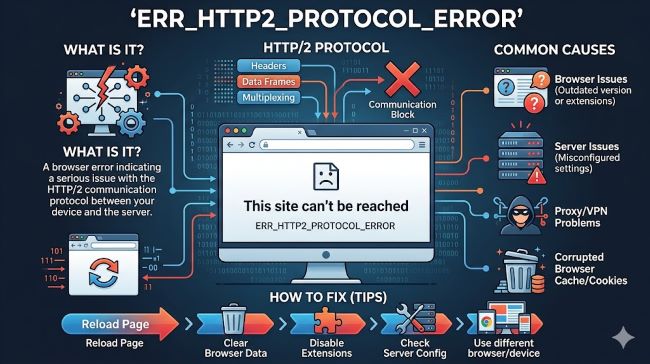
What HTTP/2 Protocol Is and Why It Matters
Understanding HTTP/2 Basics
HTTP/2 is the protocol your browser uses to communicate with websites. When you type a URL and press Enter, HTTP/2 handles the conversation between your computer and the website’s server.
HTTP/2 replaced the older HTTP/1.1. It’s faster, more efficient, and handles modern websites better. Most major websites use HTTP/2. Your browser automatically switches to it when available.
The protocol works like a conversation. Your browser sends a request. The server sends back a response. HTTP/2 manages this exchange at a technical level you never see.
Net::err_http2_protocol_error appears when this conversation breaks down. The browser and server can’t agree on how to communicate. The request or response violates HTTP/2 rules. Something in the middle interferes with the conversation.
How HTTP/2 Differs From Older Versions
HTTP/1.1 sent one request at a time. Each request needed a new connection to the server. This was slow.
HTTP/2 sends multiple requests at once over a single connection. It compresses data and prioritizes requests. This makes websites load much faster.
HTTP/2 is stricter about rules. Malformed requests or responses that HTTP/1.1 tolerated cause HTTP/2 to reject them. This strictness improves security but sometimes causes errors when servers don’t follow the rules perfectly.
When a server breaks HTTP/2 rules, your browser displays err_http2_protocol_error Google Chrome or similar errors depending on your browser.
Common Causes of HTTP/2 Protocol Errors
Why This Error Happens
Server misconfiguration is the most common cause. Servers need proper HTTP/2 support to communicate correctly. Misconfigured servers send data that violates HTTP/2 standards.
Outdated server software doesn’t support HTTP/2 properly. Older server versions have bugs that cause protocol errors.
Network issues interfere with the connection. Proxies, firewalls, or network equipment between your device and the server sometimes break HTTP/2 communication.
Browser bugs occasionally cause false protocol errors. While rare, outdated browsers sometimes generate errors for valid HTTP/2 responses.
Corrupted or incomplete downloads interrupt the conversation. If the connection drops mid-request, HTTP/2 marks it as a protocol error.
SSL/TLS certificate problems prevent proper HTTP/2 handshakes. Websites using HTTPS need valid certificates for HTTP/2 to work.
Too much data in a single request exceeds HTTP/2 limits. While rare, extremely large requests can trigger protocol errors.
CDNs and caching services sometimes introduce errors. Content delivery networks cache and serve content. Misconfigured CDNs occasionally generate protocol errors.
Browser-Level Causes and Fixes
Issues on Your Device
Your browser cache accumulates data that sometimes causes errors. Clearing your cache removes stale data that might conflict with new responses.
Open Chrome Settings. Click Privacy and security, then Clear browsing data. Select All time for the time range. Check Cookies and other site data and Cached images and files. Click Clear data.
After clearing cache, try reloading the page. Many protocol errors resolve with a fresh cache.
Browser extensions interfere with HTTP/2 communication. Security software, ad blockers, and VPN extensions sometimes break HTTP/2 handshakes.
Disable your extensions one at a time to identify the culprit. Click the three dots in the top right of Chrome, select More tools, then Extensions. Toggle each extension off, reload the page, and check if the error persists.
Your browser version might be outdated. Older versions have bugs that newer versions fixed.
Update Chrome or your browser to the latest version. Click the three dots, select About Google Chrome. Chrome automatically checks for updates and installs them.
Restart your browser completely. Close all Chrome windows and reopen the app. Sometimes this clears temporary errors.
Disabling QUIC Protocol
QUIC is an experimental protocol that works alongside HTTP/2. Sometimes QUIC causes protocol errors.
Type chrome://flags into your address bar and press Enter.
Search for “QUIC” using the search box.
Find Experimental QUIC protocol and toggle it off.
Restart Chrome.
Try loading the page again. If the error disappears, QUIC was the problem.
Network-Level Troubleshooting
Your Internet Connection
A weak or unstable connection breaks HTTP/2 communication mid-stream.
Test your connection speed at speedtest.net. Speeds below 3 Mbps are problematic for modern websites.
If your speed is slow, restart your router. Unplug it for 30 seconds, plug it back in, and wait for it to fully boot.
Try a different network. Connect to a different WiFi network or switch to cellular data if on WiFi. If the error disappears on a different network, your home network is the problem.
Contact your ISP if your connection is consistently slow or unstable.
Firewall and Network Equipment
Some firewalls block or interfere with HTTP/2. If you’re on a corporate network, your firewall might be misconfigured.
Ask your IT department if they’ve had complaints about protocol error messages. Firewall updates sometimes break HTTP/2 compatibility.
If you manage your own network, check your firewall settings for HTTP/2 blocking rules.
Try disabling your firewall temporarily to test. If the error disappears, your firewall is the issue. Re-enable it and adjust the rules to allow HTTP/2.
VPN Issues
VPNs sometimes interfere with HTTP/2. If you’re using a VPN, disable it and test.
Try connecting directly to your ISP without the VPN. If the error disappears, your VPN is the problem.
Switch to a different VPN service if your current one doesn’t support HTTP/2 properly.
Contact your VPN provider about HTTP/2 support. Reputable VPNs provide technical support for protocol issues.
Server-Level Causes and Website Owner Solutions
For Website Administrators
ERR_HTTP2_PROTOCOL_ERROR often means your server needs attention.
Check your server logs for HTTP/2 errors. Most servers log protocol violations. These logs tell you exactly what’s breaking.
Ensure your server software is updated. Outdated web servers like Apache or Nginx have bugs fixed in newer versions. Update to the latest stable version.
Validate your SSL/TLS certificate. Use ssllabs.com to test your certificate. Protocol errors sometimes stem from certificate issues.
Disable HTTP/2 temporarily if you can’t identify the cause. In your web server configuration, disable HTTP/2 and fall back to HTTP/1.1. This keeps your site accessible while you troubleshoot.
Increase header size limits if you have large HTTP headers. Some servers have strict limits. Increasing them allows valid requests that were previously rejected.
Test with h2load or other HTTP/2 clients to simulate traffic and identify issues.
CDN and Proxy Configuration
If you use a CDN, ensure it supports HTTP/2. Most modern CDNs do, but configuration errors cause issues.
Verify your CDN settings match your origin server. Mismatches between CDN and origin cause protocol conflicts.
Contact your CDN provider if protocol errors appear. They can review your configuration and identify mismatches.
Test your site without the CDN to see if the CDN is the cause. Temporarily point your domain directly to your origin server.
Testing and Diagnosis Tools
How to Identify the Exact Problem
Chrome Developer Tools provide detailed error information.
Open Developer Tools by pressing F12.
Click the Network tab.
Reload the page that shows the error.
Look for the request with a red X. Click it to see details.
The Response tab shows what the server sent. Protocol errors show in the response headers or status.
The Console tab shows error messages with more details about what went wrong.
Online HTTP/2 testers diagnose server issues. Visit tools.keycdn.com/http2-test or h2spec.io to test your site.
These tools simulate HTTP/2 requests and report any violations. Results tell you exactly what your server is doing wrong.
Packet sniffers like Wireshark show the actual data being sent. This is advanced but reveals exactly what’s happening at the network level.
Caching and CDN Solutions
How Caching Services Help
Caching services like Cloudflare sit between users and your server. They cache content and serve it faster.
Cloudflare and similar services handle HTTP/2 for you. They ensure protocol compliance even if your server isn’t perfect.
If your server has HTTP/2 issues, a CDN can mask them while you fix the underlying problem.
Most CDNs offer free plans. Setting up a CDN sometimes resolves err_http2_protocol_error immediately.
Clearing Your Cache
If you’re caching responses with issues, clearing the cache fixes the problem.
Log into your CDN or caching service dashboard.
Find the cache purge or clear cache option.
Enter the URL or purge all cache.
Wait for the purge to complete. Usually takes less than a minute.
Reload the page. The CDN requests fresh content from your server.
Specific Browser Considerations
Chrome vs. Other Browsers
Err_http2_protocol_error Google Chrome is most common in Chrome because Chrome strictly enforces HTTP/2 rules.
Firefox, Edge, and Safari are more tolerant of protocol violations. Errors in Chrome might not appear in other browsers.
If a site works in Firefox but not Chrome, the issue is usually server-side. The server breaks HTTP/2 rules Chrome enforces.
Test the problematic site in a different browser. This tells you if the problem is Chrome-specific or affects all browsers.
Mobile Browser Issues
HTTP/2 protocol errors appear on mobile browsers too. Mobile networks are less stable, sometimes causing connection breakdowns that trigger errors.
The solutions are the same: clear cache, disable QUIC, restart your device, and test on a different network.
Mobile users often hit these errors due to weak connections. A simple refresh often works.
Preventing Future HTTP/2 Protocol Errors
Best Practices
For users: Keep your browser updated. Outdated browsers cause false protocol errors. Updates fix bugs and improve compatibility.
For users: Regularly clear your browser cache. Accumulated cache sometimes causes protocol errors. Clear it monthly.
For users: Disable problematic browser extensions. Some extensions are notorious for breaking HTTP/2. Test without extensions if you see errors.
For website owners: Keep your server software updated. Updates patch bugs and improve HTTP/2 support.
For website owners: Monitor your server logs. Errors appear in logs before users notice. Catch issues early.
For website owners: Test your site with HTTP/2 validators. Regular testing catches issues before they affect users.
For website owners: Use a reputable CDN. CDNs handle protocol complexity for you.
Temporary Workarounds
When You Need Access Now
Disable QUIC protocol in Chrome. This sometimes eliminates the error without solving the underlying problem.
Clear your browser cache and cookies. Stale cache sometimes causes errors.
Try incognito mode. This starts with a clean cache and no extensions. If it works in incognito, an extension or cached data is the problem.
Refresh repeatedly. Sometimes temporary network issues trigger protocol errors. A few refreshes reconnect successfully.
Try accessing the site on mobile data instead of WiFi. Different networks sometimes behave differently.
Use a different browser temporarily. If the site works in Firefox, the issue is Chrome-specific.
Key Takeaways
- ERR_HTTP2_PROTOCOL_ERROR appears when a browser and server can’t properly communicate using the HTTP/2 protocol.
- HTTP2 protocol error usually results from server misconfiguration, outdated server software, network interference, or browser cache issues.
- Net::err_http2_protocol_error most often resolves by clearing your browser cache, disabling QUIC protocol, or restarting your browser.
- Err_http2_protocol_error Google Chrome is stricter about HTTP/2 rules than other browsers. Errors in Chrome might not appear in Firefox or Safari.
- For website owners, the issue usually means your server isn’t properly configured for HTTP/2 or your SSL/TLS certificate has problems.
- Test your site with HTTP/2 validators to identify server-side protocol violations.
- Disable HTTP/2 and use HTTP/1.1 temporarily while troubleshooting if the error persists.
- Using a CDN often resolves HTTP/2 protocol errors by handling protocol complexity for you.
- Network interference from firewalls, proxies, or VPNs sometimes causes protocol errors. Test on different networks.
- Keep your browser and server software updated. Updates patch bugs that cause protocol errors.
For deeper insights into how web protocols work, explore resources on web development best practices that explain modern web architecture. Understanding server infrastructure helps you see why HTTP/2 matters for performance. Additionally, learning about data security protocols provides context on why SSL/TLS certificates are essential for HTTP/2 communication.