How to Cancel Patreon Membership: Every Method, Every Device
Learn exactly how to cancel Patreon membership on desktop, iPhone, and Android. This guide covers paid and free memberships, what happens after you cancel, how to delete your Patreon account, and what to do when the cancel button is missing.
Whether your budget has shifted, the creator’s content changed, or you simply want to cut back on subscriptions, knowing how to cancel Patreon membership is straightforward once you know where to look. Patreon’s interface has gone through several updates in 2025 and 2026, including a network-wide account consolidation that changes some navigation labels, so the steps you find in older guides may not match what you see today. This guide reflects the current process across desktop, iOS, and Android, with answers to the questions that come up most often.
Before You Cancel: Two Things Worth Checking
Download any exclusive content you want to keep. Once your billing period ends and your membership lapses, you lose access to paywalled posts. If there are files, early releases, or exclusive threads you want, save them before canceling.
Check your billing date. Most Patreon subscriptions charge on the 1st of each month. Cancel before the last day of the month to avoid being charged for the next period. If you cancel after the 1st, you have already been billed for the current cycle and will retain access until it ends.
How to Cancel Patreon Membership on Desktop
This is the most reliable method for most users.
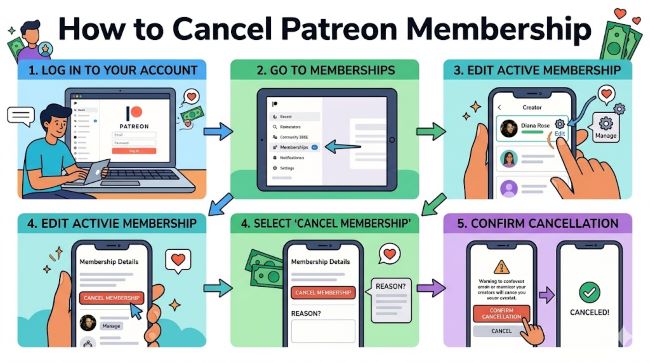
- Go to patreon.com and log in to your account.
- Click your profile picture in the bottom-left corner of the screen.
- If you have a combined creator and member profile, switch to your member profile.
- Click Settings in the left navigation menu.
- Select the Memberships tab. This shows all active patreon subscriptions.
- Find the creator whose membership you want to cancel and click View Details.
- Click Edit or Cancel Payment, depending on your account setup.
- Select Cancel your membership.
- Patreon may present a retention screen asking if you want to stay as a free member instead. Read through it and choose to cancel the paid membership if that is your goal.
- Click Save and continue or the red Cancel button to confirm.
You will see a confirmation that your patreon membership has been canceled. Your access continues until the end of your current billing period.
How to Cancel Patreon Membership on iPhone or iPad (iOS)
If you signed up through the Patreon website or an Android device, use the steps above. If you signed up via the App Store, your subscription runs through Apple, and you need to cancel through your iOS subscription settings, not through Patreon directly.
If you signed up through Apple:
- Open the Settings app on your iPhone or iPad.
- Tap your name at the top of the screen.
- Tap Subscriptions.
- Find Patreon in the list and tap it.
- Tap Cancel Subscription and confirm.
If you signed up directly through Patreon:
- Open the Patreon app and tap the Home icon.
- Tap the creator whose membership you want to cancel.
- Tap the three-dot menu (⋯) in the top right corner.
- Tap Your membership.
- Select Cancel membership and follow the prompts.
How to Cancel Patreon Membership on Android
Like iOS, the path depends on how you originally signed up.
If you signed up through Google Play:
- Open the Google Play Store app.
- Tap your profile icon in the top right corner.
- Tap Payments and subscriptions, then Subscriptions.
- Find Patreon and tap it.
- Tap Cancel subscription and follow the prompts.
If you signed up directly through Patreon:
- Open the Patreon app and navigate to Home.
- Tap on the creator whose membership you want to cancel.
- Tap the three-dot menu in the top right.
- Tap Your membership.
- Select Cancel membership and confirm.
Canceling a Free Patreon Membership
Free memberships do not involve billing, but you can still cancel them if you no longer want updates from a creator.
On desktop: Go to Settings > Memberships, find the creator, and click the option to cancel or leave the membership.
On mobile: Navigate to the creator’s page, tap the three-dot menu, and select Your membership, then choose to cancel or leave.
Canceling a free membership simply removes the creator from your followed list. You can rejoin at any time.
What Happens After You Cancel Your Patreon Membership?
A few things to know about what changes and what does not:
- Access continues until the end of your current billing period. If you were billed on the 1st and cancel on the 15th, you keep access until the end of that billing cycle.
- No automatic refunds. Patreon’s policy is that payments go directly to creators and are not refunded. If you believe a charge was made in error, you can submit a request to Patreon for review, but routine cancellations do not include refunds.
- Per-creation billing. If your creator uses a per-creation billing model rather than a monthly subscription, you may receive a final charge for paid posts made before your cancellation date. Check your billing history after canceling to confirm.
- The creator is not directly notified. Creators may notice a change in their membership count but are not sent a direct notification when a specific member cancels. They can see your username and email in their member data.
- You can rejoin at any time. Canceling does not permanently close the door. You can re-subscribe to any creator whenever you choose.
The Cancel Button Is Missing: What to Do
This is a common issue, and there are a few reasons it happens.
You may be on the wrong account. If you have both a creator profile and a member profile, the cancel option only appears when you are viewing your member profile. Switch profiles by clicking your picture in the bottom-left corner of the desktop interface.
You may have a second account. It is common to have an old Patreon account linked to a different email address. Try resetting your password with all email addresses you may have used. Check your inbox for old Patreon billing receipts to find the correct account.
Your subscription may be managed by Apple or Google. If you signed up through the Patreon app via the App Store or Google Play, the cancel button in Patreon’s web interface will not appear. You need to cancel through your phone’s subscription settings instead.
Browser issues. Clear your cache, disable any ad blockers, and try again in an incognito window. Patreon’s interface can behave unexpectedly with certain extensions active.
If none of these solve the problem, contact Patreon customer service directly through their help center at support.patreon.com. You can submit a support ticket there. Response times vary, with Patreon customer service noting that high-demand periods can mean up to a week for a response, so submit early if you are trying to cancel before a billing date.
How to Delete Your Patreon Account
Canceling your patreon memberships and deleting your account are two separate actions. Canceling stops billing. Deleting removes your account and data from the platform entirely.
To delete your Patreon account:
- Log in to Patreon on a desktop browser.
- Click your profile picture and go to Settings.
- Scroll to the bottom of the account settings page.
- Find the option to Delete Account and follow the confirmation steps.
Before you delete, cancel all active patreon subscriptions first. Deleting your account does not automatically cancel billing in all cases, and you could still be charged if active memberships remain. Also note that account deletion is permanent. Your history, messages, and saved content within Patreon are removed and cannot be recovered.
If you only want to step back from creating content, Patreon also offers the option to unpublish your creator page without deleting your account.
Managing Multiple Subscriptions Going Forward
Patreon is far from the only subscription that quietly accumulates charges month after month. If you are doing a broader audit of recurring payments, keeping all your subscriptions visible in one place helps you avoid the “I forgot I was paying for that” situation. Tools that help you track expenses across multiple subscriptions make this a much less painful process. Similarly, if you run into account access or syncing issues across platforms, including Patreon’s recent account consolidation changes, troubleshooting resources on resolving account sync and access problems are worth having on hand.
Key Takeaways
- How to cancel Patreon membership on desktop: Log in > Settings > Memberships > View Details > Cancel Membership > Confirm.
- On mobile (iOS/Android): Navigate to the creator’s page via the app > three-dot menu > Your membership > Cancel. If you signed up via Apple or Google, cancel through your phone’s subscription settings instead.
- Cancel before your billing date to avoid the next charge. Most Patreon subscriptions bill on the 1st of the month.
- Access continues until the end of your current billing period after cancellation.
- Patreon does not offer refunds for standard cancellations. Per-creation billing may result in a final charge for posts made before cancellation.
- If the cancel button is missing, check that you are on the member profile, verify you do not have a second account, and check whether your subscription is managed by Apple or Google.
- Patreon customer service is available at support.patreon.com via a support ticket. Allow up to a week during busy periods.
- How to delete Patreon account: Cancel all memberships first, then go to Settings and use the Delete Account option at the bottom of the page.