How to Copy and Paste Multiple Lines in QuickBooks Online
Learn how to copy and paste multiple lines in QuickBooks Online from Excel or within transactions. This guide covers every method, the Excel-to-QBO grid feature, common errors, and how to avoid them.
If you have ever manually typed the same line items into invoice after invoice in QuickBooks Online, you already know how much time that wastes. The good news is that knowing how to copy and paste multiple lines in QuickBooks Online can cut that work down considerably. The process has some quirks depending on where you are working in QBO, but once you understand the logic, it becomes a reliable part of your daily workflow. This guide covers every method available, from pasting data in from Excel to duplicating lines within a transaction, along with the limitations you need to know to avoid losing your work.
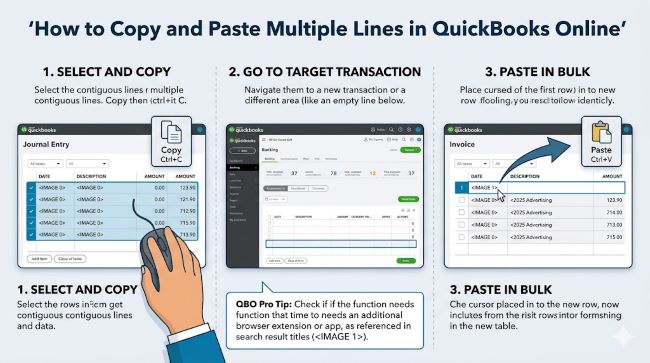
How QuickBooks Online Handles Copy and Paste
QBO is a browser-based application, which means it behaves differently from desktop software when it comes to data entry. For a long time, the platform had limited support for pasting multiple rows of data at once, particularly into transaction grids like invoices and bills.
That changed with a feature Intuit added to vendor and expense-related transactions: the ability to export the current transaction grid to Excel, edit data there, and paste it back. This is currently the most reliable way to copy and paste multiple lines in QBO, and it works for invoices, expenses, and bills.
Method 1: Copy from Excel Into a QuickBooks Online Transaction
This is the most practical method for users who maintain data in a spreadsheet before entering it into QBO.
Before You Start
Prepare your data in Excel or Google Sheets. Make sure:
- Column headers in your spreadsheet match the fields in the QBO transaction (Item, Description, Quantity, Rate, Amount, Tax)
- Date formats match what QuickBooks expects
- Data is clean, with no extra rows, merged cells, or special characters that QBO might misread
Step-by-Step Process
- Log in to your QuickBooks Online account.
- Navigate to the transaction type where you want to enter data: Invoice, Expense, Bill, or Journal Entry.
- Open the transaction and click into the first empty line item row.
- Go to your Excel file and select all the rows and columns you want to copy.
- Press Ctrl + C (Windows) or Cmd + C (Mac) to copy.
- Return to the QBO transaction and click into the first field of the first line item row.
- Press Ctrl + V (Windows) or Cmd + V (Mac) to paste.
- Review each row for formatting errors, missing values, or misaligned columns.
- Make corrections manually where needed.
- Press Ctrl + S to save, or click Save and Close.
Key Tips
- Paste data in small batches. Pasting a large volume of rows at once can cause QBO to freeze or display only the first row.
- Always verify the pasted data against your source before saving. QBO will not catch column mismatches automatically.
- Use the desktop browser version of QBO, not the mobile app. The copy-paste feature does not work in the mobile app.
Method 2: Use the Export-to-Excel Grid Feature (Best for Expense Transactions)
QuickBooks Online added icons in the top-right corner of expense and vendor transaction grids. These icons let you export the current line items to Excel, edit in Excel, and paste the updated data back into the transaction. This is the most efficient method for bulk editing line items.
Here is how it works:
- Open any expense or vendor transaction in QBO.
- Look for small icons in the top right of the line item grid area. These include an export icon and a paste-from-clipboard icon.
- Click the export icon to send the current grid data to an Excel file.
- Make your edits in Excel: add rows, update quantities, change amounts.
- In Excel, select all the data rows including headers and copy with Ctrl + C.
- Return to the QBO transaction and click the paste icon in the grid area.
- QBO will import the copied rows into the transaction.
- Review the results and save.
This method is more reliable than a direct paste because it uses QBO’s own export format, so column alignment is handled automatically. Note that this feature currently works in expense and vendor transactions only, not in all transaction types.
Method 3: Copy a Transaction Within QuickBooks Online
If you need to duplicate an entire transaction rather than just line items, QBO has a built-in copy function.
- Go to the transaction list (Expenses, Invoices, or Bills).
- Find the transaction you want to duplicate.
- Click the dropdown arrow on the right side of that transaction row.
- Select Copy from the options.
- A new transaction opens with all the same details pre-filled.
- Adjust the date, amount, or any fields that need to change.
- Save the new transaction.
This is useful for recurring bills or invoices with the same line items, where you need a fresh copy each month or quarter.
Method 4: Duplicate a Line Item Within an Invoice
If you need to repeat the same line inside a single invoice multiple times, the process is more manual in QBO.
- Fill in one line item completely: item name, description, quantity, rate.
- Click at the start of that line item row.
- Use Ctrl + C to copy the row.
- Click on the next empty row in the invoice.
- Press Ctrl + V to paste.
- Update the quantity or any field that differs.
QBO does not have a built-in “duplicate row” button for invoice lines, so this copy-paste method is the closest workaround.
Common Errors When Copying and Pasting in QBO
Knowing what can go wrong helps you avoid it. These are the most frequently reported issues:
Only the first row pastes, the rest are empty. This happens when the data volume is too large or the column alignment is off. Try pasting in smaller batches, and check that your source data has consistent formatting throughout.
Data appears in the wrong columns. QBO reads pasted data left-to-right and maps it to fields in order. If your Excel columns are in a different order than QBO’s fields, the data will misalign. Reorder your spreadsheet columns to match QBO’s field sequence before pasting.
QuickBooks freezes or crashes during paste. Pasting several hundred rows at once can overload the browser-based interface. Break large datasets into batches of 20 to 50 rows.
Formatting errors in currency or dates. QBO expects specific formats. Dates should be MM/DD/YYYY, and currency should be numeric without currency symbols. Clean your data in Excel before copying.
The paste option does not appear or does nothing. Clear your browser cache and try again. If the issue continues, switch to a different browser. Chrome tends to work most reliably with QBO’s paste features.
What QuickBooks Online Does Not Support
There are some things QBO’s copy-paste feature cannot handle. Being clear on this saves time:
- Attachments and images cannot be copied and pasted as part of a transaction.
- Customer or vendor fields with complex data (like custom fields) may not paste correctly and require manual entry.
- Journal entries do not currently support the Excel grid export feature that vendor transactions do.
- The mobile app does not support multi-line paste operations.
For large-scale bulk imports, a better option is using QBO’s Import Data feature under Settings, or a third-party integration that connects your spreadsheet directly to QuickBooks.
Tips for a Smoother Workflow
A few habits that prevent most copy-paste problems in QBO:
- Keep your source data in a consistent Excel template that matches QBO field order.
- Always paste into a draft or unposted transaction first so you can review before finalizing.
- Save after every successful paste batch. Do not wait until you have pasted everything.
- Check totals in QBO against your source spreadsheet to catch any rows that did not paste.
Managing data efficiently across tools is part of building a reliable accounting process. Understanding how data analytics tools handle structured input helps you choose the right approach whether you are working in QBO, Excel, or any other platform. And keeping your apps and account settings in sync matters too: issues like subscription tracking across tools and account sync failures can disrupt workflows in ways that feel unrelated but share the same root cause.
Key Takeaways
- How to copy and paste multiple lines in QuickBooks Online: Select your data in Excel, copy with Ctrl + C, click the first line item field in a QBO transaction, and paste with Ctrl + V.
- The most reliable method for expense and vendor transactions is the built-in Export-to-Excel grid feature, which lets you edit in Excel and paste back using QBO’s own format.
- Paste in small batches (20 to 50 rows at a time) to avoid browser freezes and incomplete pastes.
- Column order in your source data must match QBO’s field order, or data will land in the wrong fields.
- Mobile app does not support multi-line paste. Use the desktop browser version.
- For very large imports, use QBO’s built-in Import Data feature instead of manual copy-paste.
- Always review pasted data before saving and check totals against your source.