Lost Your Photos? Recover Them Safely from Smartphones, SD Card, and Computer’s Hard Drive
If you are experiencing photo loss on your smartphone, SD card or computer right now, STOP using the device immediately. Do not click new photos, install apps, or save files to that device or storage drive. Because, new data can overwrite the deleted photos, making them irrecoverable.
But you don’t have to worry until you overwrite your deleted files. Deleted files from your Smartphone, SD card or computer are rarely gone instantly. They are usually removed from the index file, just hidden, waiting for new data to take their place. This complete guide will show you how to safely get your photos back from smartphones, SD cards, and hard drives.
Whether you are dealing with accidental deletion, formatting, corruption, malware, or an unreadable drive, this guide will get your photos back in no time.
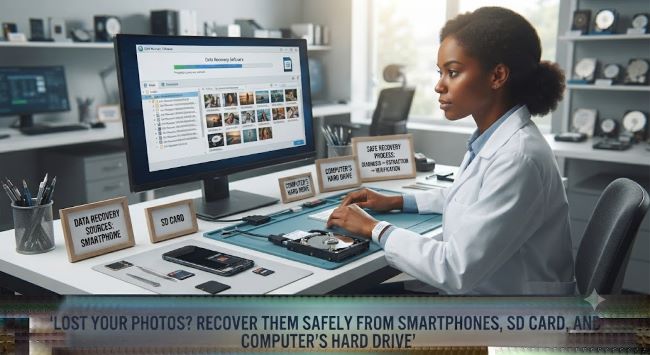
The Quick Check (Free Recovery Solutions)
Before downloading any software, check if your photos are hiding in plain sight.
- Smartphone Trash Bins: Both iPhones and Android devices have built-in safety nets. On an iPhone, open the Photos app, tap Albums, and scroll down to Recently Deleted. On Android, check the Trash or Bin folder inside Google Photos or Recently Deleted folder on your Gallery app. Deleted items usually stay here for 30 to 60 days.
- Cloud Backups: Did your phone automatically sync your photos to a cloud backup? Log into your account at iCloud.com, Google Photos, or OneDrive from a computer. Your lost photos might be sitting there waiting for you.
- The Hidden Mac Trash: If you deleted photos from an SD card or external drive while it was plugged into a Mac, reconnect that drive. Open the Mac Trash bin. MacOS creates a hidden folder on external storage, and your deleted files might still be there.
Photo Recovery from Smartphones
Recovering data from a phone is tricky because it’s a more secure platform. Computers read phone storage differently than a standard USB drive due to built-in security features. Because of this, you need specialized software that knows how to talk to your mobile operating system.
Android Photo Recovery
Use Stellar Data Recovery for Android.
How does it help?
You connect your phone to a computer, and this tool safely scans the phone’s internal memory. It can find deleted photos, and other files. The best part is that it reduces the risk of having to “root” your phone, keeping your device safe from security threats.
iPhone Photo Recovery
Use Stellar Data Recovery for iPhone.
How does it help?
iPhones are highly secure, but this software is built to safely navigate iOS. It can pull lost photos directly from your phone’s memory. If your phone is broken, it can scan your old iTunes or iCloud backup files on your computer to pull just the photos out, without wiping your current phone data.
Recovery from SD Cards & Hard Drives (PC & Mac)
If your photos were lost from a camera’s SD card, an external drive, or your computer’s internal hard drive, using a desktop recovery tool is the fastest and easiest method to bring them back.
Standard computer systems only read files that are listed in their active directory. When a file is lost, data recovery software goes straight to the physical storage sectors, reads the raw block data to find your missing photos and piece them back together.
- Connect: Plug your SD card into a card reader or connect your external hard drive to your PC or Mac.
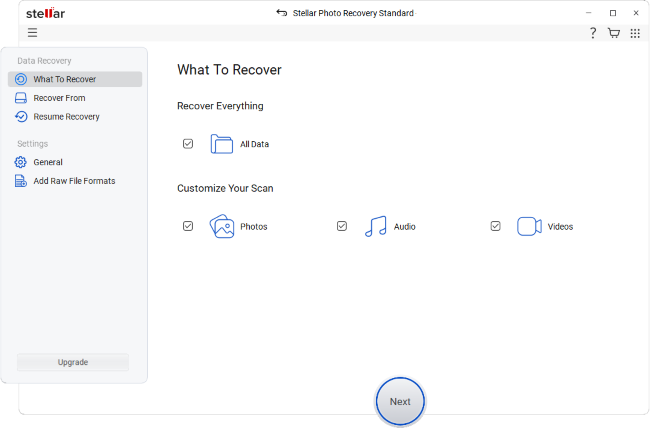
- Select: Launch Stellar Photo Recovery, choose the file type, and specific drive where your photos were stored.
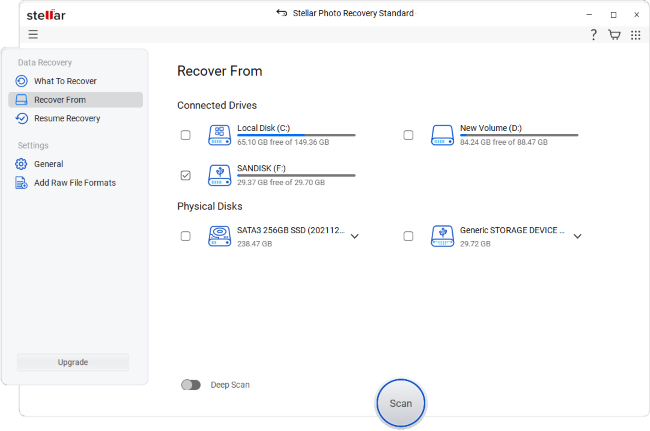
- Scan: Click on the scan button and let it run a Deep Scan. This searches every layer of the storage drive to find hidden file signatures.
- Preview: Once the scan is done, you will see thumbnails of your photos. Click on them to verify that the files are recoverable.
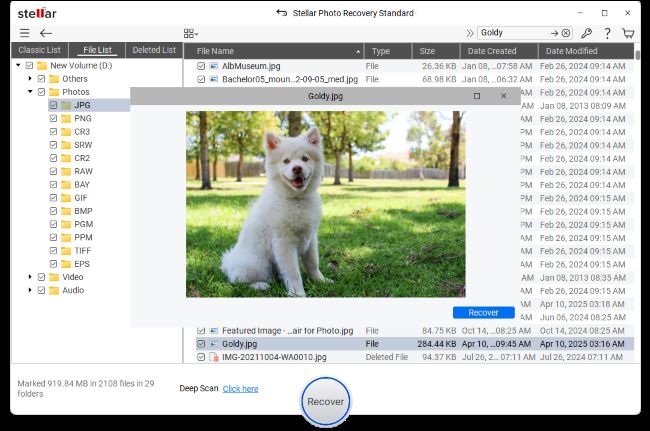
- Save Safely: Click recover and save the photos.
Pro tip – Always save your recovered files to a different drive, like your computer’s internal desktop. Never save them back onto the same SD card or drive they were lost from, or you will ruin the remaining data.
| Software Recommendations:
While Stellar Photo Recovery is excellent for finding photos, it only allows free recovery of 10 files/100MB each, for a complete free option you can look into PhotoRec (only if you are comfortable with a command line tool) or Recuva (only for Windows users). |
Troubleshooting Photo Loss Scenario
Different data loss situations require different approaches. Here is how to handle different situations:
Accidental Deletion & Quick Formatting
Clicking “Delete” or running a quick format doesn’t actually erase your photos. It simply removes the files from the drive’s “index” (the table of contents). Your photos are still on the storage drive; the computer just thinks the space is now empty and ready for new files.
The Fix: Run a standard Deep Scan using your recovery software right away. Since the files are fully intact, your chances of success are very high.
File Corruption & File System Errors
Sometimes a drive gets corrupted if it is pulled out while saving data. The drive’s internal structure gets scrambled, causing errors like “Drive not accessible” or “You need to format the disk before you can use it.”
The Fix: Do not format the drive. Run your computer’s built-in repair tools. On Windows, open Command Prompt and run the chkdsk command. On a Mac, open Disk Utility and run First Aid. Once the drive based errors are fixed, use any Photo recovery software to bring the photos back.
Virus or Malware Attacks
Viruses can change your photo extensions, encrypt your file and folders, or hide your files completely so the drive looks empty.
The Fix: First, run a reliable antivirus tool to quarantine and remove the threat. Next, use command line prompts (like the attrib command in Windows) to unhide your original files. If they are still missing, run your recovery software.
Inaccessible or Unrecognized Storage
If you plug in your SD card or drive and your computer doesn’t show any sign that it is connected, the issue is likely a communication failure between the device hardware and your computer software.
The Fix: Try using a different USB port or a different USB cable. Test the card in a different card reader, or plug it into another computer entirely. If you are on Windows and the drive is detected but has no letter, open Disk Management and manually assign a new drive letter (like changing it to drive X: or Z:).
When DIY recovery methods can fail?
If your SD card is physically cracked, your USB port is broken, or your computer’s internal hard drive is making a clicking sound due to internal damages or dust accumulation, software cannot help you. Software needs a working drive to read data.
Avoid anything risky or dangerous that the internet suggests. This will destroy your photos forever. Instead, pack your device carefully and ship it to a certified, professional laboratory data recovery service. They work in dust-free cleanrooms and can manually rebuild broken parts to read your data.
Data Loss Prevention tips
The best way to prevent data loss is to make sure it doesn’t bother you when it happens and for that you need to follow the below tips:
- 3-2-1 backup rule: Keep 3 copies of your photos. Store them on 2 different types of media (one in your computer’s hard drive and an external flash drive). Keep 1 copy in a secure cloud storage account (Google Drive, iCloud, or Dropbox).
- Device care tips: Always use the “Safely Remove” or “Eject” option on your computer before taking out a card or drive. Never shoot photos if your camera or phone battery is critically low, as a sudden shutdown can corrupt the save file. Lastly, always format your memory cards inside your camera rather than your computer to ensure the file system matches perfectly.
Conclusion
When photos go missing, time can be your best friend or greatest enemy. The faster you stop using the drive and begin the recovery process, the higher your chances of recovering the photos back. Check your built-in trash bins first, then look for cloud backup, and then use dedicated software like Stellar photo recovery to get them back.