Why Is My Alarm So Quiet on iPhone? Causes and Fixes
Few things are more frustrating than sleeping through an alarm because it barely made a sound. If your iPhone alarm is quieter than it should be, the cause is almost always a settings issue rather than a hardware problem. There are several distinct reasons why an iPhone alarm can become quiet, and most of them are easy to fix once you know where to look. This guide walks through every cause and every fix.
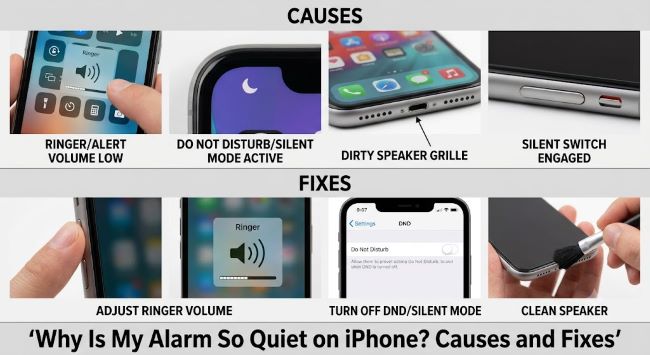
Reason 1: Ringer Volume Is Too Low
The most common reason an iPhone alarm is so quiet is that the ringer volume is set too low. This surprises a lot of people because alarm volume and media volume feel like they should be separate, and on iPhone they partially are — but the alarm uses the ringer volume channel, not the media volume.
The fix: Go to Settings > Sounds & Haptics. Under the Ringer and Alerts section, you’ll see a slider. Drag it to the right to increase the volume. The phone will play a preview tone as you drag so you can hear the level in real time.
Below the slider, there’s a toggle called Change with Buttons. If this is turned ON, your physical volume buttons (on the side of the phone) will adjust ringer and alarm volume when you’re not in an app. If it’s turned OFF, the physical buttons only control media volume and your alarm volume stays wherever the slider is set. Either setting can be right depending on your preference, but if you’ve been accidentally pressing the volume-down button and wondering why your alarm got quiet, turning this OFF prevents that from happening again.
Reason 2: A Focus Mode Is Silencing Alarms
iPhone’s Focus modes (Do Not Disturb, Sleep, Personal, Work) can interfere with alarm behavior depending on how they’re configured. The Sleep Focus mode in particular, designed to wind down before bed, has settings that control alarm volume and behavior during the sleep window.
The fix: Go to Settings > Focus. Tap Sleep (or whichever Focus mode is active when your alarm fires). Check whether there are any notification settings that might affect alarms. Then go to Settings > Focus > Sleep and look at the scheduled time to make sure the Focus ends before or at your alarm time.
Also check that Do Not Disturb is not scheduled to overlap with your alarm window. Go to Settings > Focus > Do Not Disturb and review any scheduled or automation-triggered activations.
Note: alarms set through the Clock app should sound even during most Focus modes, but Sleep Focus with certain configurations can mute or reduce alarm volume. Alarms in third-party apps may behave differently.
Reason 3: The Alarm Tone Is Set to “None” or a Quiet Sound
Each alarm in the Clock app has its own sound setting. If the alarm tone was changed to “None” or to a very soft sound like Silk or Chimes, the alarm will be nearly inaudible even at maximum volume.
The fix: Open the Clock app, tap Alarm, then tap Edit and select the alarm in question. Tap the alarm to edit it, then tap Sound. Check that it’s not set to None. Scroll through the options and select a louder tone: Radar, Beacon, and Waves are among the louder default options. Tap the tone to preview it at the current volume level. Save the alarm.
If you’ve been using a custom song from your music library as the alarm tone, some songs start quietly or have a soft intro. Try a different track or switch to a built-in alarm tone.
Reason 4: Attention Aware Features Are Lowering the Volume
iPhones with Face ID have an Attention Aware Features setting that uses the TrueDepth camera to detect whether you’re looking at the phone. If the phone detects you’re looking at it, it automatically lowers the ringer and alert volume. This can make your alarm quieter the moment you pick it up and look at the screen.
The fix: Go to Settings > Face ID & Passcode (enter your passcode). Scroll down to find Attention Aware Features and toggle it OFF if you don’t want your alarm automatically lowered when you look at the phone.
This setting affects all alerts, not just alarms, so consider whether you want to disable it globally or just adjust your behavior around alarms.
Reason 5: The Mute Switch Is On (but Alarms Should Still Sound)
The physical mute switch on the left side of the iPhone silences ringtones and many notifications, but it does not silence alarms set in the Clock app. If your iPhone alarm is so quiet on iPhone despite the mute switch being on, that’s expected behavior for third-party app alarms, which the mute switch can silence. But native Clock alarms should bypass the mute switch.
If you’re using a third-party alarm app and the mute switch silences it, switch to the native Clock app for reliable alarm behavior.
Reason 6: Bluetooth Audio Is Active
If your iPhone is connected to a Bluetooth device (headphones, speaker, car audio system), the alarm may route through that device rather than the iPhone speaker. If the Bluetooth device is across the room, in a case, or has its own volume set low, the alarm will sound quiet or inaudible.
The fix: Before sleeping, disconnect Bluetooth or turn off Bluetooth entirely in Settings > Bluetooth if you want alarms to come through the iPhone speaker. Alternatively, use Control Center to toggle Bluetooth off before bed.
Reason 7: Software Bug or Restart Needed
Occasionally, iPhone alarm volume issues result from a software glitch rather than a setting. If you’ve checked all of the above and the alarm is still quiet, a restart often resolves it.
Restart: Hold the side button and a volume button until the power slider appears. Drag to power off, wait 30 seconds, then power back on.
If the problem persists after a restart, check Settings > General > Software Update to make sure iOS is up to date. Known audio bugs in specific iOS versions are occasionally fixed in subsequent updates.
For other iPhone settings worth reviewing when you’re troubleshooting your device, how to set out of office in Outlook app is a common productivity setting that pairs well with making sure your alarm and notification setup is working correctly before travel or time off.
Key Takeaways
- The most common reason an iPhone alarm is so quiet is that the ringer volume (not media volume) is set too low: fix this in Settings > Sounds & Haptics
- Each alarm has its own sound setting in the Clock app: check that the tone is not set to None and that it’s a sufficiently loud option like Radar or Beacon
- Focus modes, especially Sleep Focus, can interfere with alarm volume: review Focus schedules in Settings > Focus
- Attention Aware Features on Face ID iPhones automatically lowers volume when you look at the phone: disable in Settings > Face ID & Passcode if this is causing issues
- Bluetooth connections can redirect alarm audio to a connected device that’s out of earshot: disconnect Bluetooth before sleeping
- Native Clock app alarms bypass the mute switch; third-party alarm apps do not
- A restart resolves many software-related alarm volume glitches and should be tried after ruling out settings issues