Kleki
Want to draw or paint digitally without buying software or installing anything? This free web app might be exactly what you need. This free, browser based painting app gives you brushes, layers, filters, and pen pressure support, all from a single web page.
In this guide, you’ll learn what the app is, how it works, which tools it offers, how to save your work, and whether it’s a good fit for beginners and more experienced artists.
What Is Kleki?
Kleki is a free online painting and drawing program that runs entirely in your web browser at kleki.com. It was created by bitbof, a programmer and artist, and first launched in 2010. Since then, the developer has kept adding features, from new brushes to selection tools and smoother mobile support.
The open source version of the app is called Klecks, which is German for “splash of color” and is pronounced “clex.” Its code is published on GitHub under the MIT license. That means developers can study it and even embed it in their own sites. In fact, some online art communities, such as 2draw.net, use an embedded version for their members.
The official site also takes a clear stance on advertising, stating that it “strongly believes that Kleki should have no ads.” That makes the drawing space clean and focused.
| Detail | Information |
|---|---|
| Type | Online painting and drawing app |
| Creator | bitbof |
| First released | 2010 |
| Open source name | Klecks |
| License (open source code) | MIT |
| Cost | Free |
| Runs on | Desktop, tablet, and phone browsers |
| Languages | More than 10 interface languages |
How Does Kleki Work?
The app works like a lightweight version of desktop painting software, but it runs in your browser. When you open the page, a blank canvas appears with a toolbar on the side. You choose a tool, pick a color, and start drawing with your mouse, finger, or stylus.
Behind the scenes, the program uses modern web technology, including WebGL, to power effects and filters smoothly. Your drawing stays inside your browser while you work, and you can store it in the browser or download it as a file when you’re done.
Because there’s no installation, you can start in seconds on almost any device with a modern browser, such as Chrome, Firefox, Safari, or Edge.
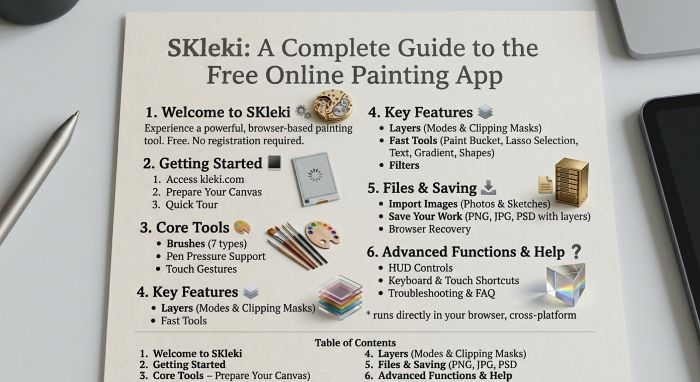
Key Features of Kleki Drawing Tool
According to the project’s GitHub page, the painting app includes:
- Layers for building art in separate parts
- Pen support with pressure sensitivity and a stabilizer for smoother lines
- Touch gestures for zooming and moving around the canvas
- Seven brush types: pen, blend, sketchy, pixel, chemy, smudge, and eraser
- Tools: selection, paint bucket, text, shapes, and gradient
- Filters: blur, tilt shift, curves, distort, noise, and more
- Lineart extraction to pull clean lines from a sketch
- Editing tools: transform, warp, crop or expand, resize, and perspective
- PSD support for importing and exporting layered files
- Browser storage to keep drawings between visits
For a free web app, that’s a surprisingly rich set of features.
Drawing Tools and Their Uses
Here’s a closer look at the main tools you’ll find in the toolbar:
| Tool | What it does | When to use it |
|---|---|---|
| Brush | Paints with the selected brush type | Sketching, lineart, painting |
| Paint bucket | Fills an area with color | Flat colors, backgrounds |
| Gradient | Creates smooth color transitions | Skies, lighting, shading |
| Text | Adds text to the canvas | Titles, comics, labels |
| Shape | Draws lines, rectangles, and ellipses | Clean geometry, frames, panels |
| Select | Selects an area to move, transform, or limit edits | Fixing proportions, isolating parts |
| Hand and zoom | Moves and zooms the canvas | Detail work |
The Brush Types
The seven brushes give you a lot of variety:
- Pen: A clean, versatile brush for lineart and general drawing. A 2025 update added a scatter option.
- Blend: Mixes colors softly, like wet paint.
- Sketchy: Creates loose, connected lines that look hand sketched.
- Pixel: Draws hard edged pixels, perfect for pixel art.
- Chemy: Makes symmetrical, abstract shapes, great for patterns and experiments.
- Smudge: Pushes and blends existing color, like smudging charcoal.
- Eraser: Removes paint from the current layer.
Understanding Layers
Layers are like stacked sheets of clear plastic. Each one holds part of your drawing, so you can change one part without ruining the rest. According to the project changelog, the app supports up to 16 layers.
A common layer setup looks like this:
| Layer | Purpose |
|---|---|
| Sketch | Rough drawing at low opacity |
| Lineart | Clean outlines on top |
| Flat colors | Base colors under the lines |
| Shading | Shadows and highlights |
| Background | Sky, scenery, or a solid color |
You can add, delete, rename, hide, merge, and reorder layers. You can also change each layer’s opacity, which is handy for tracing over a faded sketch. Layer blend modes let you create effects like shadows and glows.
Tip: Keep your lineart on its own layer above your colors. That way, you can fill and shade without accidentally painting over your lines.
Brushes, Colors, and Customization Options
Each brush comes with settings you can adjust:
- Size: Make strokes thick or thin.
- Opacity: Control how see through your strokes are.
- Pressure sensitivity: With a pen tablet or stylus, pressing harder can change size or opacity.
- Stabilizer: Smooths shaky lines, which is great for lineart.
- Scatter: Available on the pen brush for textured effects.
The color picker lets you choose any color, and you can sample colors directly from the canvas. Filters such as curves, blur, and noise let you adjust colors and textures after painting.
How to Make Your First Digital Drawing in Kleki
Follow these simple steps:
- Open the website in your browser. A blank canvas appears.
- Set your canvas size. Create a new image and choose your dimensions.
- Sketch on a new layer. Use the pen or sketchy brush in a light color.
- Lower the sketch opacity so it’s faint.
- Add a lineart layer and trace clean lines with the pen brush and the stabilizer turned on.
- Add a color layer under the lineart and fill areas with the paint bucket.
- Shade and highlight on a new layer using soft brushes or the blend brush.
- Add a background using the gradient tool.
- Apply finishing filters like a little blur or noise.
- Save your drawing to browser storage or download it.
That’s it. You’ve made your first digital painting without installing anything.
Using It for Digital Painting
For painterly work, the blend and smudge brushes are your best friends. Start with big blocks of color, then blend edges with the blend brush. Use the smudge brush to soften shadows. Gradually add smaller details with a smaller pen brush. This “big to small” approach works well in any painting program.
Filters and Editing Tools
Beyond brushes, the app includes a solid set of editing tools that help you fix and polish your work:
| Tool | What it does |
|---|---|
| Transform | Moves, scales, and rotates a layer or selection |
| Warp | Bends parts of an image, useful for fixing shapes |
| Perspective | Adjusts a layer to match a vanishing point |
| Crop or expand | Changes the canvas size or trims edges |
| Resize | Scales the whole image up or down |
| Lineart extraction | Pulls clean dark lines from a sketch or scan |
| Blur and tilt shift | Softens areas or creates a miniature effect |
| Curves | Adjusts brightness and contrast with precision |
| Distort and noise | Adds texture and creative effects |
These tools are powered by WebGL, so they usually run smoothly even on modest hardware. Lineart extraction is especially useful if you draw on paper first. Take a photo of your sketch, open it in the app, extract the lines, and then color underneath on a new layer.
The select tool, added in 2024 and improved in 2025, now works with all tools and edit functions. That means you can select a hand that looks too large, shrink it with transform, and leave the rest of the drawing untouched.
Using It in Classrooms and at Home
Because there’s nothing to install and no account required, the app is a practical choice for schools and families. Teachers can send students a single web address and start a lesson right away. Shared computers don’t need special software, and students can download their finished drawings to submit as assignments.
At home, kids can explore drawing without the risk of ads or in app purchases. Parents can set up a tablet with a stylus to give young artists a natural drawing feel. Older students can practice the same layer based workflow used in professional programs, which makes moving to advanced software easier later.
Does It Work on Tablets and Touchscreens?
Yes. The developer lists support for desktop, tablet, and phone. On touch devices, you can use gestures to zoom and move the canvas. Stylus users get pressure sensitivity, so a tablet with a pen, such as an iPad with Apple Pencil or an Android tablet with a stylus, offers a much more natural drawing feel.
Recent updates have improved the mobile interface, added automatic tab recovery, and made zooming and scrolling smoother. On a small phone screen, though, detailed work can feel cramped. A tablet or computer with a drawing tablet usually gives the best experience.
| Device | Experience |
|---|---|
| Desktop with mouse | Good for simple drawing and editing |
| Desktop with pen tablet | Excellent, with pressure support |
| Tablet with stylus | Excellent and portable |
| Phone | Usable for quick sketches |
How to Save and Export Your Drawings
You have several ways to keep your work:
| Option | What it does | Best for |
|---|---|---|
| Browser storage | Saves the drawing inside your browser using IndexedDB | Continuing later on the same device |
| PNG download | Saves a flat image file | Sharing online or printing |
| PSD export | Saves a layered file | Opening in Photoshop or other editors |
| PSD import | Opens a layered file | Continuing work from another app |
Browser storage is convenient, but it’s tied to one browser on one device. If you clear your browser data, saved drawings may disappear. For important artwork, always download a copy as PNG or PSD.
Can You Use It Without Downloading?
Absolutely. There’s no app to install. You just open the website and start drawing. Your art can stay in your browser storage, and you only download files when you want to keep or share them.
Is Kleki Suitable for Beginners?
Yes. The interface is simple, with clear icons and few menus. Beginners can start drawing right away without learning a complicated program. At the same time, layers, filters, and pressure support give room to grow.
Tools every beginner should learn first:
- Pen brush for drawing and lineart
- Eraser for fixing mistakes
- Undo for quick corrections
- Layers for separating sketch, lines, and color
- Paint bucket for fast flat colors
Students, hobbyists, and kids can all use it easily, which makes it popular in classrooms and with families.
What Can You Create?
People use the app to make:
- Sketches and doodles
- Comics and simple storyboards
- Character designs
- Pixel art with the pixel brush
- Digital paintings and landscapes
- Patterns and abstract art with the chemy brush
- Quick mockups and diagrams
Advantages and Limitations
Advantages
- Free with no ads
- No installation needed
- Works on many devices, including tablets and phones
- Pressure sensitive brush support
- Layers, filters, and PSD support, which are rare in free web apps
- Open source code under the MIT license
- Quick to learn
Limitations
- Layer limit: Up to 16 layers, fewer than many desktop programs
- No custom brush engine: Brush options are more limited than in professional software
- Browser dependent: Performance depends on your device and browser
- Storage risk: Browser storage can be lost if you clear your data
- Not for large print projects: Very large canvases can strain some devices
Kleki vs. Other Online Drawing Programs
| Feature | This app | Photopea | Sketchpad | Desktop apps (Krita, Photoshop) |
|---|---|---|---|---|
| Price | Free | Free with ads, paid plan | Free and paid | Krita free, Photoshop paid |
| Installation | None | None | None | Required |
| Focus | Painting and drawing | Photo editing | Simple drawing | Full professional painting |
| Layers | Yes, up to 16 | Yes | Yes | Yes, many |
| PSD support | Yes | Yes | Limited | Yes |
| Pressure support | Yes | Limited | Varies | Yes |
| Ease of use | Very easy | Moderate | Very easy | Moderate to hard |
The app stands out as a focused painting tool with no ads and a gentle learning curve. Photopea is better for photo editing, while Krita and Photoshop offer far more power for professional work.
Is It Good for Digital Artists?
For quick sketches, studies, and casual painting, yes. Many artists use it for warm ups or when they’re away from their main computer. Professionals working on large commercial projects will usually want a desktop app with more layers, custom brushes, and color management.
Who Should Use It?
- Beginners learning digital art
- Students and teachers in art classes
- Hobbyists who want a quick creative outlet
- Artists who need a light tool on the go
- Anyone who wants to draw without installing software
Tips for Getting Better Results
- Use a stylus or pen tablet for natural pressure control.
- Turn on the stabilizer for smooth lineart.
- Work in layers to keep your drawing flexible.
- Start big, then refine details with smaller brushes.
- Flip your canvas or zoom out often to spot mistakes.
- Try lineart extraction to clean up scanned or rough sketches.
- Use the select tool to fix proportions instead of redrawing.
- Save often and download important work as PSD.
- Practice daily with short sketches to build skill.
Best Techniques to Try
- Thumbnailing: Make several tiny sketches to plan your composition.
- Gradient lighting: Use the gradient tool on a separate layer for soft light.
- Pixel art: Turn on the pixel brush and work on a small canvas.
- Pattern play: Experiment with the chemy brush for symmetrical designs.
Frequently Asked Questions
Is it free to use? Yes. It’s free to use in your browser, and the site says it should have no ads.
Do I need an account? No account is needed to start drawing.
Can I save my work? Yes. You can save to browser storage, download PNG files, or export layered PSD files.
Does it support pressure sensitivity? Yes, with supported pens and styluses.
How many layers can I use? Up to 16 layers.
Who made it? The developer and artist bitbof, who first released it in 2010.
Is it open source? Yes. The open source version, Klecks, is available on GitHub under the MIT license.
Final Thoughts
For anyone curious about digital art, this browser tool offers a free, simple, and surprisingly powerful place to start. With layers, pressure support, filters, and PSD export, it covers far more than you’d expect from a browser app. Beginners can learn the basics in minutes, and experienced artists can use it for quick sketches anywhere.
Key Takeaways
- Kleki is a free, ad free online painting app created by bitbof and first released in 2010.
- It runs in your browser with no installation and works on desktop, tablet, and phone.
- It includes seven brush types, up to 16 layers, filters, text, shapes, gradients, and selection tools.
- It supports pen pressure, a stabilizer, and touch gestures.
- You can save to browser storage or export PNG and layered PSD files.
- Its open source version, Klecks, is available under the MIT license.
- It’s great for beginners and quick sketches, while professionals may prefer desktop software for big projects.