How to Fix Keyboard Delay on Windows, Mac, and Wireless Setups
You press a key, and the letter shows up half a second later. Then three letters arrive at once. Typing starts to feel like sending messages to a computer on another continent. The good news: keyboard lag almost always has a fixable cause, and most of them cost nothing. This guide covers how to fix keyboard delay on Windows, Mac, wireless keyboards, and in games, in the order you should try things.
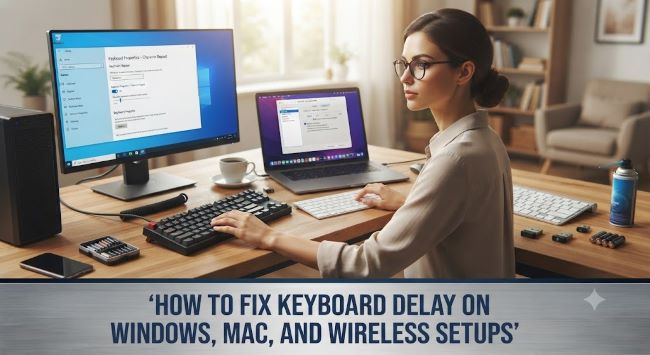
Find Out What Kind of Delay You Have
Not all lag is the same, and the type tells you where to look:
- Every keystroke lags. System-wide problem. Suspect drivers, settings, or a struggling computer.
- Lag in one app only. That app is the problem, not the keyboard.
- Random lag spikes. Classic wireless interference or a dying battery.
- Repeated characters or missed keys. Usually a hardware or filter settings issue.
Open a plain text editor like Notepad and type a few sentences. If typing feels instant there but lags in your browser, you already know the keyboard is fine. Matching the symptom to the cause is step one of how to fix keyboard delay for good.
The Universal First Steps
Before touching any settings, run through the basics. These solve a huge share of cases:
- Restart the computer. Background processes pile up and steal the resources your keyboard input needs.
- Try a different USB port. Plug directly into the computer, not into a hub or monitor passthrough.
- Test the keyboard on another device. If it lags everywhere, the keyboard itself is failing.
- Close heavy programs. A maxed-out CPU delays everything, including keystrokes. Check Task Manager or Activity Monitor for anything eating 90 percent of your processor.
How to Fix Keyboard Delay on Windows
Windows has two settings that directly control typing responsiveness, and they hide in plain sight.
Adjust repeat delay. Open Control Panel, type “keyboard” in the search box, and open Keyboard Properties. Drag the Repeat Delay slider toward Short and Repeat Rate toward Fast. Click in the test box and hold a key to feel the difference. This single screen answers how to fix keyboard delay for a lot of people who never knew the setting existed.
Turn off Filter Keys. This accessibility feature deliberately ignores brief or repeated keystrokes. Go to Settings > Accessibility > Keyboard and switch Filter Keys off. It gets enabled by accident constantly, because holding the right Shift key for eight seconds triggers it.
Update or reinstall the keyboard driver. Right-click the Start button, open Device Manager, expand Keyboards, right-click your keyboard, and choose Update driver. If that changes nothing, choose Uninstall device instead and restart. Windows reinstalls a clean driver automatically on boot.
Run the keyboard troubleshooter. Settings > System > Troubleshoot > Other troubleshooters > Keyboard. It is automated and catches corrupted input services.
How to Fix Keyboard Delay on Mac
Macs bury their key repeat settings in System Settings > Keyboard. Drag “Key repeat rate” to Fast and “Delay until repeat” to Short.
If the whole system feels slow to respond, close apps you are not using and check Activity Monitor for runaway processes. Safari with forty tabs open will lag your typing in every app, not just the browser.
For Bluetooth keyboards on Mac, remove the device from Bluetooth settings entirely, restart, and pair it fresh. Stale pairings cause more lag than most people suspect, and re-pairing is the Mac answer to how to fix keyboard delay over Bluetooth.
Fixing Wireless and Bluetooth Keyboard Lag
Wireless keyboards add three failure points that wired ones do not have: battery, signal, and interference. Work through them in order.
Battery first. A wireless keyboard at 15 percent battery starts dropping and delaying keystrokes before it dies. Charge it or swap batteries before troubleshooting anything else.
Kill the interference. Bluetooth and many wireless dongles run on the crowded 2.4GHz band, shared with Wi-Fi routers, microwaves, and every other wireless gadget in the room. Practical fixes:
- Move the USB receiver to a front-facing port, closer to the keyboard
- Use a short USB extension cable to lift the dongle away from the metal PC case
- Keep the keyboard within a few feet of the receiver, with clear line of sight
- Move your Wi-Fi router to the 5GHz band if your setup allows it
Re-pair the connection. Forget the device in Bluetooth settings, power cycle the keyboard, and pair again from scratch.
If none of that helps, plug in a cheap wired keyboard as a test. Instant typing on the wired board confirms the wireless link was the whole problem.
Fixing Keyboard Lag in Games
Gamers feel input delay more than anyone, and the causes are slightly different. Anyone researching how to fix keyboard delay for gaming should check these:
- Turn on Game Mode in Windows Settings > Gaming. It prioritizes your game’s access to the CPU.
- Cap background apps. Streaming software, browsers, and launchers steal cycles.
- Check your polling rate. Gaming keyboards let you set polling to 1000Hz in their software, which cuts input latency to one millisecond.
- Lower graphics settings. When the GPU chokes, the whole input chain feels sluggish even though the keyboard is fine.
- Use a wired connection for competitive play. Even good wireless adds a small variable delay.
When the Keyboard Itself Is the Problem
Sometimes the answer to how to fix keyboard delay is simply a new keyboard. Warning signs that hardware has failed: specific keys lag while others respond instantly, the same lag follows the keyboard to another computer, or you spilled liquid on it at any point in its history. Membrane keyboards wear out quietly after years of use. Mechanical boards last longer but individual switches can degrade. A basic replacement wired keyboard costs less than lunch, and it also serves as the perfect diagnostic tool to keep in a drawer.
Key Takeaways
- Identify the lag pattern first: system-wide, single-app, or random spikes each point to different causes.
- Restart the computer and test in Notepad before changing any settings.
- On Windows, shorten the Repeat Delay in Keyboard Properties and turn off Filter Keys, which activates by accident easily.
- Update or reinstall the keyboard driver through Device Manager if settings changes do not help.
- On Mac, set Key repeat rate to Fast in System Settings and re-pair Bluetooth keyboards from scratch.
- For wireless keyboards, charge the battery, move the USB receiver closer with an extension cable, and reduce 2.4GHz interference.
- For gaming, enable Game Mode, raise the polling rate to 1000Hz, and prefer wired keyboards in competitive play.
- If lag follows the keyboard to another computer or affects only certain keys, replace the keyboard.