What Is BIOS Boot Order? A Simple Explanation
If your computer is not starting up the way it should, or you are trying to install an operating system from a USB drive and it keeps booting into Windows instead, the issue often comes down to the BIOS boot order. This setting controls which device your computer checks first when it powers on, and getting it wrong is one of the most common reasons a bootable USB drive or DVD seems to be ignored.
This guide explains what BIOS boot order actually means, how it works, why it matters, and how to change it when you need to.
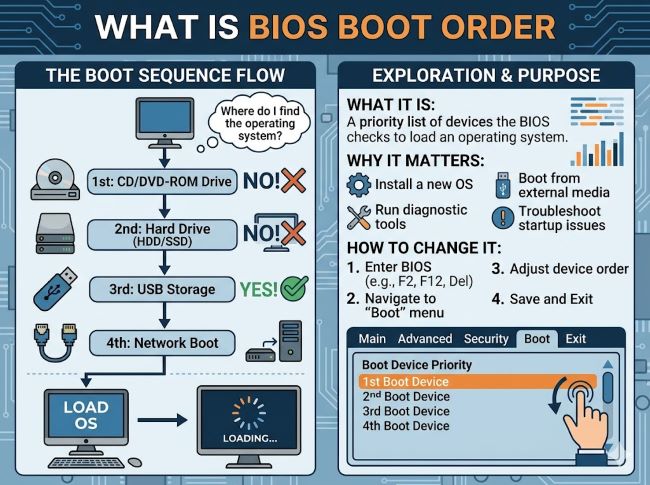
What BIOS Boot Order Actually Means
When you turn on a computer, before any operating system loads, firmware called the BIOS, or its modern replacement UEFI, runs first. Its job is to initialize the hardware and hand control to an operating system so the computer can finish starting up.
To do that, the BIOS needs to know where to look for an operating system. Most computers have multiple storage devices connected: an internal drive, possibly a USB drive plugged in, sometimes a DVD drive, and occasionally a network connection that can serve as a boot source.
The BIOS boot order is simply the list, in priority order, of where the BIOS should look for something bootable. It checks the first device on the list. If that device has a bootable operating system, the BIOS hands control to it and the computer starts normally. If the first device does not have anything bootable, or is not connected at all, the BIOS moves on to the next device in the list, and so on, until it finds something it can boot from.
Why Boot Order Matters
For most everyday use, boot order is invisible. Your computer is set to boot from its internal drive first, that drive has Windows, macOS, or Linux installed on it, and the computer starts up exactly as expected every time you turn it on.
Boot order becomes relevant in a few specific situations:
Installing or reinstalling an operating system. When you create a bootable USB drive with an installer, plugging it in is not enough on its own. If the internal hard drive is still first in the boot order, the computer will boot from that drive as usual and ignore the USB drive entirely, even though it contains a valid installer.
Running diagnostic or recovery tools. Many troubleshooting tools, like memory testers, antivirus rescue disks, or partition management tools, run from a bootable USB drive or DVD rather than installing onto the main drive. These only run if the boot order allows the computer to check that device before the internal drive.
Booting from a different drive in a multi-drive system. If a computer has more than one internal drive, each potentially with its own operating system, boot order determines which one starts by default.
Network booting. In some environments, particularly offices and schools, computers boot from a network location rather than a local drive, which also depends on boot order settings.
How to Access BIOS Boot Order Settings
Getting into BIOS or UEFI settings requires pressing a specific key during the brief window after turning on the computer, before the operating system starts loading. The exact key varies by manufacturer, but common keys include Delete, F2, F10, F12, and Esc, and the screen often briefly shows which key to press.
Once inside, boot order settings are usually found under a label like “Boot,” “Boot Order,” “Boot Sequence,” or “Boot Priority.” Older BIOS interfaces tend to be text-based and navigated with arrow keys, while newer UEFI interfaces are often graphical and mouse-friendly.
You will typically see a list of detected bootable devices, which might include the internal drive, any connected USB drives, a DVD drive, and network boot options. The order they appear is the order the computer checks them.
How to Change Boot Order
The exact steps vary depending on whether the interface is older-style BIOS or newer UEFI, but the general process is similar.
In a typical BIOS interface:
- Restart the computer and press the key to enter BIOS setup during startup.
- Navigate to the Boot or Boot Order section using the arrow keys.
- You will see a list of devices. Use the indicated keys, often plus and minus, or specific function keys, to move a device up or down in the list.
- Move the device you want to boot from, such as a USB drive, to the top of the list.
- Save changes and exit, usually with a key like F10, which will restart the computer using the new boot order.
In a typical UEFI interface:
- Restart and enter the UEFI settings, often by pressing the same key as BIOS access on the same hardware.
- Look for a Boot tab or section, which may be part of an “Advanced” mode rather than the default simplified view.
- Many UEFI interfaces allow dragging and dropping devices in the boot order list directly with a mouse.
- Move your desired boot device to the top.
- Save and exit, typically with an on-screen button or the F10 key, which restarts the computer.
One-Time Boot Menu: A Faster Alternative
Permanently changing the boot order is not always necessary, especially if you only need to boot from a different device once, such as running an installer.
Most computers support a one-time boot menu, accessed by pressing a different key during startup, often F12, Esc, or F8 depending on the manufacturer. This brings up a short menu listing available boot devices without entering the full BIOS or UEFI settings. Selecting a device from this menu boots from it for that single startup only, after which the computer returns to its normal saved boot order on the next restart.
This is often the more convenient option when you just need to boot from a USB drive once for an installation or a diagnostic tool, since it avoids having to remember to change the boot order back afterward.
Common Boot Order Problems
A few issues come up often enough to be worth knowing about.
The USB drive does not appear in the list. This can happen if the USB drive was not properly made bootable, if it is plugged into an unrecognized port on older systems, or if Secure Boot is preventing certain unsigned bootable media from being recognized. Trying a port connected directly to the motherboard, rather than through a hub, often resolves this.
The computer boots into Windows even with a USB drive plugged in. This usually means the internal drive is still ahead of the USB drive in the boot order, or a one-time boot menu was not used and the saved boot order was not changed. On the flip side, if the internal drive drops out of the list entirely or gets skipped, the computer may show a reboot and select proper boot device message instead of starting normally.
Secure Boot blocking certain operating systems. Secure Boot is a UEFI feature designed to prevent unauthorized bootloaders from running. Some Linux distributions and older operating systems may need Secure Boot disabled before they will boot, even if they appear correctly in the boot order.
Changes not saving. If changes do not seem to take effect, double-check that you used the correct key to save and exit, since restarting without saving discards any changes made in BIOS or UEFI.
A Note on UEFI vs. Legacy BIOS
Most computers made in the last decade use UEFI rather than older legacy BIOS, though many people still call the settings interface “BIOS” out of habit, since the function is conceptually the same.
UEFI systems often have a setting for boot mode, sometimes labeled UEFI, Legacy, or CSM. Some bootable USB drives are formatted for one mode but not the other, which can cause a drive to not appear in the boot list even if the boot order itself is set correctly. If a bootable drive is not showing up, check whether the boot mode setting matches how the drive was created, alongside the boot order itself.
Key Takeaways
- BIOS boot order is the priority list the computer’s firmware follows to find a device to start an operating system from when it powers on.
- The BIOS checks each device in order and moves to the next one if the current device does not have anything bootable.
- Boot order matters most when installing an operating system from USB, running diagnostic tools from removable media, or managing systems with multiple drives.
- Accessing boot order settings requires pressing a specific key, often Delete, F2, F10, F12, or Esc, during startup before the operating system loads.
- A one-time boot menu, usually accessed with a different key like F12 or Esc, lets you boot from a specific device once without permanently changing the saved boot order.
- Common problems include a USB drive not appearing in the boot list, the computer ignoring a connected USB drive, and Secure Boot blocking certain operating systems from starting.
- On modern UEFI systems, checking the boot mode setting, UEFI versus Legacy or CSM, alongside the boot order itself can resolve issues with bootable drives not appearing.