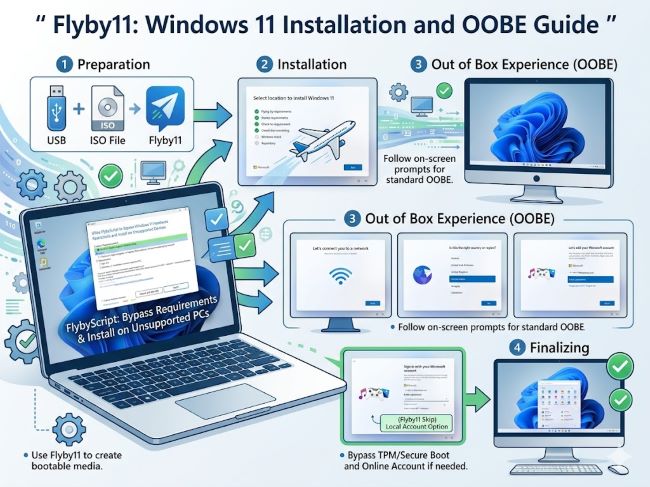
Flyby11: Windows 11 Installation and OOBE Guide
Windows 11 has strict hardware requirements. Not every computer meets them. If you have a perfectly good Windows 10 machine but can’t officially upgrade to Windows 11, you’re stuck. Or are you?
Flyby11 is a tool that appears in discussions about getting Windows 11 on unsupported hardware. The name suggests it’s a way to bypass Windows 11’s checks. But what is it actually? How does it work? Is it safe? Should you use it?
Understanding Flyby11 and related Windows 11 installation tools helps you make informed decisions about upgrading your system. Let’s talk about what these tools actually do and what your real options are for upgrading from Windows 10 to Windows 11.
Understanding Windows 11 Hardware Requirements
Before discussing bypass tools, understanding why Windows 11 has strict requirements helps contextualize the problem.
Windows 11 requires TPM 2.0 (Trusted Platform Module), a security chip. It requires specific CPU generations. It requires UEFI firmware. These requirements eliminate many older computers from officially upgrading.
Microsoft implemented these requirements for security reasons. TPM 2.0 enables features like Credential Guard and Windows Defender System Guard. The CPU generation requirements ensure processor-level security features are available.
The requirements are frustratingly strict. A computer that runs Windows 10 perfectly well and has no security issues can’t upgrade officially. Many people view these restrictions as artificial barriers rather than genuine security requirements.
This frustration drives interest in bypass tools. If your hardware works but doesn’t meet official requirements, tools like Flyby11 represent a way around the restrictions.
What Is Flyby11
Flyby11 is a tool designed to help install Windows 11 on unsupported hardware. The tool handles the setup process and, according to discussions online, bypasses hardware compatibility checks.
The name itself is clever. It suggests bypassing the checks in the OOBE (Out of Box Experience) setup process. The tool automates actions that would normally require manual intervention during Windows 11 installation.
Flyby11 isn’t an official Microsoft tool. It’s community-created software. It’s available on GitHub and other sources. The tool is designed by people who believe the hardware restrictions are too strict.
The tool essentially automates the bypass process. Instead of manually editing registry files or using workarounds during installation, Flyby11 handles the necessary steps automatically. This makes the process easier and more reliable than manual methods.
Windows 11 Update Assistant and Official Options
Microsoft provides official upgrade tools. Understanding these helps you understand what Flyby11 isn’t.
The Windows 11 Update Assistant is Microsoft’s official tool for upgrading Windows 10 to Windows 11. It checks your hardware. If you meet requirements, it guides you through the upgrade.
The Windows 11 Assistant performs similar functions. It’s available on Microsoft’s website. It checks compatibility and facilitates upgrades for compatible hardware.
Microsoft Update Assistant is another term for the same official tool. Different names appear in different contexts, but Microsoft’s official upgrade solution is straightforward and free.
These official tools work well if your hardware is compatible. If it isn’t, these tools refuse to proceed. This is where tools like Flyby11 come into play.
Understanding OOBE and Installation
OOBE stands for Out of Box Experience. It’s the setup process you see after installing Windows.
During OOBE, Windows checks hardware compatibility. It verifies CPU, TPM, storage, and RAM. If hardware doesn’t meet requirements, Windows 11 refuses to complete setup.
Bypass Windows 11 OOBE discussions typically center on getting past these checks. Various methods exist, ranging from registry edits to installation media modifications.
Windows 11 on unsupported hardware installation usually involves some form of bypass. The bypass removes or disables the hardware check so installation continues despite incompatible components.
Tools like Flyby11 automate the OOBE bypass process. Instead of manually modifying files or entering commands, the tool handles it automatically during installation.
GitHub and Community Tools
Flyby11 GitHub is where many users find the tool. GitHub hosts various community-created Windows 11 installation tools.
Community developers maintain these tools because they believe Windows 11’s restrictions are excessive. They provide tools to help people upgrade despite hardware limitations.
GitHub tools include Flyby11, Flyoobe (another similar tool), and others. Different tools have different approaches. Some modify installation media. Others operate during the OOBE process.
The open-source nature means users can review what the tools actually do. You can see the code and understand the modifications before using the tool.
Finding tools on GitHub requires care. Not all Windows 11 bypass tools are safe. Some contain malware. Legitimate community tools come from trusted developers with established track records.
Upgrade Windows 10 to 11 Officially
If your hardware is compatible, upgrading officially is the best approach.
Using Windows 11 Update Assistant or Windows 11 Assistant, follow these steps:
Download the tool from Microsoft’s website. Run it on your Windows 10 computer. The tool checks compatibility. If compatible, it guides you through downloading Windows 11 installation files and installing the upgrade.
The process takes hours because Windows 11 is a large download. The installation itself takes additional time. Plan for a full afternoon or overnight.
Back up your data before upgrading. While the process usually preserves files, unexpected issues can occur. Having backups ensures you don’t lose important data.
The upgrade preserves your files, applications, and settings. You don’t lose anything if everything goes well.
After installation completes, Windows 11 runs on your computer. You’re up to date with Microsoft’s latest operating system.
Install Windows 11 on Unsupported CPU
If your CPU doesn’t meet requirements, official upgrade paths aren’t available.
CPUs older than 7th generation Intel or Ryzen 1000 series AMD don’t meet Windows 11 requirements. This eliminates many computers from 2015 and earlier.
Options include:
Using clean installation media with unsupported CPU checks removed. This requires downloading Windows 11 installation media and modifying it before installation.
Using tools like Flyby11 that automate the modification process. The tool handles the necessary changes automatically.
Accepting that your computer won’t officially support Windows 11 and remaining on Windows 10.
Windows 10 support ends in 2025. After that date, Windows 10 no longer receives security updates. Running unsupported Windows 10 becomes increasingly risky over time.
Windows 11 on Unsupported Hardware: Complete Options
If your hardware doesn’t meet requirements, several paths forward exist.
Option 1: Official compatibility check. Use Microsoft’s official tools to verify whether your hardware qualifies. Sometimes computers meet requirements even though they seem old. TPM 2.0 might be available in BIOS but not enabled.
Option 2: Enable TPM and UEFI in BIOS. Restart your computer and enter BIOS. Look for TPM 2.0 and UEFI settings. Enable them if they’re available but disabled. This sometimes allows official upgrade.
Option 3: Use community bypass tools. Tools like Flyby11 automate the bypass process. Download Windows 11 installation media. Use the tool to prepare installation media. Install normally.
Option 4: Manual bypass. Edit registry and installation media manually. This is complex and time-consuming. Most people prefer automated tools.
Option 5: Clean install with bypass. Rather than upgrading, perform a clean Windows 11 installation. This wipes your hard drive but gives you a fresh Windows 11 system.
Safety Considerations
Using bypass tools comes with risks you should understand.
Official support ends. Microsoft doesn’t support Windows 11 on unsupported hardware. If problems occur, you can’t contact Microsoft support. You’re on your own.
Driver issues are common. Unsupported hardware might lack proper drivers. Devices might not function correctly. You need to source drivers yourself.
Security updates might not work properly. Windows 11 might not receive all security updates if your hardware isn’t officially supported. Your system might remain vulnerable to threats.
Malware risk from tools. Some bypass tools contain malware. Downloading from untrusted sources puts your system at risk. Use tools from trusted developers only.
Warranty concerns. If your computer is under warranty, modifying installation might void it. Check your warranty terms before proceeding.
Legitimate Community Tools
Not all community tools are equally trustworthy. Evaluating tools carefully matters.
Flyby11 is discussed on tech forums and has multiple references. The tool appears to be legitimately designed to bypass hardware checks.
Flyoobe is another community tool mentioned alongside Flyby11. Different developers, similar purpose.
BuiltByBit is a platform where developers share tools. Some Windows 11 tools are available there. The platform has community review systems.
Tools with active communities are generally safer. If many people use a tool and report it works, that’s a good sign. Tools with recent updates are safer than abandoned projects.
Reading comments and forum discussions helps. Users report whether tools work, whether they contain issues, and whether they cause problems.
Windows 10 Support Timeline
Understanding Windows 10’s end of support helps contextualize urgency around upgrading.
Windows 10 support officially ends in October 2025. After that date, Microsoft stops releasing security patches. Running Windows 10 becomes increasingly risky as new security vulnerabilities aren’t patched.
This timeline is several years away as of 2024. You have time to plan, but not infinite time.
For critical business computers, upgrading before October 2025 is important. For personal machines, you have flexibility in timing.
Planning upgrades gradually is wise. You don’t need to rush, but you shouldn’t wait until the last moment when issues can’t be resolved before support ends.
Practical Upgrade Strategy
If you want Windows 11 but have unsupported hardware, here’s a practical approach:
First, verify your hardware with official tools. Maybe you actually qualify.
If you don’t qualify, research your options. Clean hardware upgrade might be cheaper than struggling with bypass tools.
If you decide to proceed with bypass tools, research thoroughly. Read forums and discussions. Use tools from trusted sources with active communities.
Back up everything before attempting bypass installation. Complete backup means you can restore Windows 10 if something goes wrong.
Test your system thoroughly after installation. Verify all devices work. Check that drivers are available for everything.
Accept that you’re running unsupported hardware. Plan for potential issues. Keep alternatives ready in case problems become severe.
Alternative: Hardware Upgrade
Sometimes the practical solution is upgrading your hardware rather than bypassing software restrictions.
Newer CPUs that support Windows 11 are reasonably priced. A new motherboard and CPU might cost 300 to 500 dollars. This gives you a computer that officially supports Windows 11.
If your computer is otherwise capable but just has an older CPU, hardware upgrade is viable. Modern CPUs offer performance improvements beyond just Windows 11 compatibility.
Clean installation on new hardware is more reliable than bypass installation on old hardware.
For business use, official support matters. Hardware upgrade ensures you have Microsoft support if problems arise.
Key Takeaways
- Flyby11 is a community-created tool designed to bypass Windows 11 hardware requirement checks during installation.
- Windows 11 Assistant and Windows 11 Update Assistant are official Microsoft tools for compatible hardware. Use these if your hardware qualifies.
- Windows 10 support ends in October 2025. Planning for Windows 11 before that date is advisable.
- Windows 11 on unsupported hardware installation is possible with bypass tools but lacks official support and carries risks.
- Bypass Windows 11 OOBE processes involve disabling hardware checks during the Out of Box Experience setup.
- Install Windows 11 on unsupported CPU is possible with community tools, but driver and compatibility issues are common.
- Upgrade Windows 10 to 11 officially using Microsoft’s tools if your hardware is compatible. This is the safest approach.
- Flyby11 GitHub and similar repositories host community tools. Review code and community feedback before using any tool.
- Hardware requirements include TPM 2.0, compatible CPU, UEFI firmware, and sufficient storage. Missing any requirement blocks official upgrade.
- Enabling TPM 2.0 in BIOS sometimes allows older hardware to meet requirements. Check BIOS settings before assuming incompatibility.
- Using bypass tools means losing official support, potential driver issues, and security update complications.
- Back up your data completely before attempting any installation process, official or otherwise.
- Malware risk exists when downloading tools from untrusted sources. Use tools from established developers with community reputation.
- Hardware upgrade is sometimes more practical and reliable than software bypass methods.
- If you’re considering bypassing Windows 11 restrictions, weigh the risks against official upgrade or hardware upgrade options carefully.