How to Hide Amazon Orders in 2026: What Still Works
Buying a birthday gift for someone who shares your Amazon account, ordering something personal that you’d rather keep to yourself, or just wanting a cleaner order history view: these are all completely normal reasons to want to know how to hide Amazon orders. The process used to be straightforward. In 2025, Amazon changed it, and a lot of the advice floating around online is now outdated. This guide covers what actually works in 2026, what’s been removed, and the best alternatives depending on your situation.
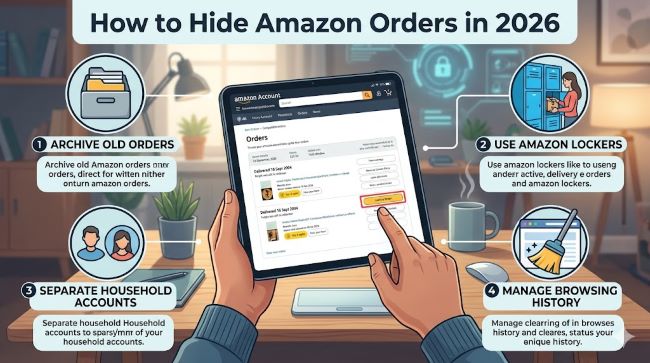
The Big Change: What Happened to Archive Orders?
Before getting into the methods, it’s important to know what changed. Amazon officially removed the Archive Order feature on August 19, 2025. Their announcement stated: “Starting August 19, 2025, the Archived Orders view will be removed. Any orders you have previously archived will now appear in your main order history.”
This means the built-in archive button that millions of users relied on to hide purchases from shared accounts is gone for most accounts. Some users on older accounts or in specific regions still see it, but it should be treated as temporary. Amazon is phasing it out globally.
The other thing worth knowing upfront: you cannot permanently delete Amazon order history. Amazon stores purchase records indefinitely for legal, tax, compliance, and customer service reasons. Every method in this guide reduces visibility. None of them erase records entirely.
Method 1: Archive Orders (If Your Account Still Has It)
If you still see the Archive Order option in your account, use it while it’s available. Here’s how to archive an Amazon order on desktop:
- Log into your Amazon account on a desktop browser (this does not work in the Amazon mobile app).
- Hover over Account & Lists in the top right.
- Click Returns & Orders or Your Orders.
- Find the order you want to hide.
- Click Archive Order below the order details.
- Click Archive Order again to confirm.
The order immediately disappears from your default Amazon order history view. It moves to a separate Archived Orders section.
To find archived orders:
- Go to Account & Lists > Your Account.
- Scroll to Ordering and Shopping Preferences.
- Click Archived Orders.
You can archive up to 500 orders per account. Archived orders are not deleted: they still count for returns, warranties, and customer service. Anyone with full account access can still find them if they know where to look.
Mobile workaround: The Amazon app has no archive button. To archive on mobile, open your phone’s browser (Chrome or Safari), go to amazon.com, and switch to Desktop Site mode before following the steps above.
Method 2: The Manual URL Workaround (While It Lasts)
For accounts where the Archive button has disappeared, a URL workaround still functions as of mid-2026, though Amazon may patch it at any point.
- Go to your Amazon order history on desktop and locate the Order ID of the purchase you want to hide (it looks like 123-4567890-1234567).
- Navigate to:
https://www.amazon.com/gp/your-account/order-details?ie=UTF8&orderID=<your-order-id>&action=archiveOrder - Replace
<your-order-id>with your actual Order ID. - Press Enter.
If successful, Amazon displays “Your order has been archived.” The order moves out of your main view.
This method only works if at least one archived order already exists on your account, and it requires desktop or Desktop Site mode on mobile. It’s a temporary measure, not a permanent solution.
Method 3: Amazon Household (The Best Long-Term Solution)
If you regularly share an account with a partner, spouse, or family member and want genuinely separate order histories, Amazon Household is the right answer. This is Amazon’s official privacy solution for shared Prime memberships.
Amazon Household lets two adults share Prime benefits, including free shipping, Prime Video, and Kindle perks, while maintaining completely separate accounts. Each adult has their own login, their own order history, and their own purchase recommendations. No one sees the other person’s orders.
How to set up Amazon Household:
- Go to Account & Lists > Your Account.
- Scroll to Shopping programs and rentals.
- Click Amazon Household.
- Click Add Adult and enter the other person’s email address.
- Both adults must accept the invitation.
Once set up, each person shops under their own account and Prime benefits are shared automatically. You can also add teens and children to the household with parental controls over their spending.
This is the cleanest solution for how to archive Amazon orders from a shared account perspective. It removes the need to hide anything because purchases are separated from the start. Understanding how ecommerce platforms handle account privacy has become increasingly relevant as more households shop together under shared memberships.
Method 4: Clear Your Browsing History and Recommendations
Hiding orders from your Amazon order history is one thing. Hiding the evidence that you browsed for something is another. Amazon’s recommendation engine tracks your browsing and displays recently viewed items and personalised suggestions that can spoil a surprise before you’ve even checked out.
To clear browsing history:
- Go to Account & Lists > Your Account.
- Click Browsing History (under Personalization).
- Click Manage history.
- Toggle off Turn Browsing History On/Off to stop recording, or delete individual items by clicking Remove next to each one.
To manage recommendations:
- Go to Recommended for You on the Amazon homepage.
- Find items you don’t want influencing recommendations.
- Click the three dots next to an item and select Remove this item or I don’t like this recommendation.
Clearing browsing history doesn’t affect your order history, but it removes the browsing footprint that shows what you were looking at before you bought.
Viewing My Amazon Orders Past 6 Months
One question that comes up often is how to find older orders. By default, Amazon shows the last three to six months in the order view. To see my Amazon orders past 6 months:
- Go to Returns & Orders or Your Orders.
- Use the dropdown filter next to the search bar (it usually says “past 3 months”).
- Select 2025, 2024, or specific years to view older orders.
You can search by year all the way back to your account’s creation date. If you’re trying to hide older orders specifically, the same archive method applies to historical orders as to recent ones, as long as your account still supports archiving.
How to Hide Amazon Orders on Mobile
The Amazon app on both iPhone and Android does not include a native archive button. Your options on mobile are:
- Desktop Site mode in browser: Open amazon.com in your phone’s browser, switch to Desktop Site mode, and follow the desktop archive steps.
- Amazon Household: The best mobile-friendly long-term solution, since separate accounts work equally well on app and browser.
- Browsing history: You can clear browsing history and adjust recommendations within the app under Account > Browsing History.
For anything requiring archive access, desktop or Desktop Site mode is the only current path.
What Doesn’t Work
A few things circulating online don’t work and are worth calling out directly:
- Permanently deleting orders: Not possible. Amazon’s records are retained regardless of what you do on your end.
- Contacting Amazon support to delete orders: Amazon support cannot delete order records either.
- Third-party apps claiming to delete history: These do not have access to Amazon’s order database and cannot do what they claim.
- Deleting your Amazon account: Your purchase history is retained by Amazon even after account closure for compliance and legal purposes.
Key Takeaways
- How to hide Amazon orders in 2026: archive (if your account still has it), use the URL workaround, or set up Amazon Household for permanent separate histories.
- How to archive an Amazon order: Account & Lists > Your Orders > Archive Order on desktop only. Up to 500 orders per account.
- How to archive orders on Amazon when the button is missing: use the manual URL method with your Order ID, or switch to Amazon Household.
- Amazon order history cannot be permanently deleted. All methods reduce visibility, not records.
- How to archive Amazon orders on mobile: use Desktop Site mode in your phone’s browser. The app does not support archiving.
- My Amazon orders past 6 months: use the year filter in Your Orders to view and manage older purchases.
- Amazon removed the Archive Order feature officially on August 19, 2025. The URL workaround may still work but treat it as temporary.
- Amazon Household is the most reliable long-term solution for shared accounts. Keeping your account tools and privacy settings organised makes managing your shopping history significantly easier over time.
The bottom line: hiding orders on Amazon is still possible in 2026, but the method that works best for you depends on whether your account still has archiving and whether you share the account with others. Start with the Find My Orders filter to understand what’s visible, then choose the right approach from the options above. Staying on top of your digital account records is a small habit that prevents bigger headaches later.