Why Are My Messages Green When They Should Be Blue?
Why are your messages green instead of blue? Green means SMS, blue means iMessage. This guide explains the causes and how to fix it so your iMessages send blue again.
You are texting someone you always message in blue and suddenly the bubble turns green. Or your iMessages are going green across the board and you are not sure why. If you are wondering why your messages are green when they should be blue, the answer almost always comes down to one thing: your phone switched from iMessage to SMS. This guide explains exactly what that means, why it happens, and how to get your messages back to blue.
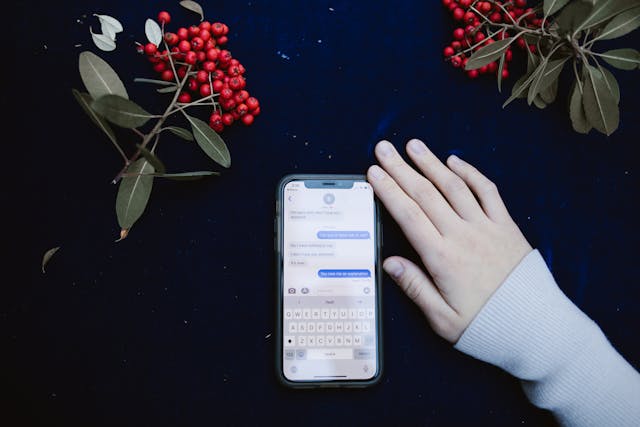
Blue vs. Green: What the Colors Actually Mean
On an iPhone, the message bubble color tells you which system sent the message.
- Blue bubble: The message was sent through iMessage, Apple’s messaging system. iMessages travel over Wi-Fi or cellular data and are encrypted end-to-end.
- Green bubble: The message was sent as an SMS or MMS text message through your carrier’s cellular network. These are standard text messages, not iMessages.
When your iMessages are going green, your iPhone is sending those messages as regular SMS texts instead of through Apple’s iMessage system. This costs carrier text messages if you do not have unlimited texting, and you lose iMessage features like read receipts, typing indicators, and reactions.
Why Are My Messages Green? The Common Causes
The Person You Are Texting Does Not Use iMessage
This is the most common reason your text messages are green. iMessage only works between Apple devices. If the person you are messaging has an Android phone, a non-Apple device, or does not have iMessage enabled, your iPhone automatically sends the message as SMS because iMessage has nothing to connect to on the other end.
A green bubble with an Android user is normal and expected. There is no fix here because iMessage simply does not work across platforms.
iMessage Is Turned Off on Your iPhone
If your iMessages are green across all conversations, including with other iPhone users, check whether iMessage is enabled on your device.
- Go to Settings > Messages.
- Check the iMessage toggle at the top.
- If it is off, turn it on.
After enabling iMessage, existing green conversations may stay green until you start a new message thread or until iMessage fully activates, which can take a few minutes.
Poor Internet Connection
iMessage requires an internet connection to send messages. If your Wi-Fi is down or your cellular data connection is weak, your iPhone falls back to SMS automatically.
Check your connection by opening a browser and loading any page. If it loads slowly or fails, that is your issue. Reconnect to Wi-Fi, wait for a stronger signal, or move to an area with better coverage. Once your connection improves, iMessage kicks back in.
The Recipient’s iMessage Is Unavailable
Even if the person you are texting has an iPhone, their iMessage might be temporarily unavailable. This happens when:
- They have turned off iMessage in their settings
- Their phone is off or in Airplane Mode
- They have switched to a new device and iMessage is still transferring
- There is an iMessage server issue on Apple’s end
In these cases, your iPhone sends the message as SMS automatically so it still gets delivered. When their iMessage becomes available again, your messages will return to blue.
You Recently Changed Your Phone Number or SIM Card
Changing your phone number or swapping SIM cards can disrupt iMessage activation. Your new number needs to be registered with Apple’s iMessage servers before messages send as blue again.
To check and reactivate:
- Go to Settings > Messages > Send and Receive.
- Make sure your phone number and Apple ID email are both listed and checked.
- If your number is missing, sign out of iMessage and sign back in.
How to Fix Green Messages on iPhone
Turn Off and On iMessage
- Go to Settings > Messages.
- Toggle iMessage off.
- Wait 20 seconds.
- Toggle iMessage back on.
This forces iMessage to re-register and often resolves activation issues that cause green messages.
Sign Out and Back Into Apple ID
- Go to Settings > Messages > Send and Receive.
- Tap your Apple ID at the top.
- Tap Sign Out.
- Sign back in with your Apple ID credentials.
Restart Your iPhone
A simple restart resolves many temporary software issues that affect iMessage.
Hold the Side button and a Volume button until the slider appears. Drag to power off. Wait 30 seconds. Power back on.
Check Apple’s System Status
If iMessage is down across all your conversations and all the above steps have not helped, Apple’s servers may be experiencing an outage. Check apple.com/support/systemstatus to see if iMessage shows any issues. If it does, wait for Apple to resolve it.
Why Are My iMessages Green on iPhone to iPhone?
If you are messaging another iPhone user and your texts are still green, the most likely causes are:
- iMessage is turned off on your device or theirs
- One of you has a poor internet connection
- The recipient recently changed their number and iMessage has not updated yet
- There is a temporary Apple server issue
Work through the fixes above and the messages will return to blue once iMessage is working on both ends.
The Short Answer
Your messages are green because your iPhone sent them as SMS instead of iMessage. This happens when the recipient does not use an Apple device, when iMessage is turned off, when your internet connection is weak, or when there is a temporary issue with Apple’s servers. To fix it, check that iMessage is enabled in Settings > Messages, check your internet connection, and try toggling iMessage off and on. Green is not broken. It just means iMessage was not available for that message.