How Many Words Is 5 Pages Double Spaced 12 Font?
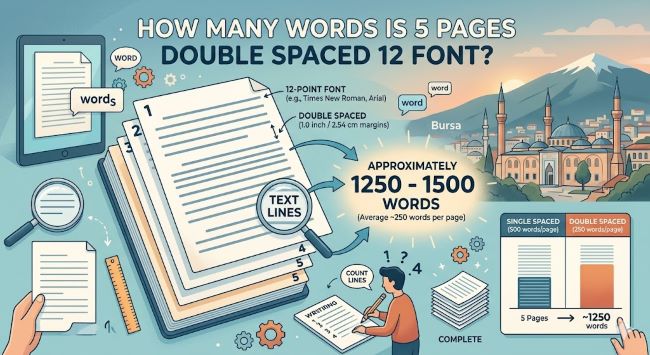
How many words is 5 pages double spaced 12 font? The answer is approximately 1,250 words. Here is what affects that number and how to set up your document correctly from the start.
Whether you are staring down a 5-page assignment or trying to figure out if your draft is long enough, the question is the same: how many words is 5 pages double spaced at 12 point font?
The answer is 1,250 words.
That estimate holds for standard academic formatting. A few settings can shift the number slightly, and knowing which ones to watch means you will not hit 5 pages and realize your margins were wrong the whole time. Here is everything you need to know.
The Standard Answer: 5 Pages Double Spaced at 12 Font
Under typical academic formatting, one double spaced page holds approximately 250 words. Multiply that by five and you get 1,250 words.
That calculation assumes:
- Font: Times New Roman 12pt
- Line spacing: Double spaced throughout
- Margins: One inch on all four sides
- No extra spacing between paragraphs
These are the default settings for MLA, APA, and most standard college assignments. If your document is set up this way, 1,250 words gets you to exactly 5 pages.
What Can Shift the Word Count Per Page
The 250-words-per-page estimate is reliable, but it is not a guarantee. A few formatting choices move the number without being obvious about it.
Font. Times New Roman at 12pt is narrower than most comparable fonts at the same size. Arial, Calibri, and Georgia all run a little wider, which means fewer words fit per line and per page. The same 1,250 words in Georgia 12pt might land closer to 5.3 or 5.5 pages. Small difference per page, noticeable over five.
Margins. One inch on all sides is standard. Some Word templates still default to 1.25 inch margins, which reduces how much text fits on each page. If your margins are off, your 1,250 words could stretch to 5.5 or 6 pages without you realizing it. Always check margins before writing, not after.
Paragraph spacing. Double spacing controls the space between lines within a paragraph. Some documents also add space after each paragraph on top of that. If yours does, each page holds fewer words and your total page count goes up for the same word count. In Word, this setting is under Line and Paragraph Spacing. In Google Docs, it is under Format > Line and paragraph spacing.
Title blocks and headers. A standard MLA header with your name, instructor, course, and date takes up real page space before your body text even starts. A header plus a centered title can account for the equivalent of 60 to 100 words worth of space on page one. If your assignment requires a header, factor that in when you evaluate your page count.
Word Count to Page Reference Table
If you are working on a different length paper, here is how word counts scale under standard double spaced, 12pt formatting:
| Word Count | Pages (approx.) |
|---|---|
| 250 words | 1 page |
| 500 words | 2 pages |
| 750 words | 3 pages |
| 1,000 words | 4 pages |
| 1,250 words | 5 pages |
| 1,500 words | 6 pages |
| 2,000 words | 8 pages |
| 2,500 words | 10 pages |
| 3,000 words | 12 pages |
Format First, Then Write
The single best habit for any written assignment is setting up your formatting before you type a single word. When your document is formatted correctly from the start, the page count on screen as you write is the page count you will submit. No surprises at the end.
Here is the setup checklist:
In Microsoft Word:
- Set font to Times New Roman, 12pt
- Go to Home > Line and Paragraph Spacing > 2.0
- Click Remove Space After Paragraph from the same menu
- Go to Layout > Margins > Normal (sets one inch on all sides)
- Add your name block or header if required by your style guide
In Google Docs:
- Set font to Times New Roman, 12pt using the toolbar
- Go to Format > Line and paragraph spacing > Double
- Uncheck Add space before paragraph and Add space after paragraph
- Go to File > Page setup and confirm all margins are set to one inch
- Add your header if required
Five minutes of setup at the start saves the frustration of reformatting 1,250 words at the end.
Tracking Your Progress Toward 5 Pages
Both Word and Google Docs give you live page and word counts as you write.
In Microsoft Word, look at the bottom left corner of the screen. It shows your current page number and total page count in real time. Word count sits right next to it or under Review > Word Count.
In Google Docs, go to Tools > Word Count for a current snapshot, or turn on the live display by checking “Display word count while typing” in the same menu. It stays visible in the bottom left of your document as you write.
Use the live page count rather than calculating from your word count manually. It accounts for your exact formatting and updates as you go.