Top 10 AI Video Generators (2026)
It is challenging to determine just by seeing a video on social media whether a video was shot by a production team or if an AI video generator was used to create it. AI video generation quietly took over ad creation, brand storytelling, product explanation, and the creation of viral videos. As an example, AI video generation streamlines production in a way that traditional workflows simply cannot match at an unprecedented speed. With how quickly ideas circulate, creators require a method that will enable them to produce content without compromising on quality or creativity.
This is where the Dzine AI video generator comes in. Instead of jumping between different platforms for text-to-video, image animation, video editing, and an AI video enhancer, Dzine combines all of these capabilities into a single AI video generator. Our guide reviews the best AI video generators in 2026 and explains why an all-in-one solution is a developing trend in the video creation industry.
Our Testing Method for the AI Video Generators
For the sake of a fair and useful comparison, we tested all of the AI video generators on the same criteria, used real-life examples, and tried to match how the creators and marketers would actually work. Instead of focusing on the marketing claims, we opted to look at the product performance through the many dimensions of the test.
The testing of each tool involved several methods, which included the following:
Text-to-video prompts centred around realism and movement.
An image-to-video input, where supported
A video-to-video transformation where available
We measured and analysed each tool on the following:
- Visual Realism: Texture, lighting, depth, and consistency
- Quality of Motion: Naturalism of movement, fluidity of the camera, and stability of the objects.
- Accuracy to the Prompt: Alignment to the original intent of the output.
- Control Options: Direction of the camera, strength of motion, and framing.
- Workflow Friction: The experience for people lacking technical skills.
- Scalability: Suitability for regular and professional use.
Comparison Overview – Top AI Video Generators at a Glance
As we look forward to detailed assessments, let us present a high-level overview of the top AI video generation tools for the year 2026.
AI Video Generator Comparison Table
| Tool | Input Types | Motion Control | Output Quality | Speed | Best For |
| Kling 3.0 | Image | High | High | Medium | Image-to-video motion |
| Seedance 2.0 | Text/Image | Medium | High | Medium | Character animation |
| Sora 2 | Text | Medium | Very High | Medium | Cinematic storytelling |
| Google Veo 3 | Text | Medium | Very High | Medium | Realistic environments |
| Wan 2.6 | Text | Low | Medium | Fast | Quick stylized clips |
| Minimax Hailuo 2.3 | Text | Medium | Medium | Medium | Creative visuals |
| PixVerse V5 | Text/Image | Low | Medium | Fast | Social media videos |
| Runway Gen-4.5 | Video | High | High | Medium | Video-to-video editing |
| Luma Ray 3 | Text/Image | High | High | Slow | Physics-aware motion |
| Grok Imagine | Text | Experimental | Medium | Medium | Concept ideation |
Top 10 AI Video Generators – Detailed Comparison (2026)
Kling 3.0 – Image to Video with Advanced Motion Control
Kling 3.0 is unique for its image-to-video features. Users can control starting and ending frames, as well as motion paths. This is great for creating product visuals and animations that need to be controlled.
Strengths:
Great control of the camera and movements
Great for making static images actually move
Weaknesses:
Only images can be used
Seedance 2.0 – Character-Focused AI Video Generator
Seedance 2.0 is specialized for doing character motion. Compared to many of the generalist tools, the facial motion and body motion are considerably smoother.
Strengths:
Very natural character animations
- Good consistency
Weaknesses:
Less stressing of the backgrounds
Sora 2 – AI with Cinematic Text to Video Capabilities
Sora 2 has been developed to provide a premium service for generating videos from text. It has superior scene creation along with control over lighting and cinematic composition. When using a descriptive text to video prompt, the service generates a video that is rich in detail and mechanical in a narrative sense.
Advantages:
Narrative visuals
Extremely high realism and scene coherence
Disadvantages:
Limited control over motions
Not ideal for commercial video shoots
Google Veo 3 – High Realism AI Video Generation
Google Veo 3 has been designed to provide high realism video generation and environmental accuracy video generation. It provides ideal services for generating videos in real-life situations, including urban situations, natural settings, and videos of people doing various activities.
Strengths:
Visuals are clear and realistic
Good consistency from frame to frame
Weaknesses:
Less room for creative freedom
Limited control of the camera
Wan 2.6 – Fast AI Video Creation
Wan 2.6 values speed and ease of use. For creators needing quick outputs for the testing of their ideas or the creation of lightweight visuals, it is useful.
Strengths:
Very fast generation
Prompts are easy to do
Weaknesses:
Shallow motion depth
Less realistic video
Minimax Hailuo 2.3 – Creative AI Video Generator
Minimax Hailuo is biased toward the more artistic and experimental outputs. This suits it best for more abstract or stylized content.
Strengths:
Plenty of creative freedom
- Distinct and unique visual styles
Weaknesses:
Inconsistent realism
PixVerse V5 – Social-First AI Video Maker
PixVerse V5 is made for the short form content. It sacrifices speed and simplicity for precision.
Strengths:
Quick processing
User friendly
Weaknesses:
Minimal pro options
Runway Gen-4.5 – Advanced Video-to-Video AI
Runway Gen-4.5 is the best of the best when it comes to elaborating on pre-existing videos. Using their Aleph feature, users can change scenes, styles, and motion while keeping the structure intact.
Strengths:
Advanced editing
Designed for pro workflows
Weaknesses:
Pro workflows only
Luma Ray 3 – Physics-Aware AI Video Generation
Luma Ray 3 uses sophisticated AI to give real-world physics to motion, so every object is able to move naturally in accordance with its own weight.
Strengths:
Realistic motion
Excellent spatial awareness
Weaknesses:
Rendering takes a while
Grok Imagine – Experimental Creation
Grok Imagine is good for early brainstorming where you can play around a lot, but you won’t end up with anything very finalized.
Strengths:
- High creative freedom
Useful for concept testing
Limitations:
- Not production-ready
Why Should We Use Them on an All-in-One Platform?
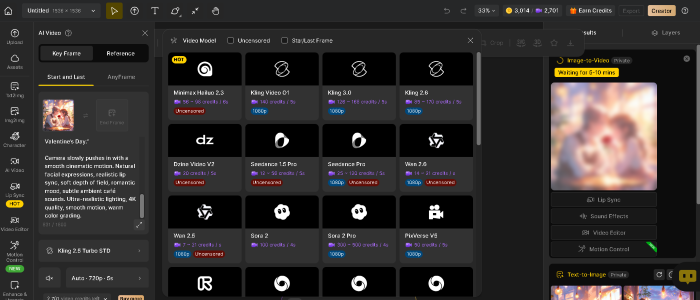
Using each AI video generator individually is a waste of time and money. The Dzine AI video generator brings an all-in-one platform solution so users can seamlessly switch between text, image, and video tools.
The Dzine video generator allows users to experiment without limitations, select optimal models for their objectives, and streamline their workflow.
One of Dzine’s greatest strengths is combining synchronous text-to-video, image-to-video, and video-to-video workflows. Instead of having to learn multiple systems or to export their materials and files from one platform to another, users can keep their focus and drive, and workflows uninterrupted from the raw idea to the finalized video. This is further enhanced by Dzine’s ability to integrate multiple workflows at different stages of video creation, streaming, and editing processes.
Below is a breakdown of the unique workflows at Dzine and their optimal use cases.
How to Create Video from Text Using Sora 2 on Dzine?
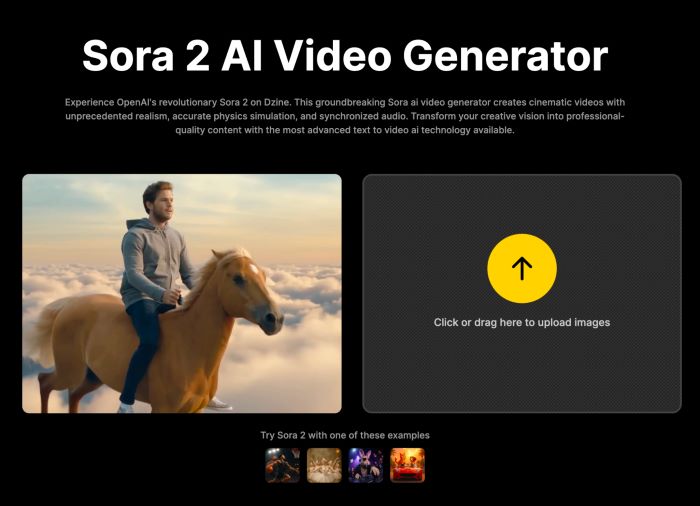
Text to video is optimal when a video concept is captured in the form of a textual description, as opposed to pre-existing visual elements. Within Dzine, Sora 2 allows users to create a video that features cinematic elements and realistic motion, lighting, and scene composition using only a text prompt.
Step-by-Step: Text to Video with Sora 2
- Step 1. Open Dzine, go to the Text to Video workflow
- Step 2. Select Sora 2 for video generation
- Step 3. Enter a detailed text prompt describing. You please using natural words to Set the scene, subjects or characters, feel, lighting, and to what effect
- Step 4. Select the anticipated video duration and aspect ratio (landscape, square, vertical)
- Step 5. Generate the video and review. Adjust the prompt as necessary and export the video
This process enables you to iterate quickly, refining visuals quickly to mirror your creativity to your ideal output.
How to Create a Video from Images Using Kling 3.0?
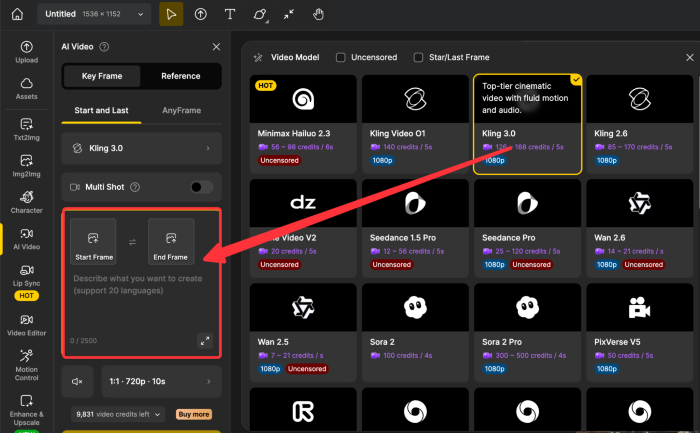
Use an image to video when you have a solid visual that you want to animate. Kling 3.0 inside Dzine features advanced motion control, making it one of the most flexible image animation workflows available. You can specify how the motion starts, where it ends, and how the camera moves (including pans, tilts, and zooms) throughout the clip.
Kling 3.0 Key Motion Controls
- Start frame: indicates how the animation starts
- End frame: indicates where the motion is supposed to land
- Any-frame animation: movement can take its course naturally
- Motion strength: adjust how natural or dynamic a movement is
- Camera control: movement of the scene can be panned, zoomed, or rotated
Step-by-step guides: image to video with Kling 3.0
- Step 1. Select image to video workflow. On Dzine, choose the Image to Video workflow to begin your animation process.
- Step 2. Upload your image. Upload the image you want to animate. This will serve as the base frame for your video generation.
- Step 3. Choose the model. Select Kling 3.0 as your animation model (or choose Kling 3.0 Omni if available for enhanced control and performance).
- Step 4. Configure motion & camera settings. Specify the behavior for the starting and ending frames. Adjust motion strength to control movement intensity, then fine-tune camera control for tracking, zoom, or cinematic effects.
- Step 5. Preview and export. Generate the animation and preview the result. If the motion looks natural and balanced according to your preference, proceed to export the final video.
This workflow is ideal for product displays, creative visuals, and marketing assets, where control is prioritized over randomness.
How to Generate a Video from one Video Using Runway Gen-4 Aleph?
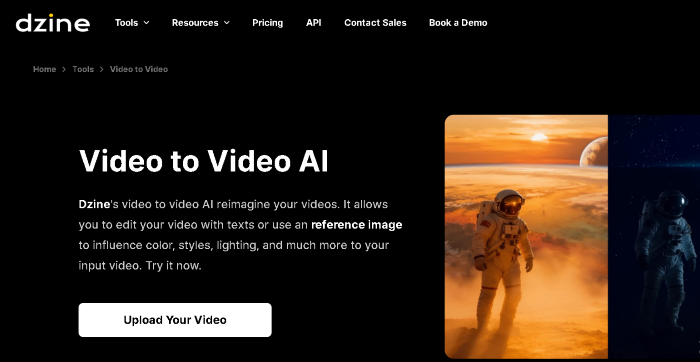
Video-to-video focuses on modified existing footage, not original recordings. With Runway Gen-4 Aleph, you can do styles, motion, or scene modifications while keeping the unchanged outline of the video.
Step-by-Step: Video to Video Using Runway Gen-4 Aleph
- Step 1. Navigate to Dzine and open the “Video Editor”
- Step 2. Select or drag a video to edit
- Step 3. Pick the model: Runway Gen-4 Aleph
- Step 4. Using natural words to describe your video generation needs: style modifications, motion modifications, scene modifications, etc
- Step 5. Generate and export the new video
You can use this flow to enhance existing footage, use creative filters on existing videos, or create different versions of existing videos.
The Ending Thoughts
In 2026, the AI video landscape is very powerful, yet highly fragmented. While every individual tool has a unique contribution, using them independently will slow down your video production and cause unnecessary increases to your budget. The Dzine AI video generator seamlessly integrates all essential functions into a single, versatile AI video maker.
Because of this, Dzine is not just an alternative; it is the best option available for modern video creation. This is especially true for creators, marketers, and designers, as they will need to prioritize speed, control, and scalability.