com.google.android.youtube APK Version 20.13.41 arm64-v8a: What You Need to Know
If you’ve landed on this page, you’re probably trying to install or update the YouTube app on an Android device manually, outside of the Play Store. The file you’re looking for — com.google.android.youtube version 20.13.41 arm64-v8a — follows a specific naming convention that tells you a lot about what you’re downloading before you install it. This guide explains exactly what each part of that file name means, how to install it correctly, what risks to be aware of, and how to verify you’re getting a legitimate file.
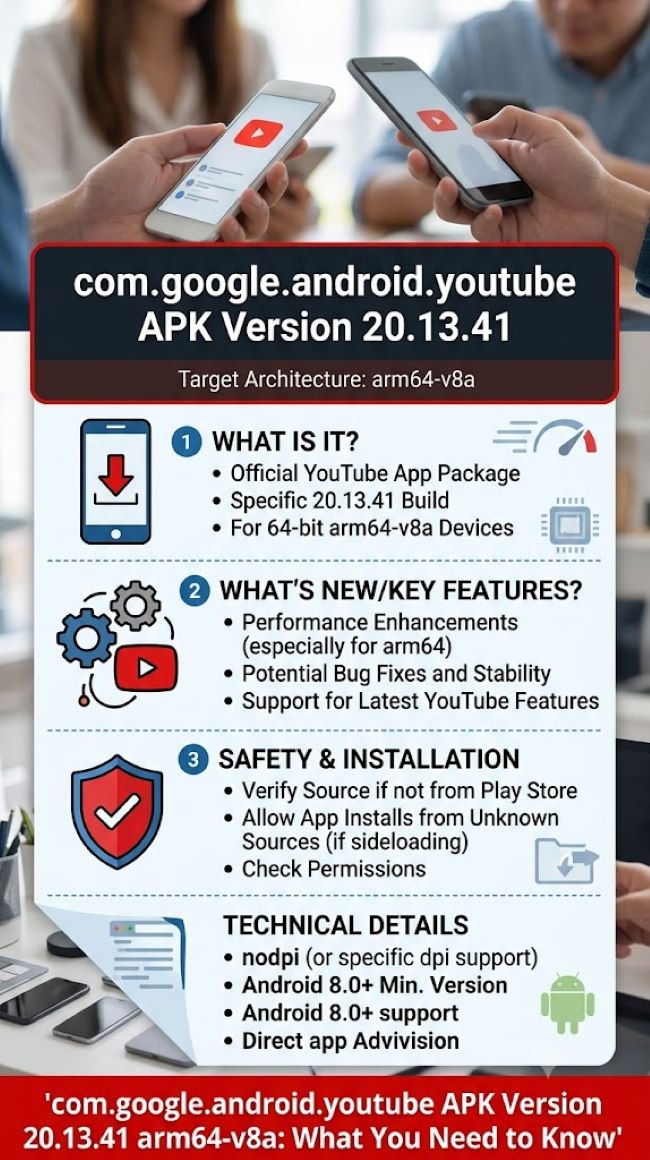
What the File Name Means
Breaking down com.google.android.youtube_20.13.41_arm64-v8a.apk:
com.google.android.youtube is the package name: the unique identifier for the official YouTube app published by Google on the Android platform. Every app on Android has a package name that follows the reverse domain format. This package name belongs exclusively to Google’s YouTube app. Any APK claiming to be YouTube with a different package name is not the official app.
20.13.41 is the version number. This follows a Major.Minor.Patch structure: version 20 is the major release series, 13 is the minor version, and 41 is the patch or build number. Version 20.13.41 was a specific release from 2025. The Play Store typically keeps you on the latest version automatically, but when sideloading you need to match the version to what you need.
arm64-v8a is the CPU architecture the APK was compiled for. This is the 64-bit ARM architecture used in the vast majority of modern Android smartphones and tablets made since around 2014. It’s the correct architecture for almost all current devices. Other architecture variants you might see include:
- armeabi-v7a: 32-bit ARM, for older devices
- x86 / x86_64: for Android emulators or Intel-based Android devices (rare in consumer phones)
- universal: contains code for multiple architectures in one file, larger but works on any device
Installing the wrong architecture APK will result in an installation error or the app failing to open. For virtually all modern Android phones (Samsung, Google Pixel, OnePlus, Xiaomi, etc.), arm64-v8a is correct.
.apk is the Android Package file format: the standard installer format for Android apps, equivalent to .exe on Windows or .dmg on Mac.
Why Someone Would Download This APK Manually
There are several legitimate reasons to sideload a specific version of com.google.android.youtube rather than installing through the Play Store:
Regional availability. The Play Store version available in some regions may be behind the version available elsewhere. Downloading a specific version from a reputable APK repository lets users access newer features before they roll out locally.
Version rollback. If a YouTube update introduced a bug or removed a feature, some users prefer to stay on or return to a specific version. The Play Store doesn’t offer rollback: sideloading does.
Devices without the Play Store. Some Android devices (including certain Amazon tablets, custom ROM installations, and enterprise devices) don’t have the Play Store installed. Installing YouTube APK directly is the only way to get the app on these devices.
Testing or development purposes. Developers and testers sometimes need specific app versions for compatibility testing.
How to Install the APK Safely
Step 1: Enable installation from unknown sources. On Android 8.0 and later, this permission is granted per-app rather than globally. Go to Settings > Apps (or Application Manager), find your browser or file manager, tap it, and look for Install unknown apps or Allow from this source. Toggle it on.
On Android 7 and earlier, go to Settings > Security > Unknown Sources and enable it.
Step 2: Download the APK from a reputable source. The most trustworthy sources for legitimate APK files are APKMirror (operated by Android Police) and APKPure. APKMirror in particular verifies APK signatures against the original Google-signed certificates, which means a file that passes their verification is cryptographically identical to what the Play Store distributes. This is the most important safety check you can make.
Avoid random download sites, forums, or any site that asks you to complete surveys or create accounts to download APK files. These are common vectors for repackaged APKs with malware inserted.
Step 3: Verify the APK signature before installing. If you want to verify the file yourself before installing, you can use an APK signature checker app or the command line (aapt or apksigner tools) to confirm the signing certificate matches Google’s. A legitimate com.google.android.youtube APK is signed by Google’s certificate: the certificate SHA-256 fingerprint should match across trusted sources.
Step 4: Open the downloaded file. Navigate to your Downloads folder using your file manager and tap the APK file. Android will prompt you to install. Review any permission requests and tap Install.
Step 5: Confirm the installation. After installation, open YouTube and verify it’s functioning. Check the app version in Settings > About > App version inside the YouTube app to confirm it matches 20.13.41.
What to Watch Out For
Modified APKs. Some sites distribute APKs that have been decompiled, modified (often to remove ads or add premium features), and recompiled. These modified APKs: are against YouTube’s terms of service, may contain malware, and will not pass signature verification. If a site is offering a “YouTube Premium free” or “YouTube ad-free” version, it is a modified APK.
Outdated versions with security vulnerabilities. Older app versions sometimes contain security vulnerabilities that have been patched in newer releases. If version 20.13.41 is significantly behind the current release, consider whether you need this specific version or whether a more current release would serve your purpose.
Play Protect warnings. Google Play Protect may flag sideloaded APKs with a warning. This doesn’t always mean the file is malicious: it’s a standard warning for any app not installed through the Play Store. You can proceed if you’re confident in the source, but read the warning message carefully before dismissing it.
Checking Your Device Architecture
If you’re unsure whether your device is arm64-v8a, the quickest way to check is:
- Install the free app CPU-Z from the Play Store and look at the SoC/CPU section for the architecture listing
- Check your device’s specifications on the manufacturer’s website or GSMArena: look for “64-bit” in the processor description, which indicates arm64-v8a compatibility
- In Android Settings > About phone, the processor information is sometimes listed
For other Android and tech setup guides worth reading alongside this one, how to connect an external monitor to a laptop covers another device setup process where understanding the technical terminology upfront makes the process significantly smoother.
Key Takeaways
- com.google.android.youtube is the official package name for Google’s YouTube app: any APK with a different package name is not the official app
- Version 20.13.41 identifies a specific release: check this number matches what you need before installing
- arm64-v8a is the 64-bit ARM architecture for virtually all modern Android phones: installing the wrong architecture variant causes installation failure
- APKMirror and APKPure are the most reputable sources for verified APK files: APKMirror verifies cryptographic signatures against Google’s originals
- Enable “Install unknown apps” permission for your browser or file manager before attempting installation: on Android 8.0+ this is a per-app setting
- Modified APKs offering premium features for free are against YouTube’s terms of service and frequently contain malware: avoid them
- Verify your device architecture using CPU-Z or your device’s spec page if unsure whether arm64-v8a is correct for your phone