NCEdCloud: A Complete Guide to North Carolina’s School Login System
If you are a student, teacher, or parent in North Carolina’s public schools, you have almost certainly run into NCEdCloud. It is the login system that sits between you and nearly every digital learning tool your school uses, from Canvas to Google Workspace to PowerSchool. For something so central to daily school life, it is not always clear how it actually works, especially when you are locked out and just trying to get to an assignment.
This guide explains what the system is, how to claim and log into your account, what to do when you forget your password, and how it fits into North Carolina school technology.
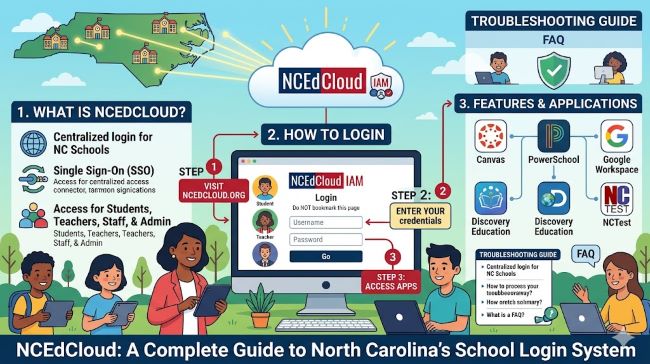
What Is NCEdCloud?
NCEdCloud is the Identity and Access Management service that provides every K-12 student, teacher, and staff member in North Carolina with a single account for accessing cloud-based learning resources. In plain terms, it is a single sign-on system: you log in once and gain access to many different applications without a separate username and password for each one.
The service is run as part of North Carolina’s broader school connectivity and cybersecurity efforts, in partnership with the state’s Department of Public Instruction. It has been the backbone of digital learning in the state’s public schools, and most charter schools, since roughly 2013 to 2014.
The core problem NCEdCloud solves is password overload. Without it, students and staff would need to remember dozens of separate logins for every educational tool a district uses. Instead, each person gets one identity tied to their state-issued UID number, and from there they can jump straight into whatever tools their district has enabled, such as Canvas, Google Workspace, PowerSchool, Discovery Education, and many others.
How It Works Behind the Scenes
The service is powered by an identity platform called RapidIdentity, which handles authentication, account management, and password services. The system provides a few key functions for schools:
- Single sign-on with multi-factor authentication into state and local applications, so one login opens many tools
- The same credentials for both state and local systems, reducing the number of accounts anyone has to manage
- Automated provisioning and de-provisioning, meaning accounts are created and removed automatically as students and staff enter and leave the system
That last point is part of why the account follows you. Because the system ties your identity to your state UID number, your account stays with you even if you change schools within North Carolina, keeping your access consistent across your entire public school career in the state.
Claiming Your Account
Before you can log in for the first time, you have to claim your account. This is a one-time setup process that activates your identity in the system.
The starting point for everything is the official address: my.ncedcloud.org. Typing that directly into a browser takes you to the login screen, which is also where the account claiming process begins.
To claim an account, you need your UID number, which serves as your username. For students, this is the Pupil Number or Student UID, essentially your student number. For teachers and staff, it is the 10-digit State Employee UID. If you do not know your number, your school can help locate it.
The general claiming process looks like this:
- Go to my.ncedcloud.org and select the option to claim your account.
- Enter your UID number when prompted.
- Follow the steps to verify your identity and set up your account.
- Create a password and set up security questions, which you will need later if you ever have to reset your password.
- Set up multi-factor authentication, which is increasingly required and adds a layer of security to your account.
For younger students, schools often handle much of this, sometimes using QR code badges that let kids log in by scanning rather than typing a password. Older students in middle and high school more often claim accounts using a code provided by the school.
How to Log In
Once your account is claimed, logging in is straightforward. Go to my.ncedcloud.org, enter your username, which is your UID number, and click “Go.” On the next screen, enter your password and continue.
If your account requires multi-factor authentication, you will also enter a one-time code at this point, typically from an authenticator app. Once logged in, you land on a portal showing the applications your district has made available, and you can click into any of them without logging in again.
For younger students using a school-issued device like a Chromebook, badge or QR code login is often available, letting them get in quickly without typing credentials. This method is also a useful backup, since it can sometimes get a student into their account even when they have forgotten their password.
Resetting a Forgotten Password
Forgetting a password is one of the most common reasons people search for help with NCEdCloud, so it is worth covering in detail.
The standard reset process works like this:
- Go to the NCEdCloud login screen at my.ncedcloud.org.
- Select the “Forgot Password?” link beneath the password field.
- Enter your username, which is your UID number, exactly as it was created.
- Answer your security questions, the ones you set when you claimed your account.
- Create a new password following the system’s requirements, which generally include a mix of letters, numbers, and special characters.
A few important details make this process go more smoothly:
- Security answers are case-sensitive. This is the most common reason resets fail. If your answer was “Raleigh,” then “raleigh” may not be accepted, so try the exact capitalization and spacing you originally used.
- You may get limited attempts. Some sessions only accept one set of answers before you have to start over, so answer carefully.
- Student passwords do not expire, while staff passwords generally need to be changed periodically, so the urgency of a reset differs depending on who you are.
- Some districts block the reset page on school devices, so using a personal device can sometimes work better if the reset is not going through on a school Chromebook.
If the self-service reset does not work, the reliable fallback is to contact your school’s data manager or help desk. Staff with the right role can look up information and reset passwords, often the fastest path when security questions are not cooperating. Only the account owner can perform a self-service reset, since the system is designed so that parents or others cannot reset a student’s password without the student’s own security answers.
Multi-Factor Authentication
Security has become a bigger focus for the system, and multi-factor authentication, often shortened to MFA, is central to that.
MFA adds a second step beyond your password. After entering your password, you enter a one-time code, which proves you are really you even if someone else learned your password. The system has been moving toward requiring MFA more broadly, with staff in particular being brought into the requirement.
The platform supports a few MFA methods. The default has been time-based one-time codes generated by an authenticator app. More recently, it added support for passkeys through a standard called WebAuthN, which allows logging in with a hardware security key, fingerprint, or face recognition, depending on the device. When setting up MFA, choosing a method you can reliably access is the main consideration, since you will need it every time the system requires that second step.
Common Issues and How to Handle Them
A handful of problems come up repeatedly, and knowing the usual cause speeds up the fix.
“Username not found.” This usually means the UID was entered incorrectly or with extra spaces. Carefully retyping the number, or copying and pasting it if you have it written somewhere, typically resolves it.
“Invalid answer to security question.” This is the most frequent reset problem, and it almost always comes down to capitalization, spacing, or punctuation in the answer, since the system matches answers exactly. Trying the variations of how you might have originally typed the answer often works.
Locked out completely. If self-service options are not working, a school-issued device with badge or QR login can sometimes get students in. Beyond that, the school data manager can reset access directly.
No security questions set. Accounts claimed in recent years were required to set security questions, but if none exist, the reset cannot be done through self-service, and the school’s data manager is the path forward.
The consistent theme is that the school’s data manager or help desk is the ultimate backstop. When the self-service tools are not working, that is who can directly fix account problems.
Who Uses It and Why It Matters
The system touches nearly everyone in North Carolina’s public school system. Students use it as the front door to their digital classroom, getting into learning platforms and tools through a single login. Teachers use it both as their own access point and to help students who run into login trouble. Staff and administrators rely on it for state and local systems, and certain administrators can manage accounts, reset passwords, and configure which applications students see.
The reason a system like this matters comes down to convenience and security. Single sign-on removes the friction of juggling many separate accounts, which is especially valuable for younger students who would struggle to manage dozens of passwords. On the security side, centralizing identity management lets the state apply consistent protections like multi-factor authentication across the entire system, and automatically remove access when someone leaves, which is far more secure than managing accounts tool by tool.
Tips for Using It Smoothly
A few habits reduce the chance of getting stuck.
Bookmark the official address. Saving my.ncedcloud.org as a bookmark means you always start from the correct, official login page rather than searching each time.
Remember your security answers exactly. Since reset answers are case-sensitive and matched exactly, noting how you phrased them when claiming your account saves a lot of frustration later.
Set up MFA you can reliably access, tied to a device you consistently have, so the second login step does not become its own obstacle.
Know who your school data manager is, since that person is the ultimate fix for account problems, and keep your UID number recorded somewhere safe since it is your username.
Key Takeaways
- NCEdCloud is North Carolina’s statewide single sign-on system, giving every K-12 student, teacher, and staff member one account for accessing many cloud-based learning tools.
- It is powered by the RapidIdentity platform and ties your identity to your state UID number, so your account follows you even if you change schools within the state.
- To claim an account, go to my.ncedcloud.org and use your UID number, the Pupil Number for students or the 10-digit Employee UID for staff, then set a password, security questions, and multi-factor authentication.
- Logging in means entering your UID and password at my.ncedcloud.org, plus a one-time code if multi-factor authentication is required, with QR or badge login available for younger students.
- To reset a forgotten password, use the “Forgot Password?” link and answer your security questions, keeping in mind that answers are case-sensitive, which is the most common reason resets fail.
- NCEdCloud supports multi-factor authentication through authenticator codes and newer passkey options like WebAuthN, and the requirement has been expanding, especially for staff.
- Common issues like “username not found” and invalid security answers usually trace back to typos, spaces, or capitalization, and the school data manager is the reliable fallback for any account problem.
- The system matters because it combines the convenience of one login across many tools with the security of centralized identity management for the whole state.