Remote Work Setup: How to Build a Space That Actually Works
When remote work first became common for a lot of people, plenty of setups were temporary. A laptop on the kitchen table, a chair borrowed from the dining room, internet that worked fine for browsing but struggled with video calls. Some of those temporary setups never got upgraded, and the result is a workspace that quietly makes the workday harder than it needs to be.
A solid remote work setup is not about buying the most expensive gear. It is about removing the small frictions and discomforts that add up over a full day, every day. This guide walks through the pieces that matter most, from the basics to the extras worth considering once the fundamentals are covered.
Why Your Remote Work Setup Matters
The case for investing time and a bit of money into your workspace comes down to two things: comfort over long stretches and the quality of your output.
Physical discomfort compounds. A chair that is fine for an hour becomes a problem after eight. A monitor at the wrong height causes neck strain that builds gradually over weeks. None of these issues feel urgent on day one, which is exactly why they get ignored until they become real problems.
The other side is output quality. Video calls with bad lighting or audio affect how you come across in meetings. A cluttered desk and constant interruptions make focused work harder. A remote work setup that removes these frictions is not a luxury, it is part of doing the job well.
The Foundation: Desk and Chair
Everything else in a remote work setup builds on these two pieces, and they are worth getting right before anything else.
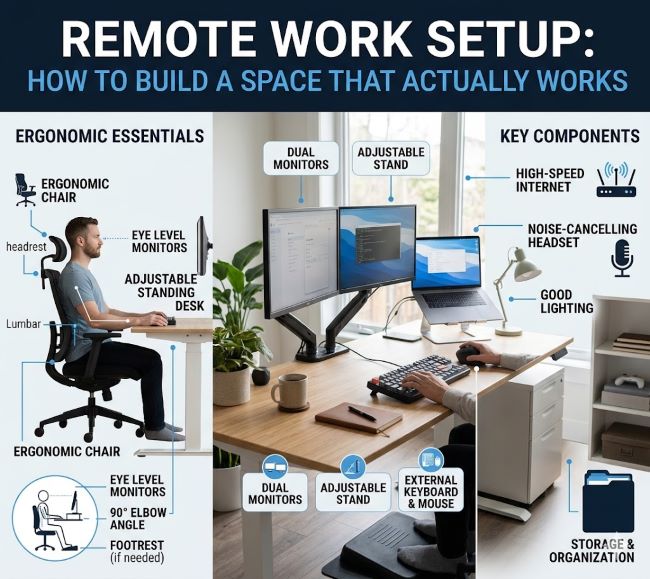
Desk height and space. A standard desk height works for most people, but if you are notably tall or short, an adjustable desk solves a problem that a fixed-height desk cannot. Beyond height, make sure the desk is deep enough for your monitor to sit at a comfortable viewing distance, generally an arm’s length away.
Chair support. This is the single piece of equipment most worth spending on. A chair that supports your lower back, has adjustable height, and lets your feet sit flat on the floor with your knees roughly level with your hips reduces the kind of discomfort that builds up invisibly over months. If a proper office chair is not in the budget yet, a lumbar cushion on an existing chair helps in the meantime.
Standing options. A standing desk converter, which sits on top of an existing desk and lifts a monitor and keyboard to standing height, is a lower-cost way to add some variety to your day without replacing your whole desk setup.
Monitor and Display Setup
Screen setup affects both comfort and productivity more than people often realize.
Monitor height and distance. The top of your monitor should sit roughly at eye level, so you are looking slightly down at the center of the screen rather than tilting your head up or down. A monitor stand, a stack of sturdy books, or an adjustable arm all work for getting the height right.
Second monitor or a larger single display. Working across two windows side by side, like a document and a browser, or code and documentation, is far easier with more screen space. A second monitor or an ultrawide display reduces the constant window switching that breaks focus.
Screen brightness and blue light. Matching your screen brightness to the room around you reduces eye strain. Many displays and operating systems include a warm color mode for evening hours, which can help if screen time extends into the evening.
Keyboard, Mouse, and Input Devices
Laptop keyboards and trackpads work, but they are not designed for full days of typing and clicking.
External keyboard and mouse. Pairing a laptop with an external keyboard and mouse, combined with a laptop stand to raise the screen to eye level, addresses two problems at once: screen height and hand position. Typing on a laptop keyboard at desk height while looking down at a low screen is a common source of neck and wrist strain.
Ergonomic options. Split keyboards, vertical mice, and other ergonomic input devices take some adjustment but can reduce strain for people who type heavily throughout the day. These are worth considering if you notice wrist or hand discomfort, rather than as a default purchase for everyone.
Internet and Connectivity
A remote work setup is only as reliable as the connection behind it.
Wired connection where possible. An ethernet cable from your router to your desk gives a more stable connection than Wi-Fi, particularly for video calls and large file transfers. If running a cable is not practical, a Wi-Fi extender or mesh system can improve signal strength in a home office that sits far from the router.
Backup options. A mobile hotspot on your phone, or knowing the nearest reliable place with internet, gives you a fallback if your main connection drops during something time-sensitive.
Router placement and capacity. Routers tucked away in closets or behind furniture perform worse than routers with some open space around them. If multiple people in the household are on video calls at the same time, checking whether your internet plan’s speed actually supports that load is worth doing before assuming the hardware is the problem.
Audio and Video for Calls
Since video calls are a regular part of most remote roles, audio and camera quality are part of the setup that matters even if they are easy to overlook.
Microphone quality. A laptop’s built-in microphone often picks up keyboard noise, room echo, and background sound. A simple USB microphone or a headset with a built-in mic improves clarity noticeably, and clear audio matters more to how you come across than camera quality does.
Camera position. Raising the laptop or webcam to eye level, the same adjustment that helps with ergonomics, also improves how you appear on camera, avoiding the upward angle that a laptop sitting flat on a desk creates.
Lighting for video calls. Facing a window or a light source, rather than having it behind you, makes a noticeable difference on camera without requiring any special equipment.
Lighting for the Whole Workspace
Lighting affects more than video calls. It affects how tired your eyes feel by the end of the day and even your mood and energy levels.
Natural light. A desk near a window, positioned so light comes from the side rather than directly behind the screen, reduces glare and provides better lighting than most artificial sources.
Task lighting. A desk lamp that can be adjusted helps on darker days or in the evening, and reduces the eye strain that comes from a bright screen in an otherwise dim room.
Avoiding glare. Glossy screens and overhead lights can create reflections that are subtly tiring to look at for hours. Adjusting screen angle or lamp position to reduce glare is a small change that adds up over a full day.
Organizing Cables and Clutter
A messy desk is not just a visual issue. Tangled cables and clutter create small frictions, like spending a minute untangling a charging cable every time you need it, that add up over time.
Cable management. Cable clips, a cable tray under the desk, or simply bundling cables with ties keeps the desk surface clear and makes it easier to clean and rearrange when needed.
Docking stations or hubs. If your laptop connects to multiple peripherals, a single hub or docking station that connects with one cable simplifies the daily routine of setting up and packing away, especially if you share your workspace with other activities.
A defined space for supplies. Even a small drawer or organizer for pens, notebooks, and chargers prevents the slow creep of clutter that makes a desk feel chaotic over time.
Setting Up for Focus
Beyond the physical equipment, a remote work setup includes the environment around your desk.
A defined workspace, even in a small home. Having a specific spot that is “for work,” even if it is a corner of a room rather than a separate office, helps create a mental boundary between work and the rest of your day. This matters more in smaller homes where work and personal life can otherwise blend together constantly.
Noise management. Noise-canceling headphones help in shared spaces or noisy environments, both for focus during work and for clarity during calls. If background noise is unavoidable, a consistent low-level sound, like a fan or white noise, can sometimes mask sudden disruptions more effectively than silence.
Plants and personal touches. A workspace that feels pleasant to be in, with a plant, some personal items, or simply a view of something other than a blank wall, contributes to a more positive working environment over the course of a day.
Temperature, Posture, and Movement
A workspace can have great equipment and still feel uncomfortable if the surrounding conditions are off.
Room temperature. A room that is too cold or too warm affects concentration more than people expect. Sitting still for hours means your body generates less heat than it would moving around an office, so a home office often needs to run slightly warmer than the rest of the house feels comfortable.
Footrests and posture support. If your chair is at the right height for your desk but your feet do not reach the floor comfortably, a footrest closes that gap. Small adjustments like this prevent the kind of slouching that happens gradually when posture is slightly off.
Building in movement. Even a great chair does not solve the problems that come from sitting in one position for too long. Setting a reminder to stand, stretch, or walk for a few minutes every hour counters some of the stiffness that builds up during long stretches of focused work. Some people pair this with a standing desk converter, alternating between sitting and standing through the day.
Eye breaks. Looking at a screen for hours without a break contributes to eye strain regardless of how good the monitor is. A simple habit, looking at something at least 20 feet away for 20 seconds every 20 minutes, gives your eyes a chance to reset.
Software and Digital Setup
A remote work setup is not only physical. The software side affects daily friction just as much.
Reliable communication tools. Whatever platform your team uses for chat, video calls, and file sharing, knowing it well, including shortcuts and notification settings, reduces small daily annoyances. Notification settings in particular are worth reviewing, since constant pings throughout the day fragment focus more than most people realize.
File organization. A consistent system for naming and storing files, whether in cloud storage or locally, saves time that otherwise gets lost searching for things or recreating documents that already exist somewhere.
Backup and security basics. Working from home often means working on a personal network, which may be less secured than an office network. Keeping software updated, using a password manager, and backing up important files regularly are simple habits that prevent larger problems later.
Setting a Budget and Prioritizing
Building out a full remote work setup all at once is not necessary, and for many people it is not realistic. A reasonable approach is to prioritize based on what affects you daily.
If you spend most of the day sitting, the chair is the highest priority. If video calls are frequent, audio and lighting matter more than a second monitor. If your internet connection drops during important calls, that is worth fixing before anything else, regardless of cost.
Buying gradually, starting with whatever causes the most friction right now, spreads out the cost and lets you figure out what you actually need through experience rather than guessing upfront.
Remote Work Beyond the Equipment
A good physical setup solves part of the picture, but remote work brings its own dynamics that equipment alone cannot fix. Communication happens almost entirely through screens, which changes how collaboration feels day to day, and the case for remote work for creatives lays out both the benefits and the challenges that come with that shift, regardless of how good your desk setup is.
Key Takeaways
- A good remote work setup focuses on removing daily friction and discomfort, not on buying the most expensive equipment available.
- The desk and chair are the foundation. A supportive chair is the single piece of equipment most worth investing in first.
- Monitor height should put the top of the screen roughly at eye level, and a second monitor or larger display reduces constant window switching.
- An external keyboard, mouse, and laptop stand address both screen height and hand position at the same time.
- A wired internet connection is more reliable than Wi-Fi for video calls, with a mobile hotspot as a useful backup.
- Audio quality matters more than camera quality for how you come across on video calls, and a simple external microphone makes a noticeable difference.
- Natural light positioned to the side, plus adjustable task lighting, reduces eye strain and improves video call quality.
- Cable management and a defined space for supplies prevent clutter from building up over time.
- A defined workspace, noise management, and small personal touches support focus, especially in smaller homes.
- Prioritize purchases based on what causes the most daily friction, and build out the setup gradually rather than all at once.