Computer Virus Prevention: A Complete Guide to Protecting Your Devices
The frustrating thing about a computer infection is that you usually do not see it coming. One careless click on a bad link or a fake download, and suddenly your machine is slow, your files are locked, or your accounts are compromised. Good computer virus prevention is far cheaper and easier than cleaning up after the fact, and the core ideas are simpler than the jargon makes them sound. This guide walks through what you are actually protecting against, the tools that defend your devices, and the everyday habits that keep threats out.
You do not need to be technical to stay safe. Most infections rely on a moment of inattention or an outdated system, both of which you can guard against with a few reliable practices. By the end of this guide, you will understand the threats, know how to set up your defenses, and be able to scan for and remove problems if they ever slip through.
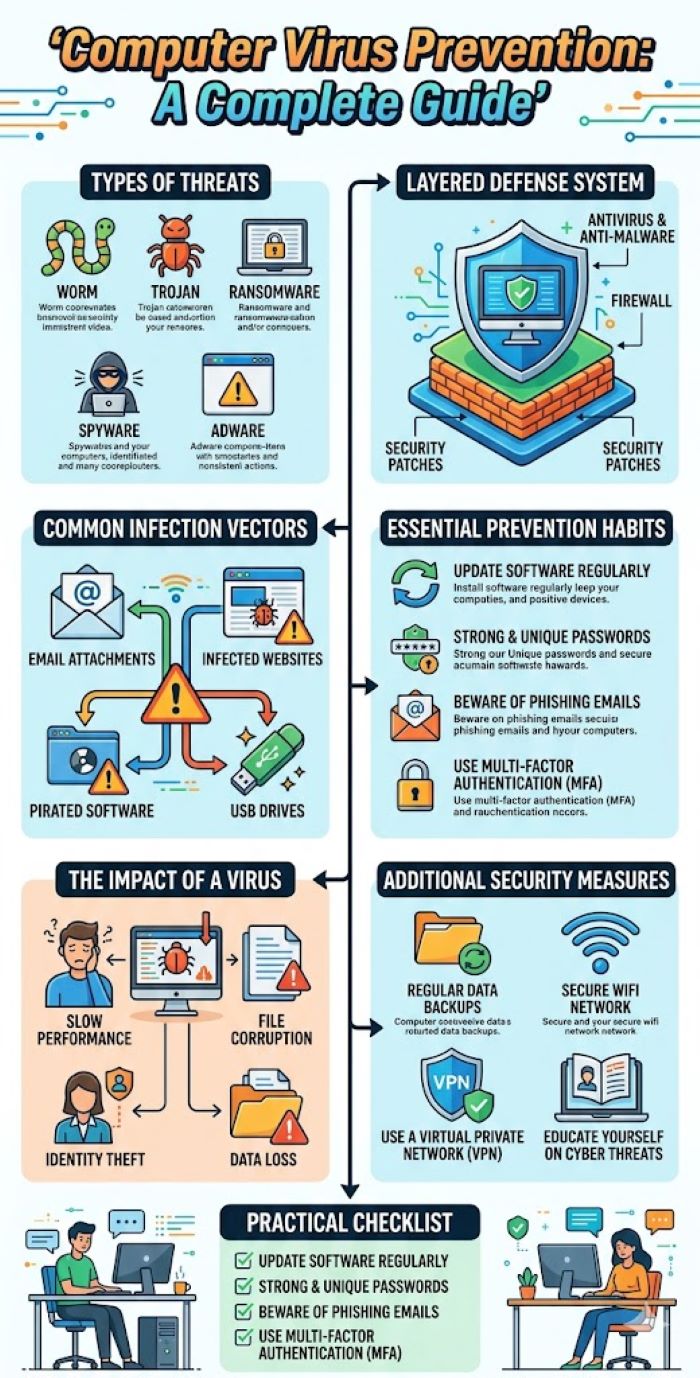
What Is Malware?
Let us start with the term you will see everywhere. What is malware, exactly? It is short for malicious software, an umbrella term for any program written to harm, exploit, or gain unauthorized access to a device or network. So the simplest answer is that it is any software built to do something you did not want and did not approve.
A clear malware definition helps because the word covers many different threats, not just one. The malware definition includes viruses, worms, trojans, ransomware, spyware, and more, each with its own method and goal. Some are designed to steal information, some to lock your files for ransom, some to spy on your activity, and some simply to spread and cause chaos. Understanding this malware definition matters for prevention, since different threats sneak in through different doors, and knowing the doors helps you lock them.
The key takeaway is that malware is deliberate. Unlike a random glitch, malicious software is created on purpose to do harm or make money for whoever wrote it. That intent is what makes it dangerous, and it is exactly why a thoughtful defense matters so much.
The Main Types of Threats
To defend your device, it helps to know what you are defending against. The threats fall into several recognizable categories, and each behaves a little differently.
A computer virus is the classic example, a program that attaches itself to a legitimate file and spreads when that file is shared or opened. Like a biological virus, it needs a host and replicates from one place to another, often damaging files or stealing data along the way. The reason people still talk about these decades later is that the basic concept, malicious code that copies and spreads, remains at the heart of many modern threats.
Beyond the classic virus, other common threats include:
- Worms, which spread on their own across networks without needing a host file
- Trojans, which disguise themselves as legitimate software to trick you into installing them
- Ransomware, which locks or encrypts your files and demands payment to release them
- Spyware, which secretly monitors your activity and harvests information
- Adware, which floods you with unwanted ads and can track your browsing
Modern computer viruses and other threats often blend these behaviors, which makes them harder to spot. A single infection might steal data, spread itself, and display ads all at once. This is why broad protection matters more than worrying about any one category. The good news is that the same core defenses guard against nearly all of them.
Computer Security Basics
Before the specific tools, it helps to understand the foundation. Good computer security rests on a few principles that apply no matter what device you use or what threats are circulating.
The first principle is layers. No single tool catches everything, so strong protection combines several defenses: protective software, system updates, cautious habits, and good backups. If one layer misses a threat, another catches it. The second principle is keeping your software current, since most attacks exploit known flaws that updates have already fixed. An unpatched system is the easiest target there is.
The third principle is the human factor. Many infections succeed not because of clever code but because someone was tricked into clicking, downloading, or sharing something they should not have. That means your own habits are one of the most important parts of your defense. Technology can do a lot, but no program fully protects a user who hands over access willingly. Treating security as a mix of good tools and careful behavior is the mindset that keeps devices safe over the long run.
Computer Virus Prevention: The Core Strategies
Now to the heart of it. Effective computer virus prevention comes down to a handful of strategies that, used together, block the vast majority of threats. None of them is complicated, and most take minutes to set up.
Keep everything updated. Your operating system, browser, and applications all receive security patches, and installing them promptly closes the holes attackers rely on. Turning on automatic updates means you do not have to remember. This single habit is one of the most powerful forms of computer virus prevention available, since unpatched software is the most common way in.
Use protective software and keep it running. A reputable security program scans for threats in real time and blocks them before they take hold, which we will cover in detail next. Pair that with a firewall, which most operating systems include and enable by default, to control what connects to your device.
Be careful what you click and download. A huge share of computer virus prevention is simply not opening the door. Avoid suspicious links, unexpected attachments, and downloads from untrusted sites, since these are how most threats arrive. Back up your important files regularly to an external drive or cloud service, so that even a worst-case infection like ransomware cannot cost you everything. Strong, unique passwords and two-factor authentication round out a solid computer virus prevention plan by protecting the accounts that attackers often target first. Together, these layered habits make up the practical backbone of keeping any device safe.
Antivirus and Malware Protection Tools
Software is the part of your defense that works around the clock, so choosing and using it well matters. Good malware protection scans files, monitors activity, and blocks threats automatically, catching things you would never notice on your own.
Modern anti virus programs do far more than the name suggests. The label is a holdover from the early days, but today these tools defend against the whole range of threats, not just classic ones. A good anti virus suite includes real-time scanning, web protection that warns you away from dangerous sites, and automatic updates to its threat database so it recognizes new dangers. When evaluating virus protection, look for these features rather than just a familiar brand name.
You have two broad options for protective software. Built-in tools, like the security software included with modern operating systems, offer solid baseline protection at no extra cost and are enough for many users. Third-party security suites add extra features like password managers, VPNs, and more advanced controls. Either way, the most important thing is that your virus protection is turned on, kept updated, and actually running, since the best software in the world does nothing if it is disabled. For most home users, reliable built-in protection plus careful habits provides strong defense without any extra spending.
Understanding the Antimalware Service Executable
If you use Windows, you may have noticed a process called the Antimalware Service Executable in your Task Manager, sometimes using a lot of your computer’s resources. It is worth understanding what this is, since it confuses many people.
It is the background process for Microsoft Defender, the security software built into Windows. It runs constantly to scan files and monitor your system for threats, which is exactly what you want it to do. Seeing it in Task Manager is normal and a sign your protection is active. The reason it sometimes uses high CPU or disk is that it is performing a scan or checking a file you just opened.
If it is slowing your machine noticeably, you can adjust when scheduled scans run so they happen during off-hours rather than while you work. What you should not do is disable it, since turning it off leaves your system unprotected. The high resource use is usually temporary and tied to active scanning, so it is generally better to schedule scans for convenient times than to switch off a core part of your defense.
How to Scan for Malware
Even with real-time protection running, periodic manual scans are good practice, and knowing how to scan for malware lets you check your system whenever something feels off. A scan inspects your files and processes against a database of known threats and flags anything suspicious.
The process is straightforward. On Windows, open your security software, often Microsoft Defender, and choose a scan option. A quick scan checks the most commonly infected areas in a few minutes, while a full scan examines your entire system and takes longer but is more thorough. On a Mac or with third-party software, the process is similar: open the security app and run a scan. Many programs also let you right-click a specific file or folder to scan it on demand.
Run a scan when your device behaves strangely, after downloading something you are unsure about, or simply on a regular schedule for peace of mind. A quick scan turns a vague worry into a concrete action you can take in minutes. If a scan finds something, your software will usually offer to quarantine or remove it, which leads to the next step.
How to Remove Malware
If something does slip through, do not panic. Knowing how to remove malware means a problem that feels catastrophic is often fixable in a short time. The steps are reliable and work for most common infections.
First, disconnect from the internet to stop the threat from spreading or sending out your data. Next, run a full scan with your security software, which will detect and offer to remove or quarantine what it finds. Booting into safe mode, which loads only essential system files, can help when an infection resists removal, since many threats cannot run in that limited environment. It also means using a reputable dedicated removal tool if your main software struggles, since a second scanner sometimes catches what the first misses.
After cleaning the infection, change your important passwords from a device you know is clean, since some threats steal credentials. Then update your software and run another scan to confirm the system is clear. For severe infections that resist every attempt, the safest path is to back up your essential files, fully reset or reinstall your operating system, and restore from a clean backup. While removal is valuable, prevention remains far easier than cleanup, which is why the habits in this guide matter so much.
How Can You Protect Your Home Computer?
Pulling it together, a common question is straightforward: how can you protect your home computer in a way that actually sticks? The answer combines the tools and habits already covered into a simple, repeatable routine that fits normal life.
Start with the foundation. What protects your home computer with the least effort? Turn on automatic updates, keep your security software running, and enable your firewall, all of which work in the background once set up. These take a few minutes to configure and then protect you continuously without further thought.
Next, build the habits. The most reliable defense is to be cautious online: think before you click, avoid suspicious downloads, use strong unique passwords with a password manager, and turn on two-factor authentication for important accounts. Back up your files regularly so a worst-case scenario is an inconvenience rather than a disaster. For households, it helps to make sure everyone who uses the device understands the basics, since a single careless click by any user can undo good protection. Setting up these layers once gives you defense that quietly works every day.
Everyday Safe Habits
Tools do a lot, but daily behavior is what closes the gaps. A few simple habits dramatically lower your risk.
Be skeptical of unexpected messages. Phishing emails and texts that create urgency, like a warning that your account will be closed, are designed to make you click without thinking. Slow down and verify before acting. Avoid pirated software and questionable download sites, which are common sources of hidden threats. Only download apps and programs from official stores and trusted developers.
A few more habits help. Use a standard user account rather than an administrator account for daily tasks, which limits the damage a threat can do. Be careful on public Wi-Fi, where a VPN adds a layer of protection. Lock your devices with a password or biometric, and never leave them unattended in public. None of these habits is difficult, and together they form a strong human layer of defense that complements your software. The most secure setup is one where good tools and careful habits reinforce each other.
Recognizing the Warning Signs
Knowing the symptoms of an infection helps you act fast before it spreads. Several signs commonly point to a problem worth investigating.
A sudden, unexplained slowdown is one of the most frequent clues, since malicious programs consume resources in the background. Frequent crashes, freezes, or strange error messages can also signal trouble. Watch for unexpected pop-up ads, especially ones that appear when your browser is closed, and for your browser homepage or search engine changing without your input. Programs you do not remember installing, settings that change on their own, and your device sending emails or messages you did not write are all red flags.
Running out of storage suddenly, your fan running constantly, or your security software being mysteriously disabled are further warning signs. If you notice any of these, run a scan promptly. Catching an infection early makes it far easier to remove and limits the harm it can do, so paying attention to these signals is part of good defense.
Protecting Phones and Other Devices
The advice so far focuses on computers, but phones, tablets, and smart home gadgets need protection too. These devices hold just as much sensitive information, and attackers increasingly target them.
For smartphones and tablets, the same principles apply. Keep the operating system and apps updated, since updates patch security flaws. Only install apps from official stores, where submissions are screened, rather than from random websites. Review the permissions an app requests, and be suspicious if a simple game wants access to your contacts or messages. Avoid clicking links in unexpected texts, a common delivery method for malicious software aimed at phones.
Smart home devices, from cameras to speakers, are easy to overlook. Change their default passwords immediately, since factory defaults are widely known and easily exploited. Keep their firmware updated, and put them on a separate guest network when your router allows it, so a compromised gadget cannot reach your main computer. Treating every connected device as part of your overall security, rather than just your computer, closes gaps that attackers love to find.
Common Myths About Staying Safe
A few persistent myths leave people more exposed than they realize, so it helps to clear them up.
The first myth is that only careless people get infected. In reality, threats have grown sophisticated enough to fool even cautious, experienced users, which is why layered defenses matter for everyone. The second is that a particular brand of computer cannot get infected. No mainstream device is immune, so the same protective habits apply across all of them.
Another common myth is that you will always notice malware right away. Many modern threats are designed to run quietly, stealing data or resources without obvious symptoms, which is exactly why periodic scans and good prevention matter even when nothing seems wrong. A final myth is that one strong tool is enough on its own. No single program catches everything, so combining protective software with updates, backups, and careful habits is what actually keeps you safe. Letting go of these myths is itself a step toward better protection.
Frequently Asked Questions
Do I need to pay for security software? Not necessarily. The protection built into modern operating systems is solid for most home users when kept updated. Paid suites add extra features, but careful habits matter more than the brand.
Is the Antimalware Service Executable a virus? No. It is the legitimate background process for Microsoft Defender on Windows. Seeing it run is normal and means your protection is active, though it can use resources during scans.
How often should I scan my computer? Real-time protection runs constantly, but a manual full scan once a week or whenever your device acts strangely is good practice for extra peace of mind.
Can a Mac get infected? Yes. While historically targeted less than Windows, Macs are not immune, so the same prevention principles, updates, careful habits, and protective software apply.
What should I do if I get ransomware? Disconnect from the internet, do not pay the ransom if avoidable, and seek help from a reputable resource. Good backups are the best defense, since they let you restore files without paying.
Will antivirus slow down my computer? Modern security software is designed to run efficiently. Brief slowdowns usually happen during active scans, which you can schedule for off-hours if needed.
Is free antivirus safe to use? Reputable free options, including built-in tools, provide genuine protection. Be cautious of unknown free programs that claim to find many threats and then demand payment, as some of those are scams.
Key Takeaways
- Computer virus prevention is far easier and cheaper than cleaning up after an infection, and the core strategies are simpler than the jargon suggests.
- The answer to what is malware is malicious software, an umbrella term whose definition covers viruses, worms, trojans, ransomware, spyware, and more, each built deliberately to cause harm.
- A computer virus is the classic threat that attaches to a host file and spreads, and modern versions often blend several harmful behaviors at once.
- Strong computer security rests on layers, current software, and careful habits, since no single tool catches everything and many infections rely on tricking the user.
- The core of computer virus prevention is keeping software updated, running protective software and a firewall, clicking carefully, backing up files, and using strong passwords.
- Modern anti virus and malware protection tools defend against the whole range of threats, and the most important thing is that your virus protection stays on, updated, and running.
- The Windows background process you may see using resources is the legitimate Microsoft Defender scanner, so schedule its scans rather than disable it.
- Knowing how to scan for malware means running quick or full scans through your security software whenever your device acts oddly or on a regular schedule.
- Knowing how to remove malware involves disconnecting, scanning in safe mode, using a removal tool if needed, changing passwords, and resetting the system in severe cases.
- The practical answer to how can you protect your home computer is to set up automatic updates and protective software once, then maintain careful daily habits that everyone in the household follows.