Netflix Code NW-2-5
You settle in for a movie night, open Netflix, and instead of your watch list you see a message: “Netflix has encountered an error. Retrying in X seconds,” followed by NW-2-5. You wait, it retries, and nothing changes.
Netflix code NW-2-5 is one of the most common errors on TVs, game consoles, and streaming devices. The good news is that it’s almost always a network issue, and in most cases you can fix it yourself in a few minutes.
This guide explains what the error means, why it happens, and every fix in the order Netflix recommends, plus device specific steps for PlayStation and Xbox.
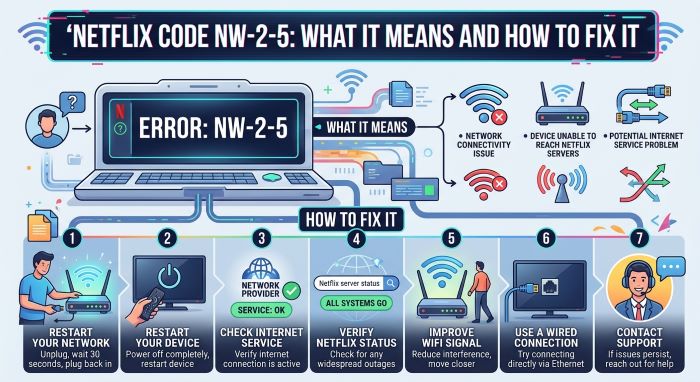
What Does Netflix Code NW-2-5 Mean?
According to Netflix, error code NW-2-5 means your device took too long to connect to Netflix. In plain terms, your TV, console, or streaming stick couldn’t reach Netflix’s servers fast enough.
It usually points to a problem with:
- Your home internet connection
- Your Wi-Fi signal
- Your router or modem
- Network settings like DNS
- A public or shared network that blocks or slows streaming
It’s rarely a problem with your Netflix account, so you don’t need to change your password or payment details.
Where You’ll See Netflix Error Code NW-2-5
The netflix error code nw-2-5 typically appears on:
- Smart TVs
- PlayStation 4 and PlayStation 5
- Xbox One, Xbox Series X|S, and Xbox 360
- Streaming devices like Roku, Fire TV, and Chromecast
- Blu-ray players and set top boxes
You might see a message such as “Netflix has encountered an error” or “Netflix is unable to connect,” along with the code.
Quick Fix Checklist
When Netflix code NW-2-5 pops up, try these quick steps first:
| Step | What to Do | Time Needed |
|---|---|---|
| 1 | Select Try Again on the error screen | Seconds |
| 2 | Check if other apps can connect | 1 minute |
| 3 | Restart your device | 1 minute |
| 4 | Restart your modem and router | 2 to 3 minutes |
| 5 | Move closer to your router or use ethernet | A few minutes |
| 6 | Set DNS to automatic (consoles) | 2 minutes |
| 7 | Contact your internet provider | Varies |
How to Fix Netflix Code NW-2-5: Step by Step
Step 1: Try Again
Sometimes Netflix code NW-2-5 is just a brief hiccup. Select Try Again on the error screen. If Netflix loads, you’re done.
Step 2: Check Your Internet Connection
On the error screen, select More Details, then Check your network if the option appears. If you see a red X, your device likely isn’t connected to the internet.
You can also:
- Open another app that uses the internet, like YouTube.
- Run your device’s built in network test.
- Check if other devices in your home can get online.
If nothing on the device connects, the problem is your network, not Netflix.
Step 3: Check Public or Shared Networks
If you’re on hotel, dorm, apartment, or office Wi-Fi, the network may be overloaded or set up to block streaming. Contact the network owner or try another connection.
Cellular data, satellite internet, and mobile hotspots can also be too slow for steady streaming. Netflix generally needs at least 3 Mbps for standard quality, and more for HD and 4K.
Step 4: Restart Your Device
- Unplug your TV, console, or streaming device from power.
- Wait at least 15 seconds. If you’re using a cable box, wait about 3 minutes.
- Plug it back in and turn it on.
- Open Netflix and try again.
A full power cycle clears temporary glitches that a regular restart might miss.
Step 5: Restart Your Home Network
- Turn off the device you’re streaming on.
- Unplug your modem and router from power.
- Wait 30 seconds.
- Plug in the modem and wait for it to fully reconnect, then plug in the router.
- Wait about a minute, then turn your device back on and try Netflix.
Some equipment takes a few minutes to fully reconnect, so be patient.
Step 6: Improve Your Wi-Fi Signal
Weak Wi-Fi is a common cause of Netflix code NW-2-5. To improve it:
- Move the router to a central spot, off the floor, and away from metal objects and other wireless devices like cordless phones and microwaves.
- Move your device closer to the router if possible.
- Use an ethernet cable for a direct, stable connection, especially for TVs and consoles.
- Add a Wi-Fi extender or mesh system if your home has dead zones.
- Ask your ISP about firmware updates or a newer router.
Step 7: Reset Network Settings
If you’ve changed your network settings, such as setting up a VPN, a proxy, or custom DNS, restore them to default. Custom settings can interfere with how your device reaches Netflix.
Step 8: Set DNS to Automatic (PlayStation and Xbox)
On game consoles, incorrect DNS settings often trigger code NW-2-5 Netflix errors. Here’s how to fix them.
PlayStation 4 and PlayStation 5:
- Go to Settings, then Network.
- Select Set Up Internet Connection.
- Choose your connection type (Wi-Fi or LAN cable).
- Choose Custom if prompted, then set:
- IP Address Settings: Automatic
- DHCP Host Name: Do Not Specify
- DNS Settings: Automatic
- MTU Settings: Automatic
- Proxy Server: Do Not Use
- Select Test Internet Connection, then try Netflix.
Xbox One and Xbox Series X|S:
- Press the Xbox button to open the guide.
- Go to Settings, then General, then Network Settings.
- Select Advanced Settings, then DNS Settings.
- Choose Automatic.
Xbox 360:
- Go to Settings, then System Settings, then Network Settings.
- Select your network, then Configure Network.
- Choose DNS Settings, then Automatic.
- Turn the console off and back on.
Step 9: Contact Your Internet Service Provider
If none of the steps above work, contact your ISP. Ask them to:
- Check for local outages.
- Restart your connection from their end.
- Look at your router and modem settings.
- Confirm your device can reach Netflix’s servers.
Tell them whether the problem affects one device or all devices, and whether you use Wi-Fi or a cable. Before you hang up, test your speed at fast.com, Netflix’s own speed test, and try Netflix again.
Device Specific Tips
Smart TVs
- Check for a system software update in your TV’s settings.
- Update or reinstall the Netflix app if your TV allows it.
- Try connecting with an ethernet cable.
Roku, Fire TV, and Chromecast
- Restart the device from its settings menu or unplug it.
- Check for software updates.
- Remove and reinstall the Netflix app.
- Check that the streaming stick isn’t overheating or blocked behind the TV.
Game Consoles
- Make sure the console’s system software is up to date.
- Test your internet connection from the network settings menu.
- Set DNS to automatic, as shown above.
Why Does Netflix Error Code NW-2-5 Keep Coming Back?
If the netflix error code nw-2-5 returns often, there may be a deeper issue:
- Unstable Wi-Fi: Frequent drops or interference.
- Overloaded network: Too many devices streaming or downloading at once.
- Old router: Older equipment may struggle with modern streaming demands.
- ISP problems: Ongoing outages or throttling.
- VPN or proxy: These can cause connection problems with streaming services.
Fixing the root cause, such as upgrading your router or switching to a wired connection, can prevent the error from coming back.
Related Netflix Network Errors
Netflix has several similar codes that point to network problems:
| Error Code | Typical Meaning |
|---|---|
| NW-2-5 | Device took too long to connect |
| NW-4-7 | Network or data refresh issue |
| NW-1-19 | Device couldn’t reach Netflix |
| NW-3-6 | Network connection issue |
The same basic steps, checking your connection, restarting your devices, and improving your network, help with most of these.
Frequently Asked Questions
Is code NW-2-5 Netflix’s fault? Usually not. It typically points to a problem with your internet connection or network settings. If Netflix is down, you’ll often see reports on social media and outage tracking sites.
Will resetting my Netflix account fix it? No. Code NW-2-5 is a network issue, not an account problem.
Can a VPN cause Netflix code NW-2-5? It can. VPNs and proxies can interfere with your connection to Netflix. Turn them off and try again.
How fast does my internet need to be for Netflix? Netflix recommends at least 3 Mbps for standard definition, about 5 Mbps for HD, and around 15 Mbps for 4K.
Final Thoughts
Netflix code NW-2-5 is frustrating, but it’s usually easy to fix. Start by retrying, then check your internet connection, restart your device and router, improve your Wi-Fi signal, and set DNS to automatic on game consoles. If the problem continues, contact your internet provider. In most cases, you’ll be back to streaming within minutes.
Key Takeaways
- Netflix code NW-2-5 means your device took too long to connect to Netflix, which usually points to a network problem.
- It’s common on smart TVs, PlayStation, Xbox, and streaming devices like Roku and Fire TV.
- Start by selecting Try Again and checking whether other apps can connect.
- Restart your device for at least 15 seconds and power cycle your modem and router for 30 seconds.
- Improve Wi-Fi by moving the router, getting closer, or using an ethernet cable.
- On PlayStation and Xbox, set DNS to automatic, which often fixes the error.
- Turn off VPNs or custom network settings, and contact your ISP if the problem continues.