How to Use PS5 Controller on PC: The Complete 2026 Guide
The PS5 DualSense is genuinely one of the best controllers available right now, and the good news is you don’t have to stay on your couch to enjoy it. Knowing how to use PS5 controller on PC is easier than most people expect. Windows 10 and Windows 11 both recognise the DualSense natively, Steam has built-in support, and getting it working takes under five minutes in most cases. This guide covers every connection method, the right software for different situations, how to get adaptive triggers and haptic feedback working, and how to connect the PS4 controller too if you’re on older hardware.
What You Need Before You Start
Before diving into setup, confirm you have these basics covered:
- A PS5 DualSense controller (standard) or DualSense Edge (the pro version with additional paddles and swappable parts)
- A PC running Windows 10 or Windows 11
- For wired connection: a USB-C to USB-A cable, or USB-C to USB-C if your PC has a USB-C port
- For wireless connection: built-in Bluetooth on your PC, or a USB Bluetooth adapter (Bluetooth 4.0 minimum, Bluetooth 5.0 recommended for better range and lower latency)
- Steam installed (optional but recommended for the easiest setup)
One important note before anything else: make sure your DualSense firmware is up to date. Outdated firmware causes connection issues and missing features. You can update it by connecting the controller to your PS5 via USB and checking for updates in the PS5 settings menu.
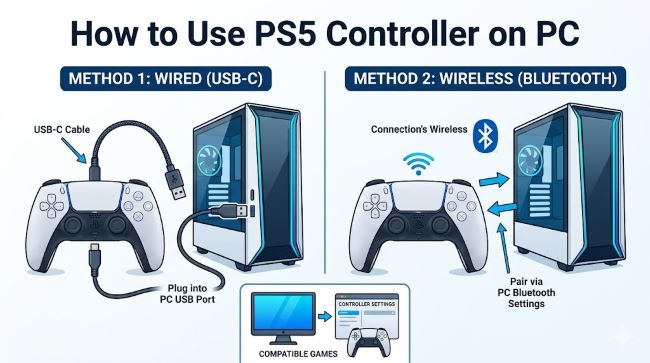
Method 1: Wired USB Connection (Fastest, Zero Setup)
The wired connection is the simplest way to connect PS5 controller to PC and gives you the lowest input latency. It’s the best choice for competitive gaming.
Steps:
- Plug a USB-C to USB-A cable into the controller and into a USB port on your PC.
- Windows plays the “device connected” sound and automatically recognises the DualSense as a gamepad.
- No driver download needed. No software installation required for basic use.
The controller is ready to use in any game that supports standard gamepads. For Steam games, it will be detected immediately. For non-Steam games, see the DS4Windows section below.
What works over USB:
- Standard button and stick input in all compatible games
- Adaptive triggers and haptic feedback in supported PC games
- Built-in microphone and speaker (Windows treats the controller as an audio device)
- Charging the controller while playing
The USB method delivers the full DualSense feature set. For haptic feedback and adaptive triggers specifically, USB is required for the most reliable and consistent performance, even in games that technically support these features over Bluetooth.
Method 2: How to Connect PS5 Controller to PC via Bluetooth
Wireless is the more comfortable option for couch gaming or setups where cables are inconvenient. How to pair PS5 controller to PC over Bluetooth takes about 60 seconds.
Steps:
- Press and hold the PS button and the Create button (top left, above the D-pad) simultaneously for about three seconds until the light bar flashes rapidly. This puts the controller into pairing mode.
- On your PC, go to Settings > Bluetooth & devices > Add device > Bluetooth.
- Select Wireless Controller from the device list.
- Pairing completes in seconds. The light bar shifts to a steady colour to confirm the connection.
On future connections, simply press the PS button for two seconds and the controller reconnects automatically without going back to Windows Settings.
If your PC has no built-in Bluetooth: You need a USB Bluetooth adapter, also called a Bluetooth dongle. A Bluetooth aux adapter in the form of a small USB dongle handles this. Any Bluetooth 4.0 or higher dongle works. A Bluetooth 5.0 model is the better choice for reduced latency and better wireless range. Name-brand options from Asus, TP-Link, or the official Sony Bluetooth adapter produce more reliable results than generic cheap dongles, which can introduce input delay or connection drops.
Bluetooth trade-offs to know:
- Basic rumble and standard input work well over Bluetooth
- Haptic feedback works over Bluetooth in most supported games
- Adaptive triggers function over Bluetooth, but a small number of titles require USB for full implementation
- If the controller connects to your PS5 instead of your PC (when the console is nearby and powered on), turn off the PS5 or temporarily remove the DualSense from the PS5’s Bluetooth devices list
Method 3: Steam Setup (Recommended for Steam Library)
Steam has the best built-in DualSense support on PC and is the easiest path for anyone playing from the Steam library. How to connect PS5 controller to PC through Steam takes two minutes.
Steps:
- Open Steam and go to Steam > Settings > Controller.
- Enable PlayStation Controller Support (or PlayStation Configuration Support in older Steam versions).
- Connect your DualSense via USB or Bluetooth.
- Steam detects it automatically and shows it in the controller list.
With Steam Input active, you get:
- Per-game button remapping
- Gyroscope configuration
- Touchpad as mouse or extra buttons
- Automatic button prompt switching (the on-screen prompts show PlayStation symbols instead of Xbox symbols)
- Adaptive trigger and haptic feedback support in compatible games
Games with full DualSense support on PC (as of early 2026): Death Stranding Director’s Cut, Returnal, Spider-Man Remastered, Spider-Man: Miles Morales, God of War Ragnarök, The Last of Us Part I, Horizon Forbidden West, Silent Hill 2, Final Fantasy XVI, Final Fantasy VII Rebirth, Metro Exodus Enhanced Edition, Deathloop, Ratchet & Clank: Rift Apart, and Sackboy: A Big Adventure.
Important: For some of these titles, you need to disable Steam Input for that specific game to get native DualSense haptics. If Steam Input is enabled, it may override the game’s own implementation. Check each game’s settings menu for a dedicated DualSense or haptic option.
Optimising your setup for competitive gaming involves getting every layer right, from the controller connection method to per-game configuration in Steam. Small adjustments compound into a noticeably better experience.
Method 4: DS4Windows and DualSenseX (Non-Steam Games)
For games outside Steam, the controller may not be recognised correctly, or may show Xbox button prompts that don’t match the DualSense layout. Two tools fix this.
DS4Windows is a free application that makes your PC treat the DualSense as an Xbox controller (XInput), which virtually every PC game recognises natively. It runs in the background with minimal resource use.
DualSenseX (DSX) goes further: it unlocks adaptive triggers and haptic feedback for non-Steam games and supports 20 different adaptive trigger modes. It’s the better choice if you want the full DualSense experience in games that don’t natively support it.
Both tools are available online as free downloads. Keeping your gaming software tools updated and organised alongside your controller setup ensures you don’t run into compatibility issues when a new game or Windows update drops.
DualSense Edge: Does It Work the Same Way on PC?
The DualSense Edge is Sony’s pro controller, featuring swappable stick caps, back paddles, adjustable trigger stops, and more button remapping options than the standard controller. On PC, it connects and pairs exactly the same way as the standard DualSense over both USB and Bluetooth.
The additional buttons and paddles are configurable through DS4Windows and DualSenseX. Steam Input also recognises the Edge and lets you assign the back paddles to any function per game. The Edge does not require any special drivers or separate software.
The DualSense Edge is worth the premium if you want hardware-level remapping that persists independently of software, or if you play genres where back paddles are practically useful, like fighting games, racing games, or shooters where you need to jump and aim simultaneously.
How to Connect PS4 Controller to PC
If you’re still on a PS4 controller, how to connect PS4 controller to PC follows a very similar process, with one key difference: the DualShock 4 is not natively recognised by Windows as a plug-and-play gamepad the way the DualSense is. You need DS4Windows for the PS4 controller in all scenarios.
Steps:
- Download and install DS4Windows.
- Connect the DualShock 4 via USB or Bluetooth (same pairing process: PS button + Share button simultaneously until the light bar flashes).
- DS4Windows detects it and emulates an Xbox controller.
- Launch your game. The DS4 now works as a standard gamepad.
Over Bluetooth, the DualShock 4 requires Bluetooth 2.1 EDR or higher. Most modern Bluetooth adapters meet this requirement.
Can You Use a PS5 Controller on a PS4?
Can you use a PS5 controller on a PS4? The short answer is yes, but with significant limitations. Sony officially supports the DualSense on PS4, but only for playing PS4 games through Remote Play on a PC or mobile device, not for direct use on the PS4 console itself.
If you plug a DualSense directly into a PS4 via USB, the PS4 will not accept it for gameplay. The PS4 recognises the DualShock 4 exclusively for standard gaming. The DualSense’s advanced features, adaptive triggers, haptic feedback, and the PS5-specific button layout, are not supported on PS4 hardware.
How to Connect PS5 Controller to PS5 Without a Cord
How to connect PS5 controller to PS5 without cord after it’s been paired to a PC:
- Turn off your PC’s Bluetooth or set it to non-discoverable.
- Press the PS button on the DualSense.
- If the PS5 is on and in range, the controller reconnects to it automatically.
If the controller does not automatically reconnect (because it’s been paired to multiple devices and the PS5 slot has changed), connect it to the PS5 via USB, let it register, then unplug. From that point, pressing the PS button wirelessly reconnects to the PS5. The DualSense supports up to four device pairings stored in slots, and pressing the PS button reconnects to the most recently used device. Advanced hardware features like multi-device pairing and haptic rendering are increasingly handled through software layers that require careful configuration to unlock fully.
Troubleshooting Common Issues
Controller not recognised by a game: Try Steam first. Even for non-Steam games, launching them through Steam (Add Non-Steam Game) gives the DualSense’s Steam Input layer a chance to handle compatibility. If that doesn’t work, run DS4Windows.
Bluetooth connection drops: Move closer to the Bluetooth adapter, or use a USB extension cable to position the adapter near the controller. Disable other nearby Bluetooth devices that may cause interference. Upgrade to a Bluetooth 5.0 adapter if you’re using an older one.
Controller audio routes to the controller speaker: Go to Settings > Sound and set your preferred output device as default. Windows sometimes selects the controller’s built-in speaker when it’s connected.
Stick drift: Increase dead zone in Steam Input or DS4Windows settings to compensate for mild drift. For a permanent fix, the sticks need physical replacement.
Wrong button prompts in games: Some games show Xbox button labels regardless of the connected controller. DS4Windows can help by presenting the DualSense as an Xbox controller while you manage the mapping yourself. Per-game Steam Input profiles with correct PlayStation prompts also solve this for Steam titles.
Key Takeaways
- How to use PS5 controller on PC: plug in via USB-C and it works immediately on Windows 10/11. No drivers needed for basic use.
- How to connect PS5 controller to PC via Bluetooth: hold PS + Create until the light bar flashes, then pair through Windows Bluetooth settings.
- How to pair PS5 controller to PC without built-in Bluetooth: use a USB Bluetooth adapter (Bluetooth 5.0 recommended).
- Steam is the easiest path for Steam library games. Enable PlayStation Controller Support in Steam settings and your DualSense is fully configured.
- DS4Windows handles non-Steam game compatibility. DualSenseX unlocks adaptive triggers and haptic feedback for non-Steam titles.
- The DualSense Edge connects and configures identically to the standard DualSense on PC.
- How to connect PS4 controller to PC: requires DS4Windows. The DualShock 4 is not natively recognised by Windows without it.
- Can you use a PS5 controller on a PS4: only via Remote Play, not for direct gameplay on the PS4 console.
- How to connect PS5 controller to PS5 without cord after PC use: press the PS button with the PS5 powered on, or reconnect once via USB to reset the priority slot.
- Bluetooth aux adapter dongles fix the no-built-in-Bluetooth problem for under $15. Choose Bluetooth 5.0 for the best results.